 Rank One Pro
Rank One Pro
Rank One Pro
This tutorial explains how to add sports and activities to a student's profile using the mobile app. Before you begin, you must have already claimed a student in your account. Once claimed, you can expand the student's form area and add any sports or activities that apply to them.
Open the Rank One Pro mobile app and log in with your account credentials. Once logged in, you'll see your dashboard with any students you've already claimed.
From your dashboard, tap on the student profile for whom you want to add sports or activities. This will open their student profile page.
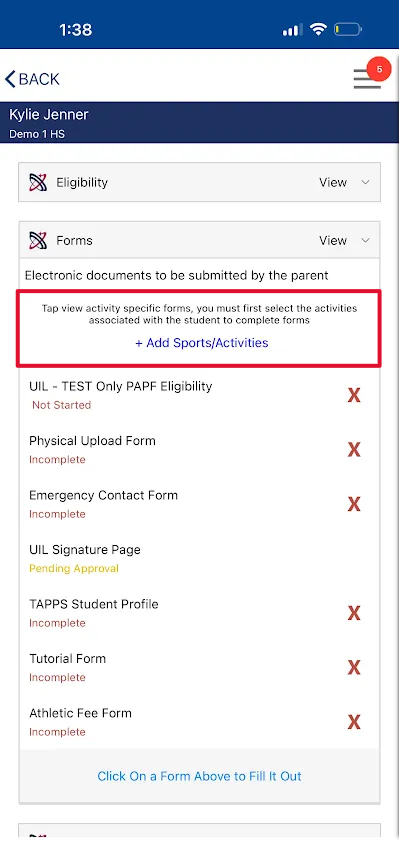
On the student profile page, look for the expandable form section. Tap the expand button (usually indicated by a down arrow or plus icon) to reveal additional options and fields for the student.
Tap the + Add Sports/Activities button to open the list of available sports and activities for your school.
From the list that appears, select all sports or activities that apply to your student. You can select multiple items by tapping each one. Once you've made your selections, confirm or save your changes.
Tap the Save or Confirm button to save the sports and activities you've added to the student's profile. The changes will be reflected immediately in the student's profile.