This tutorial explains how to add, edit, and manage stories (pictures) on the district-level webpage through the Athletic Portal control panel.
Important: You must be logged in as an Athletic Director (AD) or Assistant AD in order to add or edit stories on the district webpage.
1
Log In to the Control Panel
Log into the Athletic Portal control panel using the same email address and password that you use to sign into Rank One.

The district webpage with the Stories section visible in the main content area.
2
Open the Stories Editor
To add or remove a story (picture), click the green Pencil Icon located in the Stories section of the website.
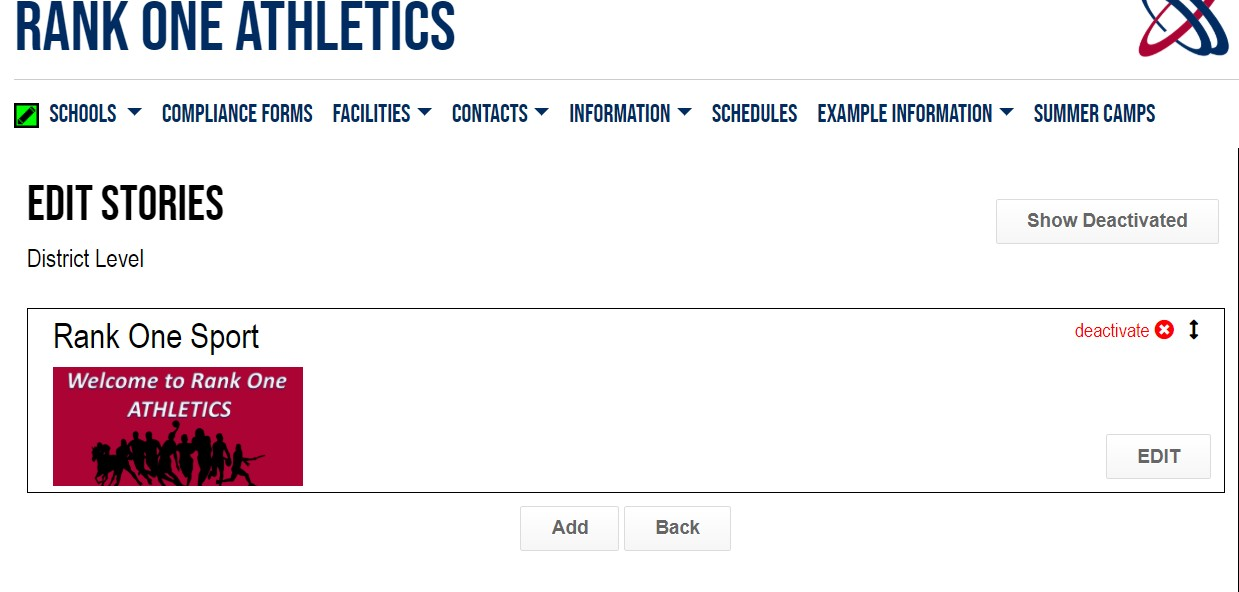
The Edit Stories page showing existing stories at the district level.
3
Add a New Story
Click the Add button, then fill in the story details:
- Title -- Give the story a title (e.g., "Welcome to Rank One ISD!").
- Select File -- Use the "Select File" box to browse for the picture in your documents.
- Choose Picture -- Select the picture you would like to add and click Open.
- Position the Image -- Click and drag the picture with your mouse to move it right/left or up/down inside the white border. Use the scroll bar underneath the picture to zoom in or out. Once positioned correctly, select Apply.
- Link (Optional) -- To redirect viewers to a different website when they click the picture, select "Would you like to enter a link to more information?" and enter the URL.
- Detail (Optional) -- To add custom details about the picture, select "Would you like to enter more detail about the story?" and type your description.
- Image Credit (Optional) -- Enter the photographer's name in the "Image Credit" box.
- Save -- After all details are entered, select Save at the bottom.
Tip: We recommend an image size of 990 pixels wide by 470 pixels high for the best display.
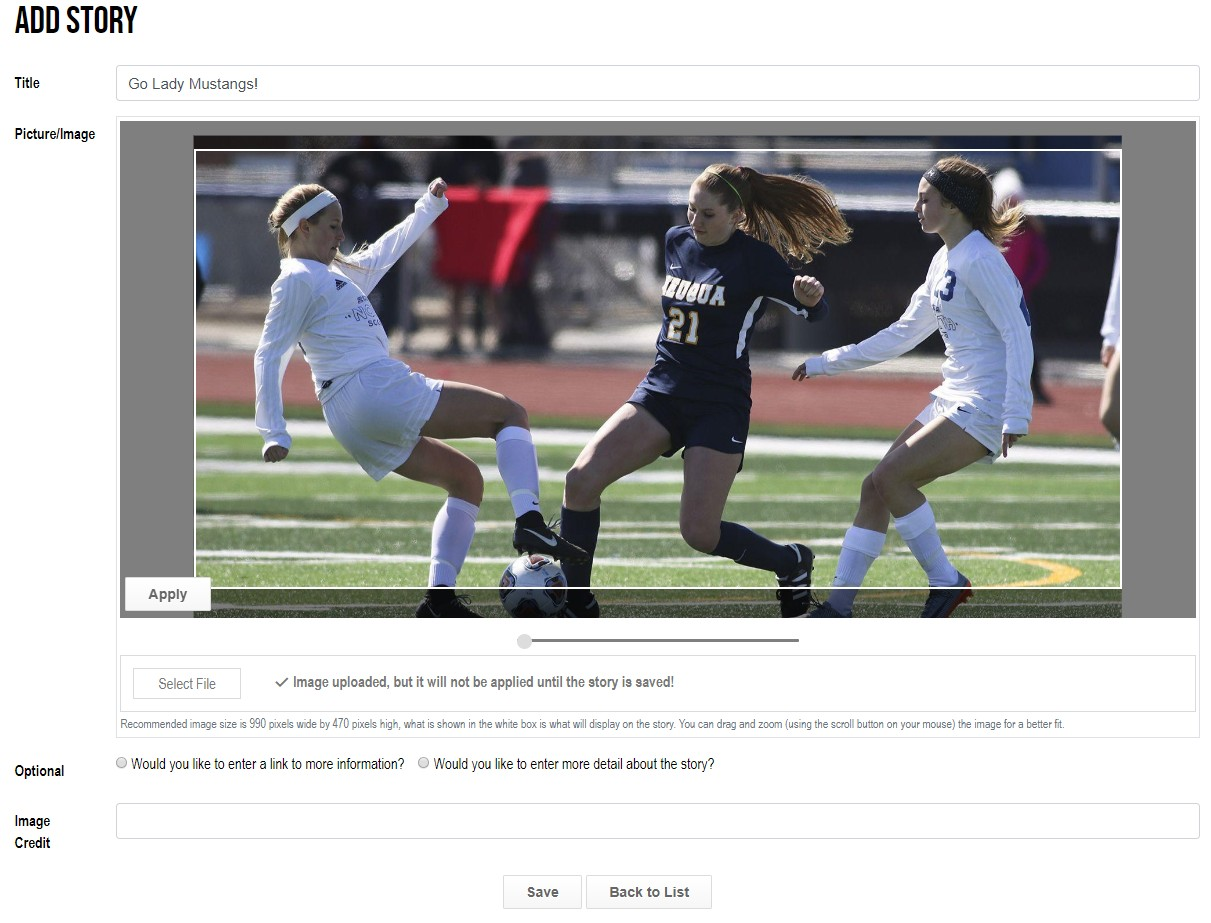
The Add Story form where you enter the title, upload an image, and configure optional settings.
4
Edit, Delete, or Reorder Stories
To manage existing stories, follow Steps 1-2, then:
- Edit -- Click Edit next to the story you want to update, then make your changes.
- Delete -- Click Deactivate to remove a story from the website.
- Reorder -- Click on the arrow symbol and drag the story to rearrange the display order.
Tip: If there are multiple stories, they will automatically scroll on your webpage every 5 seconds.
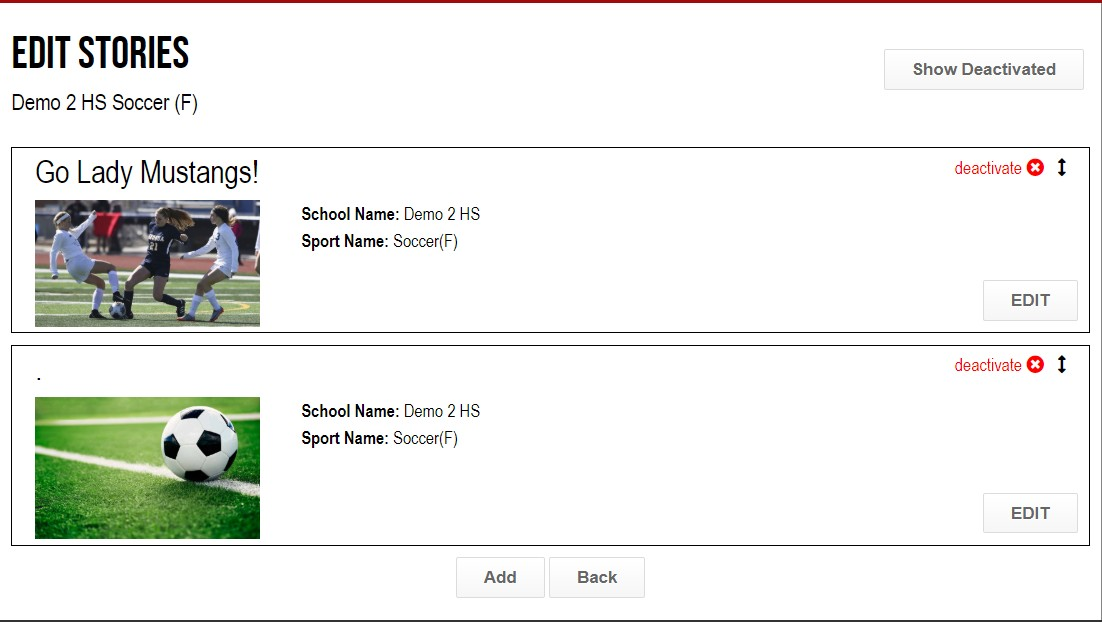
Manage existing stories by editing, deactivating, or reordering them.
Important: Need Help? For additional assistance with adding or editing stories on the Web Portal, please email support@rankone.com.
 Rank One Pro