 Rank One Pro
Rank One Pro
Rank One Pro
This tutorial explains how to add a Twitter account to your athletic portal website so that your Twitter feed is displayed for visitors.
Log into the website control panel using your credentials.
Make sure you select the appropriate page you are editing at the top of the control panel.
From the menu bar in the lower section, click on the Social Media tab.
Select Twitter from the drop-down list.
Enter your Twitter account name. For example: https://twitter.com/rank1sport
Click the Save button. Refresh your website page and the Twitter account will show up.
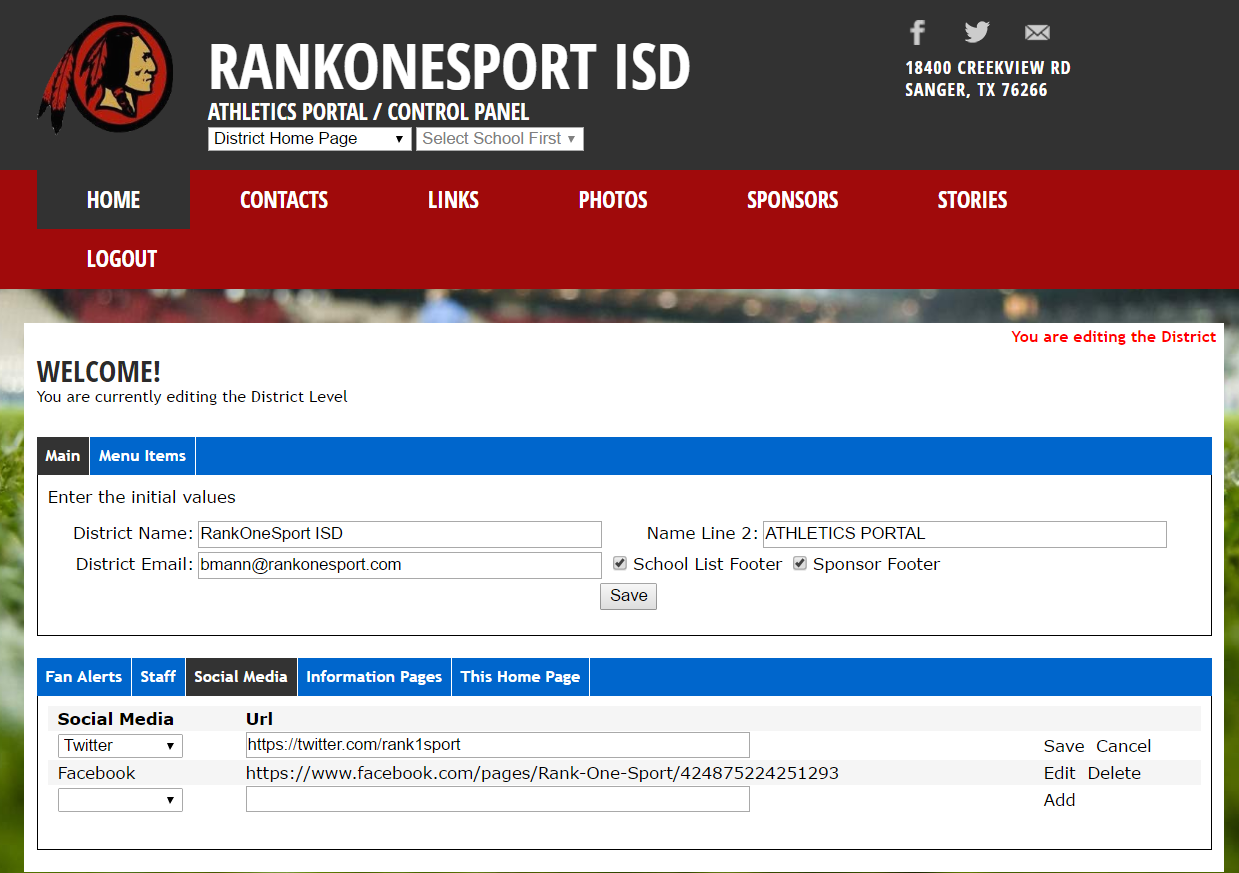
The Social Media tab where you enter your Twitter account URL.
If your Twitter account does not show up, make sure the feature is active by doing the following:
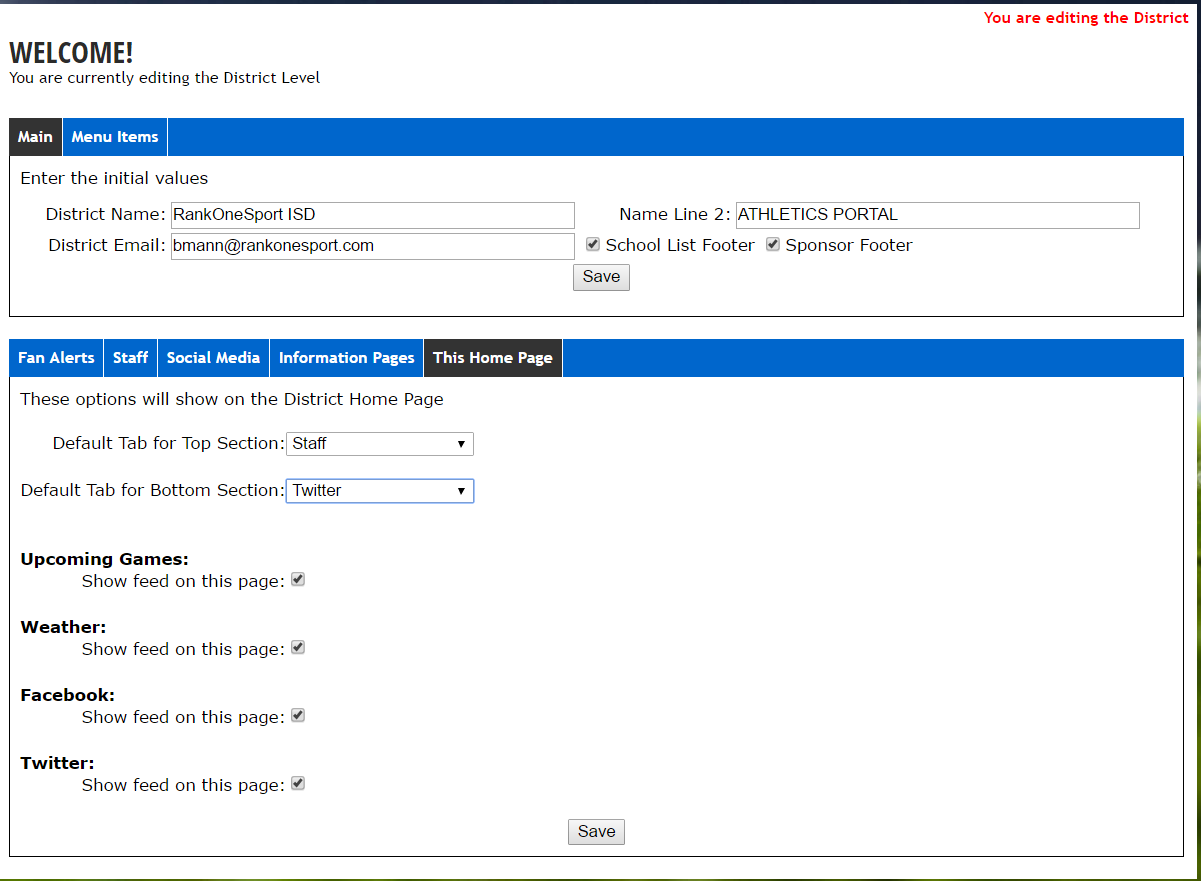
The This Home Page tab where you can verify and activate the Twitter feed display.