Rank One Pro
Rank One Pro
Rank One Pro
This tutorial explains how to add Administrative Users to your Rank One account. There are two types of administrative access: Assistant Athletic Director and Administrator.
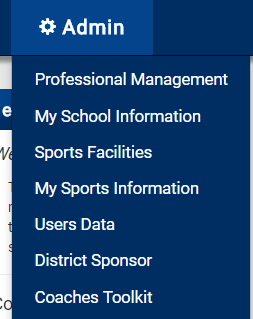
Hold your cursor over the Admin tab and select Users Data from the dropdown menu.
On the Users Data page, click the Add User button in the upper-left corner.

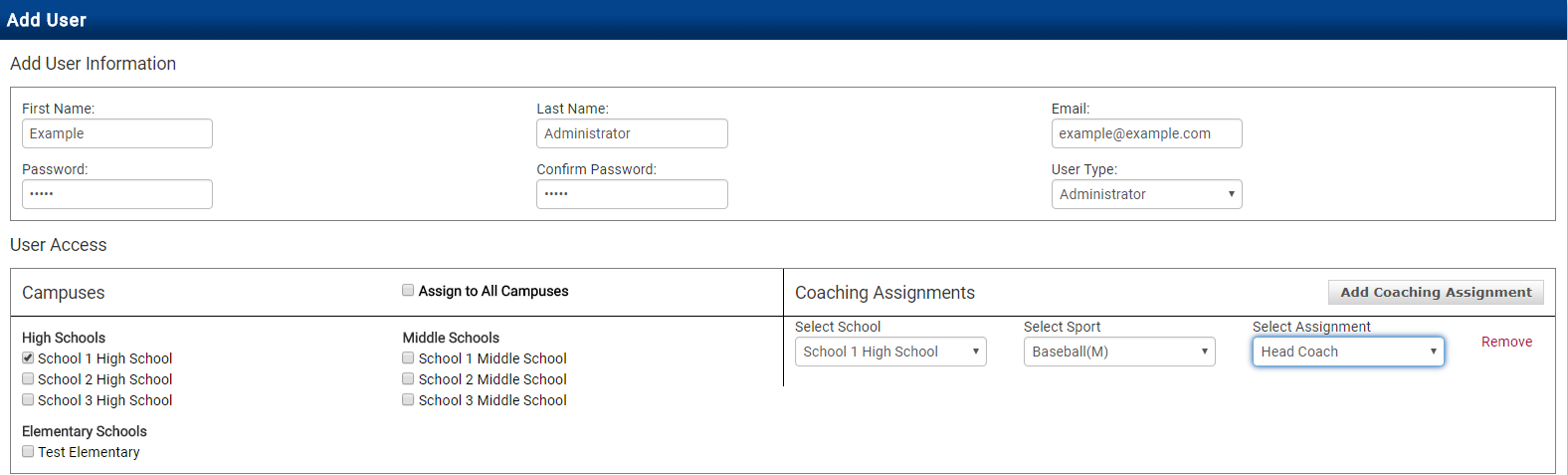
Type in the user's First Name, Last Name, School Email Address, assign a Password, confirm the password, and select the appropriate User Type from the dropdown menu.
If you add an Assistant Athletic Director, all campuses will be automatically selected under Campuses.
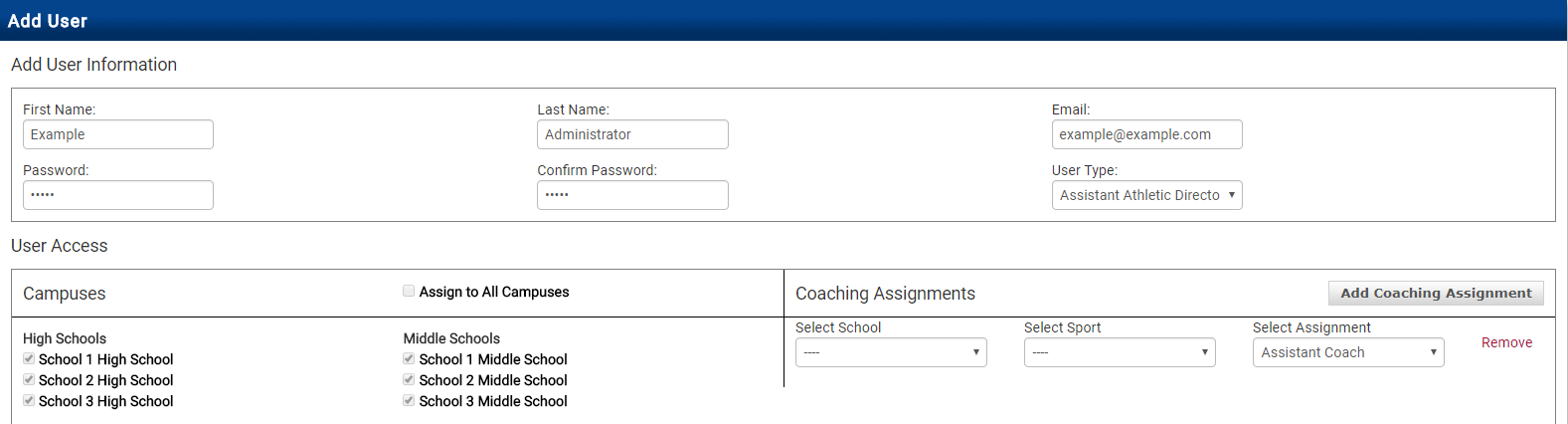
Assistant Athletic Director user type with all campuses automatically selected.
If you add an Administrator, you will need to place a check in the appropriate box(es) to assign the user to the correct campus(es).
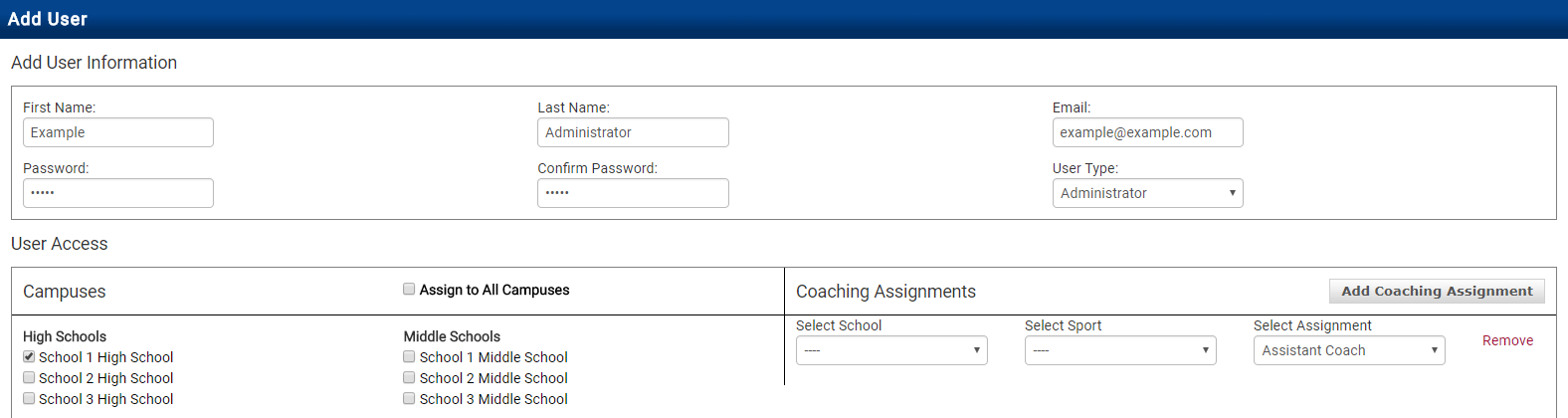
Administrator user type with individual campus checkboxes.
You may also add coaching assignments (if any) by selecting the appropriate School, Sport, and Assignment underneath Coaching Assignments.
After completing all required information, click Save.