 Rank One Pro
Rank One Pro
Rank One Pro
This tutorial explains how to create user accounts for Head Coaches and Assistant Coaches in Rank One.
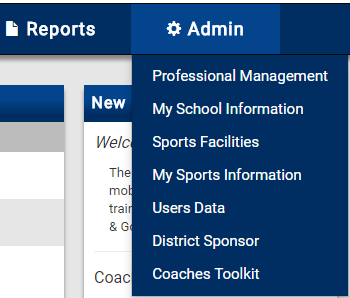
Hover over the Admin tab and select Users Data from the dropdown menu.
On the Users Data page, click the Add User button.

Type in the coach's First Name, Last Name, Email Address, create a Password, confirm the password, and select Head Coach or Assistant Coach under User Type.

Under User Access, do not place a check in the campuses boxes. Instead, assign the coach access to the correct sport(s) and campuses under Coaching Assignment.
Select the School, Sport, and Assignment. If a user coaches multiple sports or is a coach for both the high school and middle school, click Add Coaching Assignment and fill in the three fields to give additional access.

Scroll to the bottom of the page and click Save.