 Rank One Pro
Rank One Pro
Rank One Pro
Social media links and feeds can be added to the following sections on your Athletic Portal:
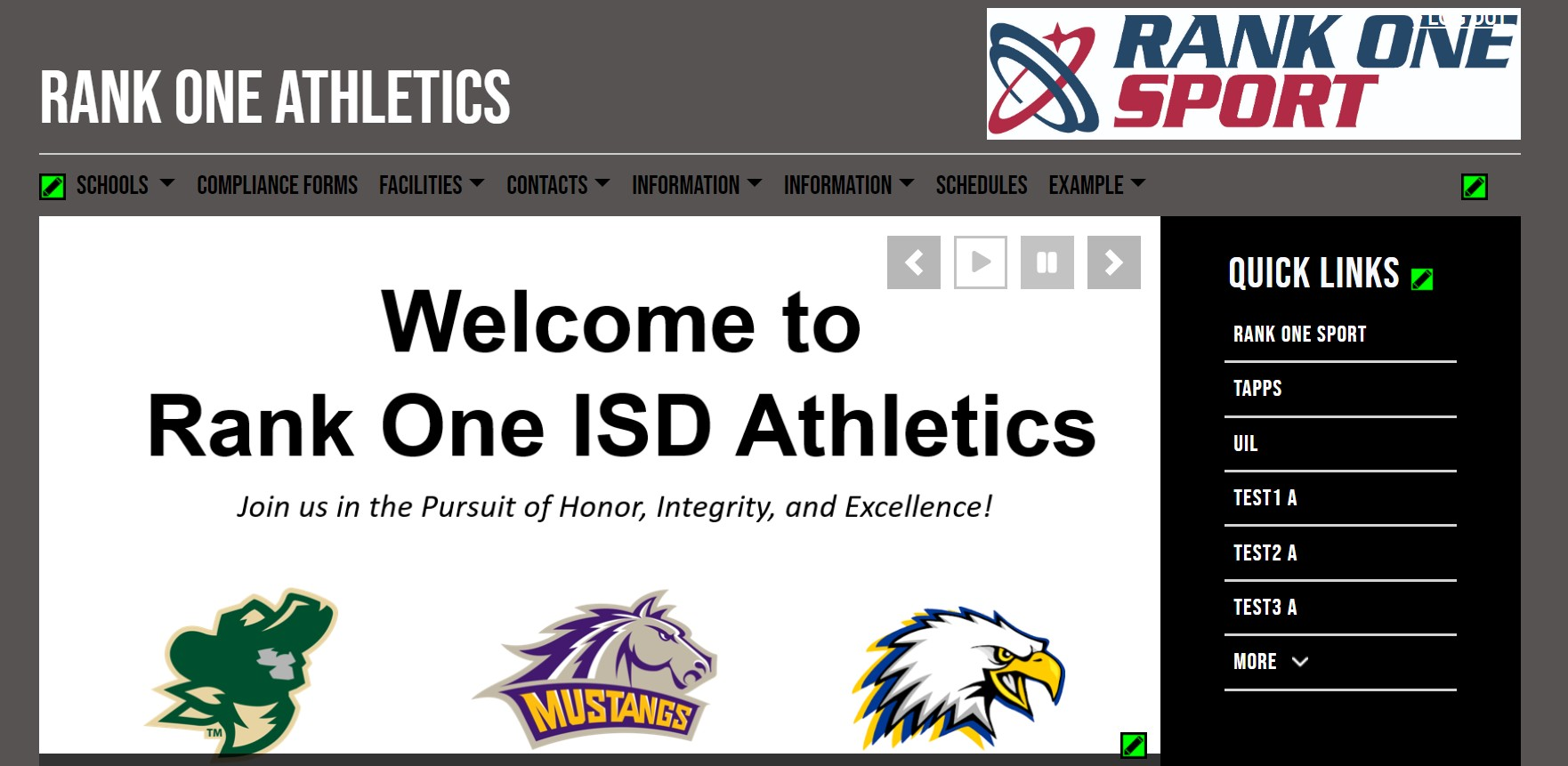
The athletic portal homepage with areas where social media can be added.
Click the edit icon near the top right of the screen to access the "Edit Social Media" page.
Click the Add Social Media button at the bottom of the page.
Click the dropdown menu under the "Category" section to choose a social media type to add. Available options include:
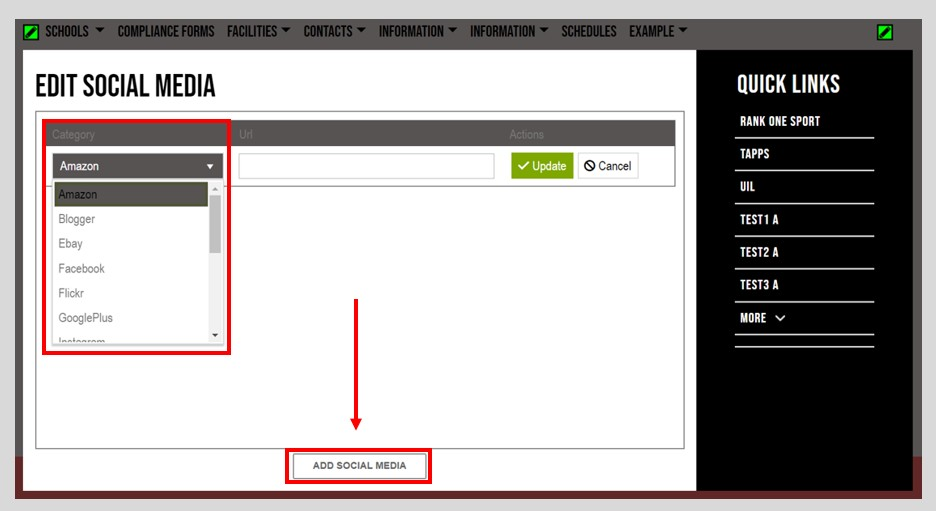
The Edit Social Media page with the category dropdown expanded.
Copy and paste your social media page's link. It must be the actual URL -- the "@" handle will not work.
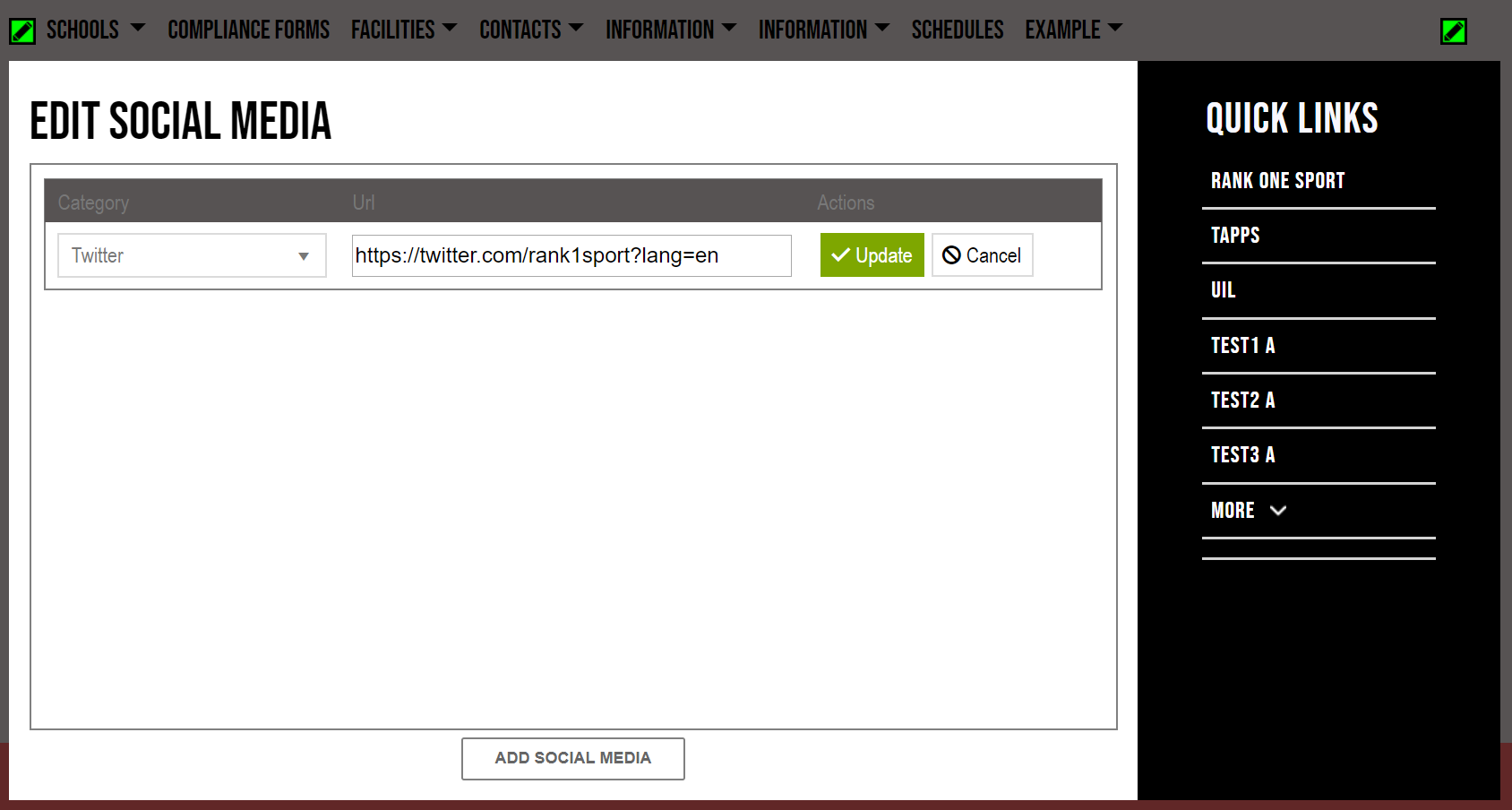
A saved social media entry with the full URL.
Click the Update button to save your link.
Once saved, social media icons will show near the top right of the screen throughout the web portal when accessing all pages.
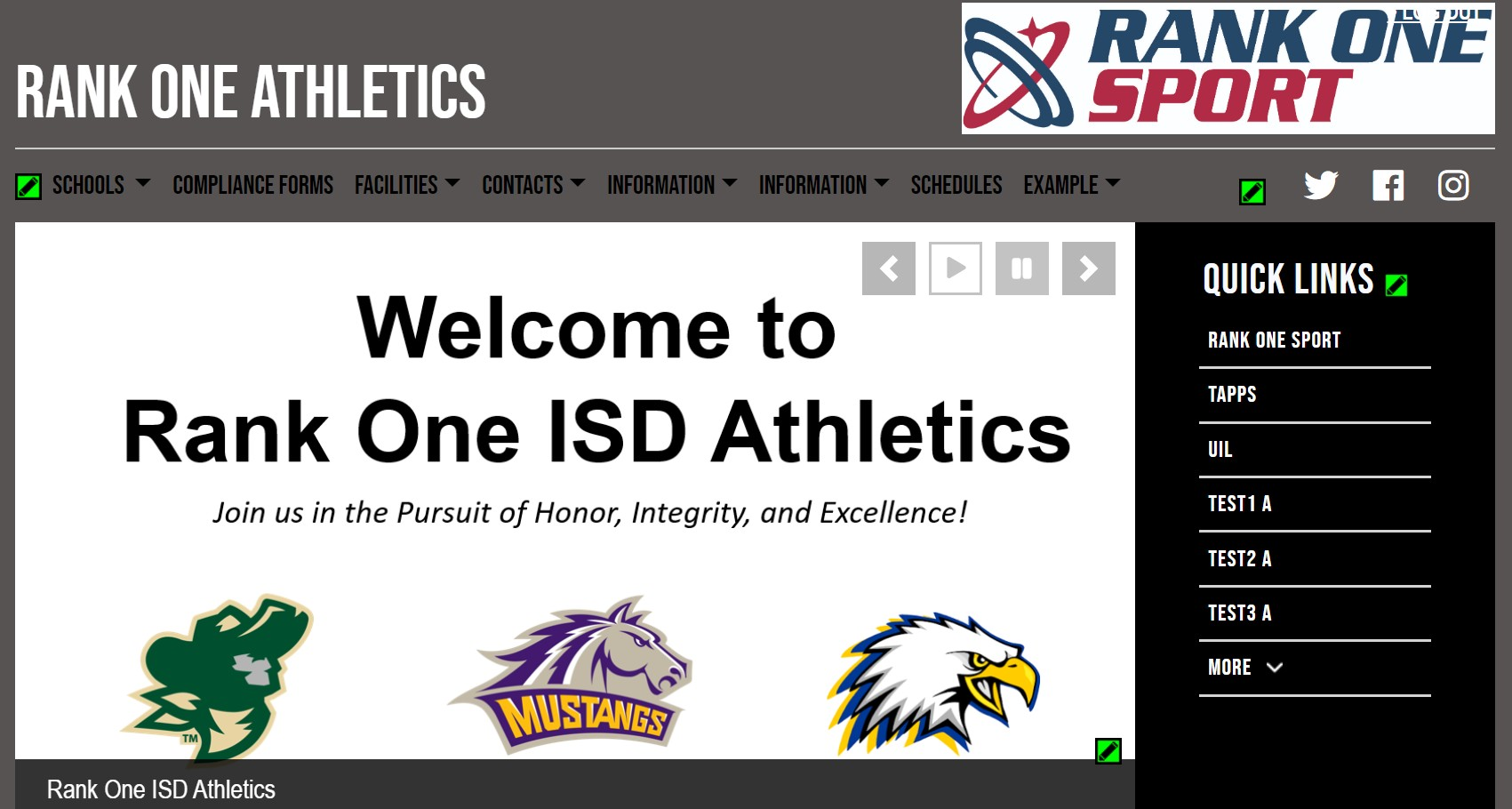
Social media icons displayed in the top right corner of the portal.
https://www.facebook.com/YourPage). The "@" handle format will not work.
Click the edit icon between the stories and schedule feed on the District Homepage.
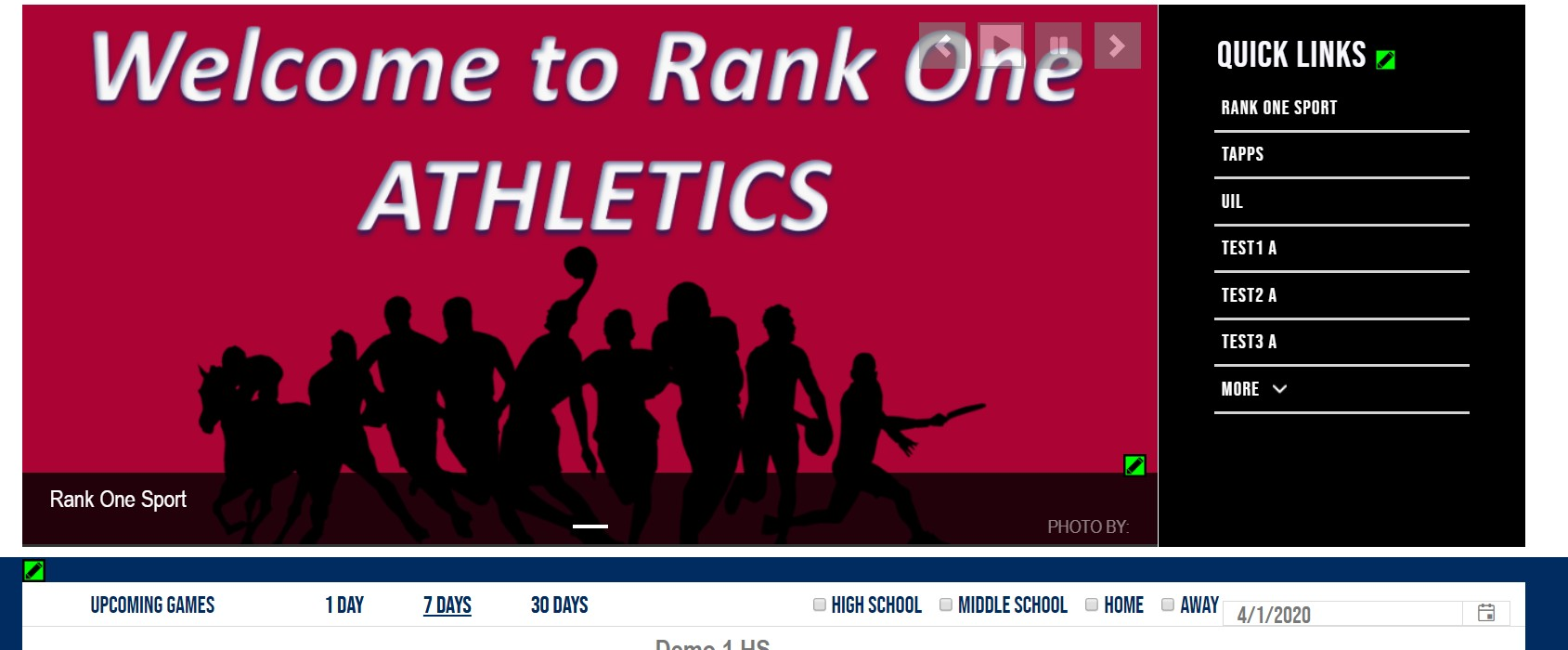
The edit icon location on the District Homepage.
Select the YES option for either "Do you want to display a Facebook or Twitter feed on your District home page?"
Copy and paste the respective social media link(s). It must be the actual URL -- the "@" handle will not work.
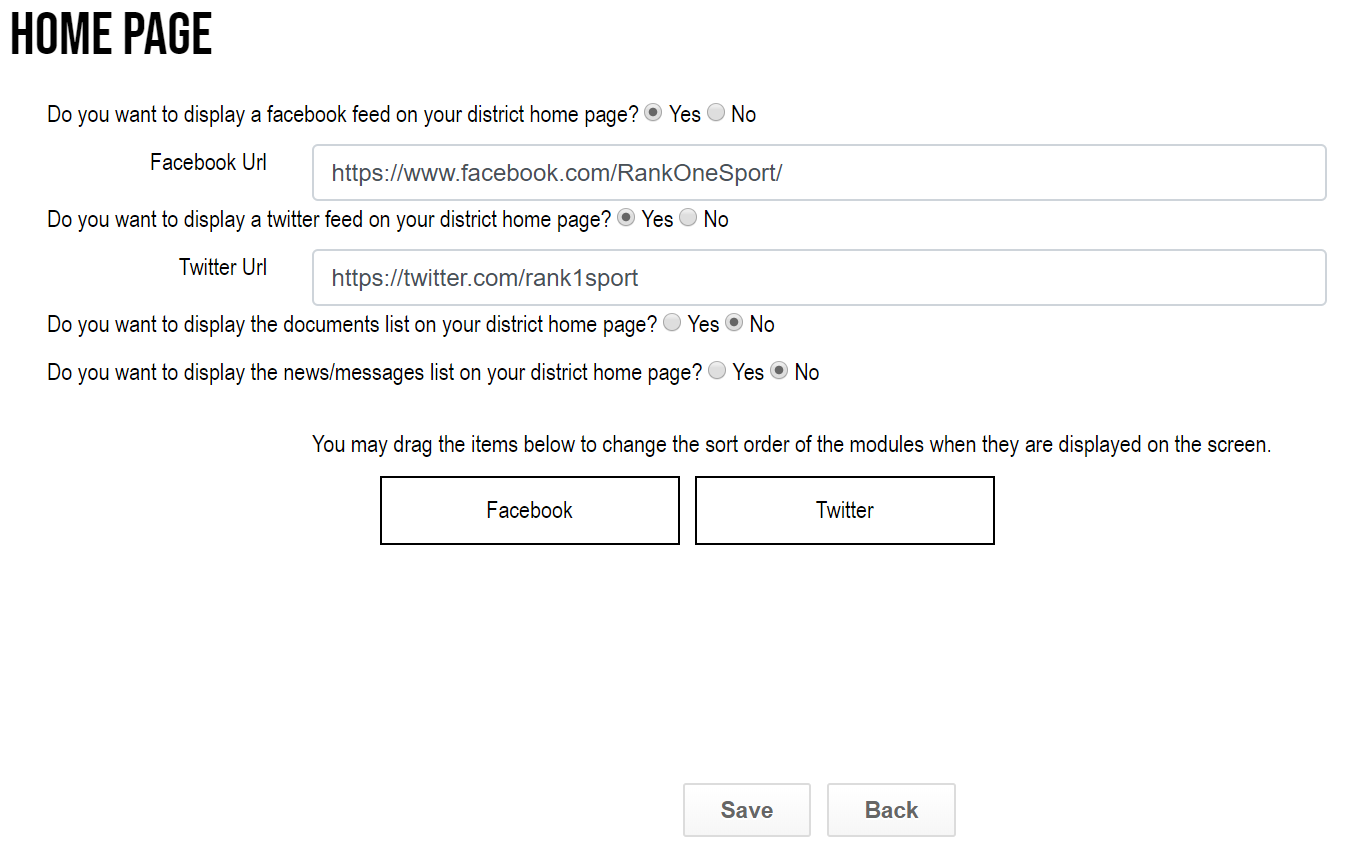
The District Homepage settings with Facebook and Twitter feed options.
The order of the feeds can be adjusted by grabbing the "Facebook" or "Twitter" square and dragging them into the desired order.
Click the Save button. Once saved, social media feeds will appear on your District Homepage.
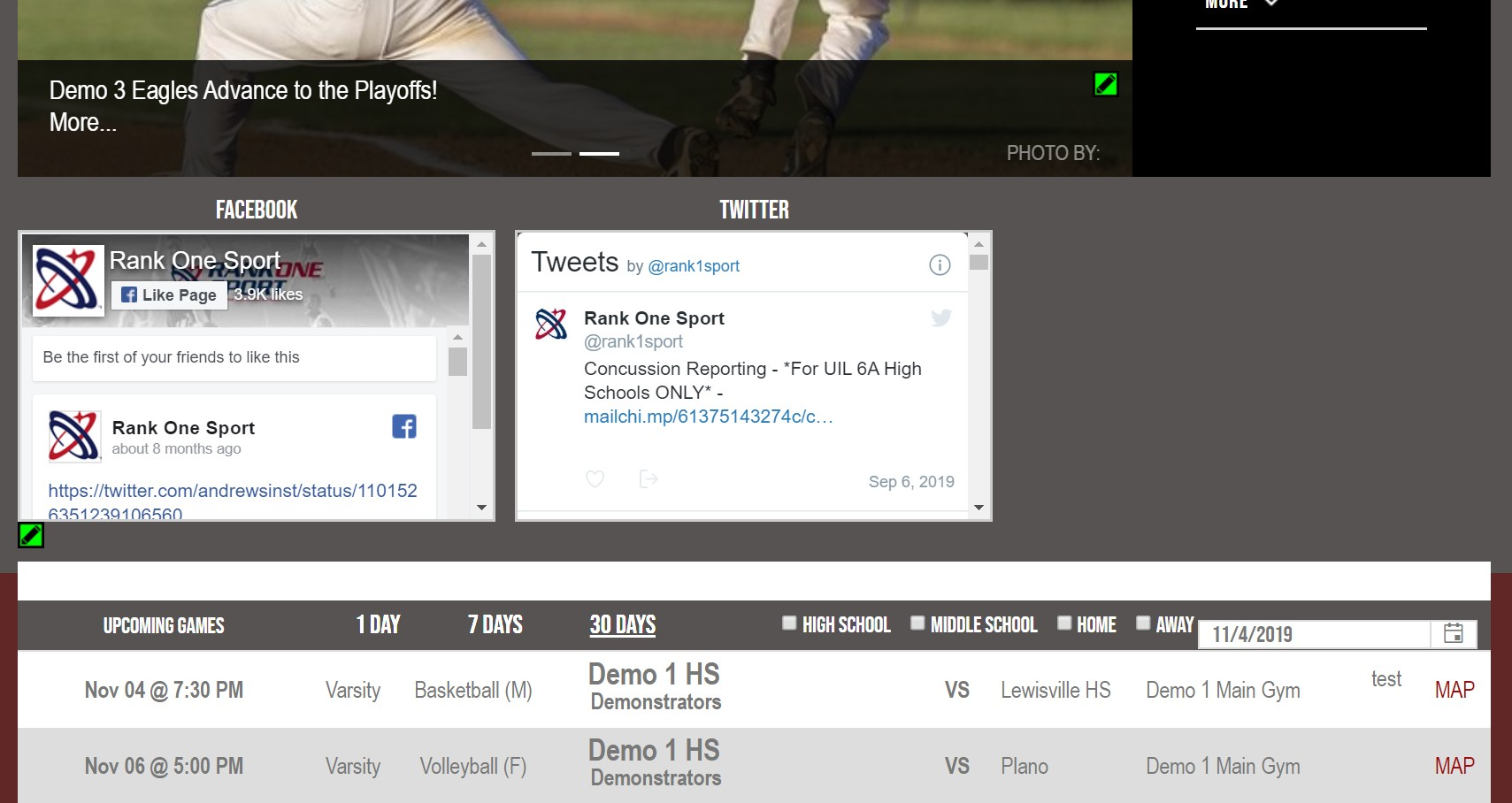
The District Homepage with Facebook and Twitter feeds displayed.
Click the edit icon in the middle of the bottom section of the Sport Page.
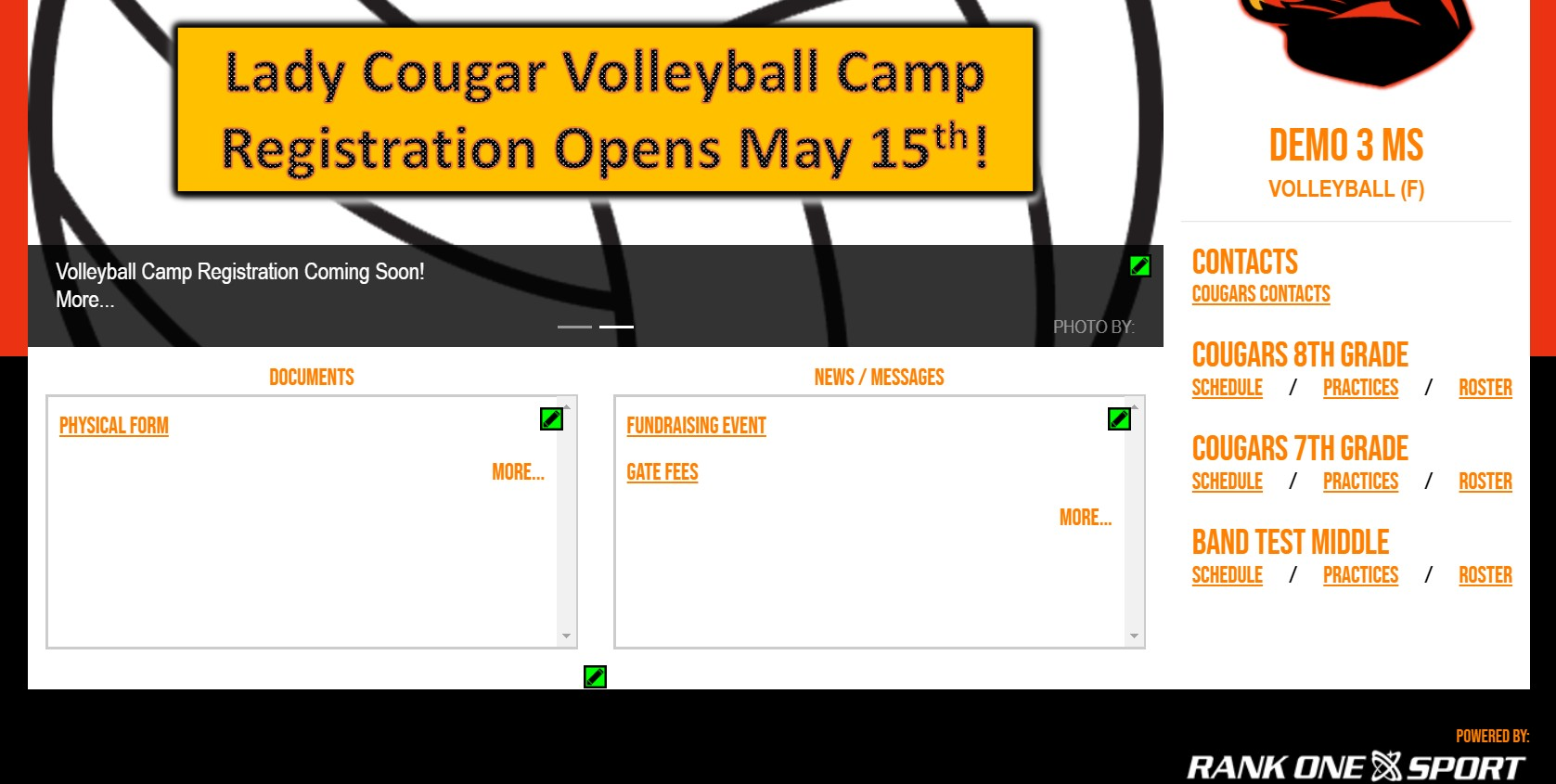
The edit icon on a Sport Page.
Select the YES option for either "Do you want to display a Facebook/Twitter feed on your Sport home page?"
Copy and paste the respective social media link(s). It must be the actual URL -- the "@" handle will not work.
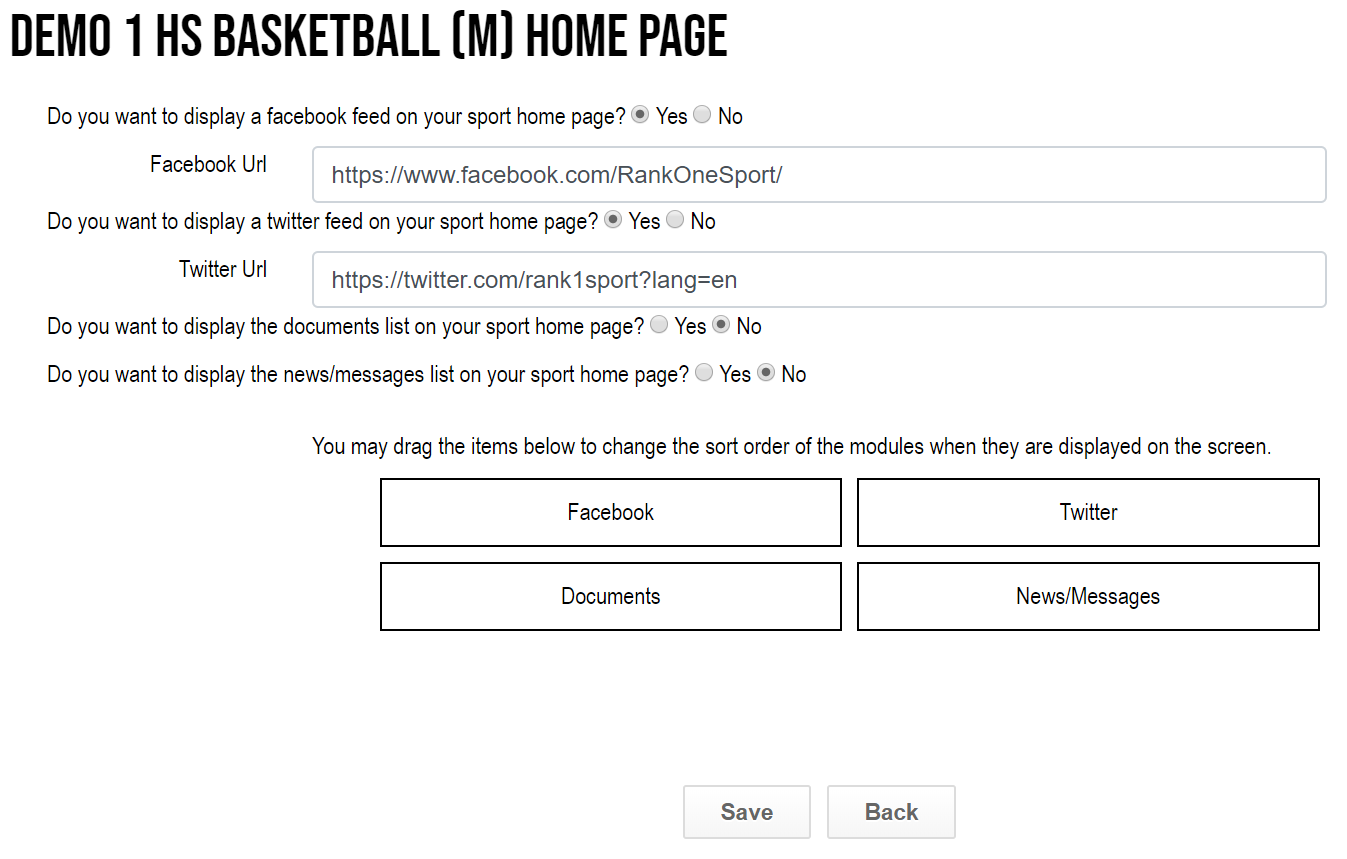
The Sport Page settings with social media feed configuration.
The order of the feeds can be adjusted by grabbing the "Facebook" or "Twitter" square and dragging them into the desired order. Click the Save button.
Once saved, social media feeds will appear on your Sport Page.
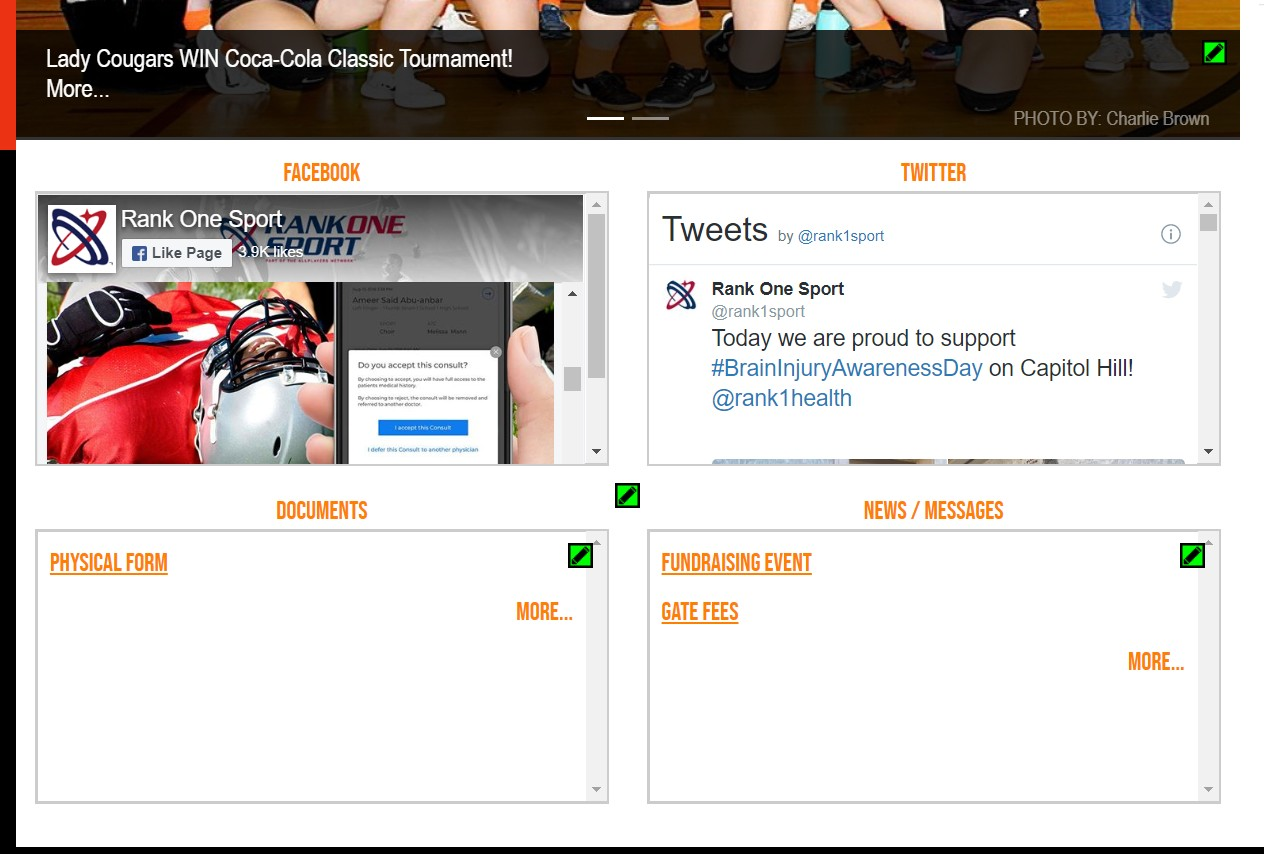
A Sport Page with Facebook and Twitter feeds displayed.