Rank One Pro
← Back to Rank One Pro

Adding Staff to Athletic Portals

Rank One Pro · Last updated April 16, 2026

The Staff section appears on the right side of the athletic portal in the same section as Fan Alerts. This tutorial explains how to add and configure staff information on your athletic portal.

1 Log In to the Control Panel

Log in to the Athletic Portal control panel using your credentials.

2 Select the School and/or Sport

Select the School and/or Sport where the staff information will be displayed using the dropdown menus at the top of the control panel.
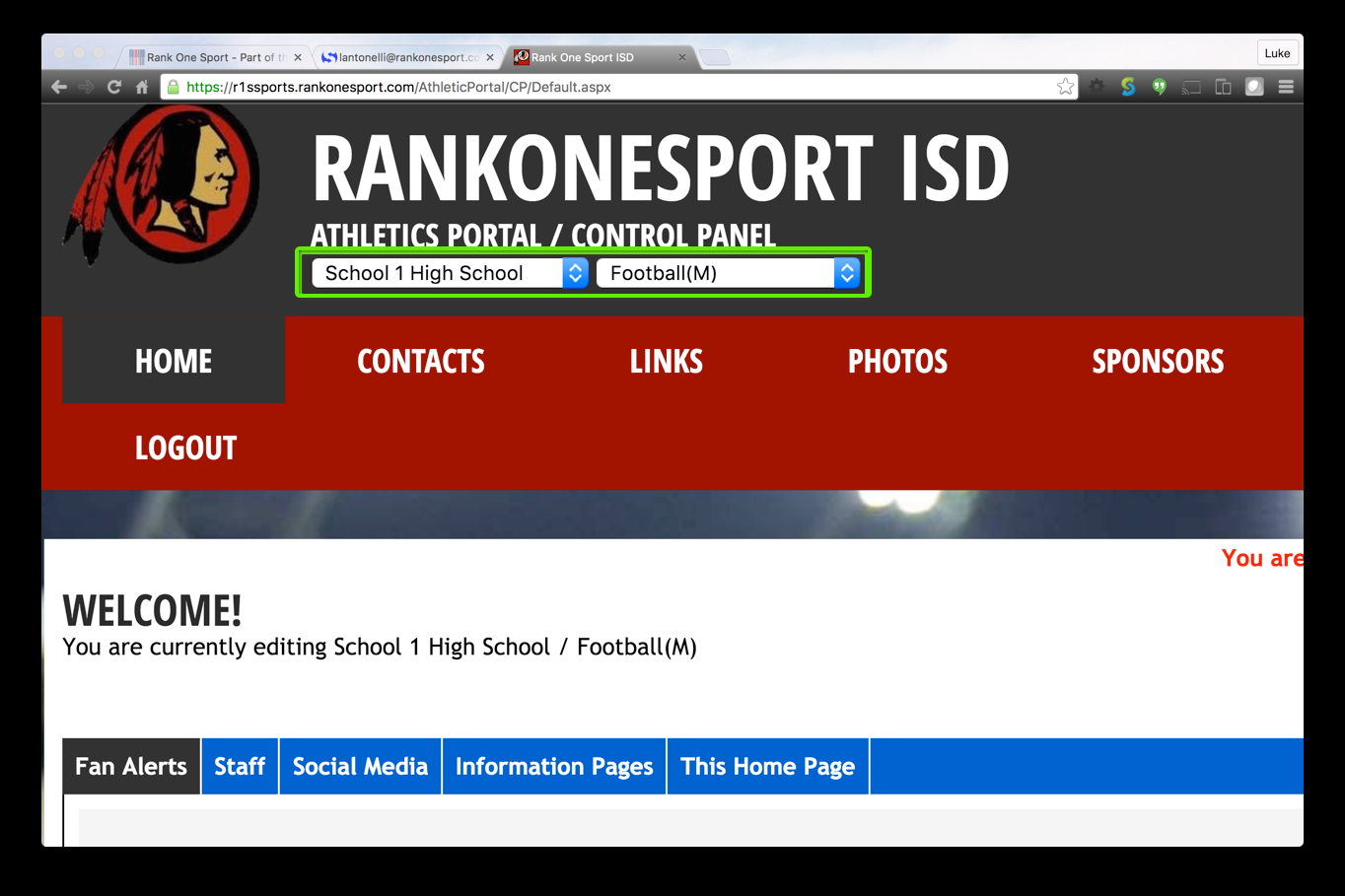
Control panel with school and sport dropdown menus highlighted

Select the appropriate school and sport from the dropdown menus.

3 Configure the Staff Tab

Click the Staff tab. Then configure the following settings:
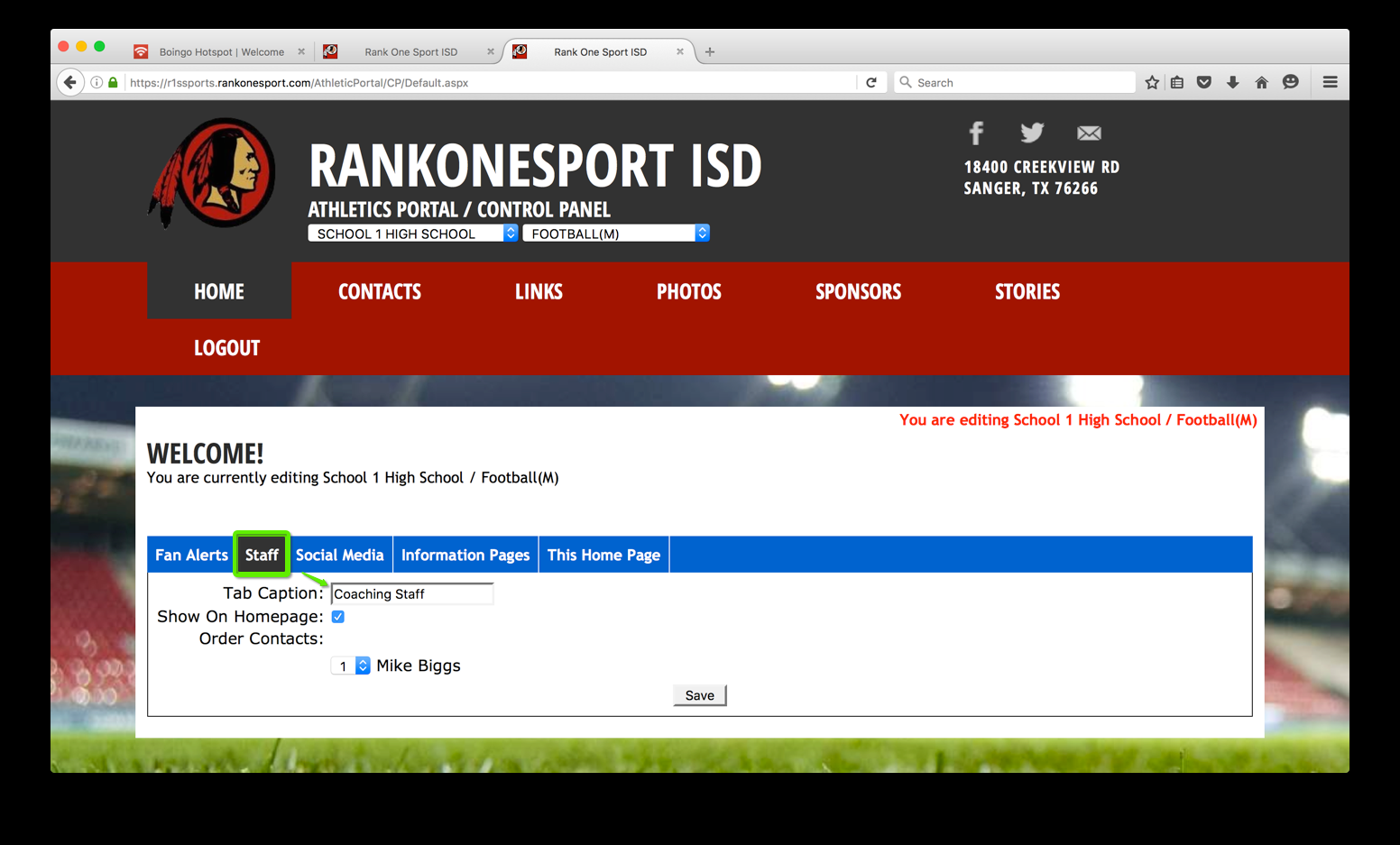
  • Show on Homepage: Check the "Show on Homepage" box to activate the staff section on the public portal.
  • Tab Caption: Enter the desired name in the Tab Caption text box. The text entered here will be displayed on the public portal as the tab name.
  • Order Contacts: Select the order to display the contacts. Contact #1 will be displayed at the top, with other contacts displayed below.
Staff tab settings showing Show on Homepage checkbox, Tab Caption field, and contact ordering

The Staff tab with configuration options for homepage display, caption, and contact ordering.

4 Save Your Changes

Click Save to apply your staff settings. The staff information will now appear on the public athletic portal.

Tip: The staff section shares the right-side panel with Fan Alerts on the athletic portal. Make sure your contact ordering is set correctly so the most important staff members appear first.