Rank One Pro
← Back to Rank One Pro

Adding Teams

Rank One Pro · Last updated April 16, 2026
Important: In order to build rosters and schedules for a sport/activity, you MUST set up the appropriate team levels under Admin > My Sport(s) Information.
1 Navigate to My Sports Information

Hold your cursor over the Admin tab and select My Sports Information.
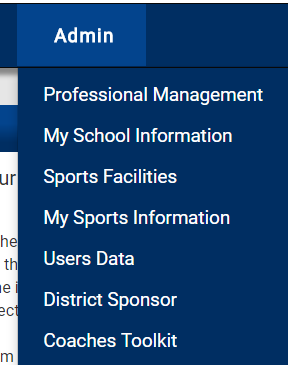
Admin dropdown menu showing My Sports Information option
2 Select Your Campus

Find the correct campus and click View.
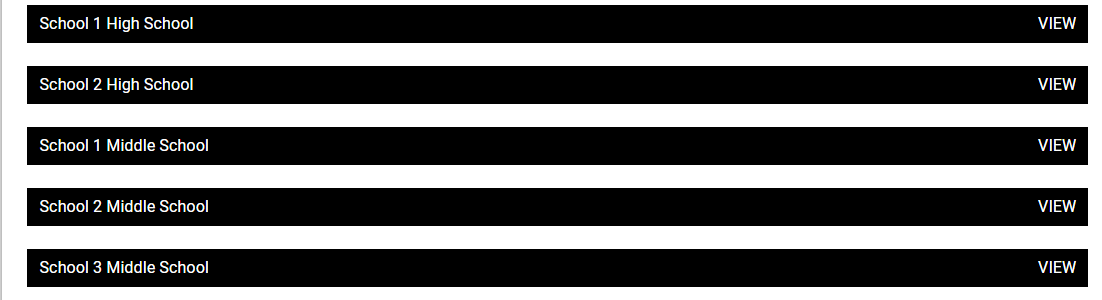
Campus list with View buttons
3 Add a New Team

Find the sport/activity and click Add New Team.

Tip: Next to each sport/activity name, you'll see (M) for Male, (F) for Female, or (C) for Combined.
Sport listing showing Soccer(M) with Add New Team link
4 Enter Team Name and Level

Type in the Team Name, select a Team Level, and click Save.
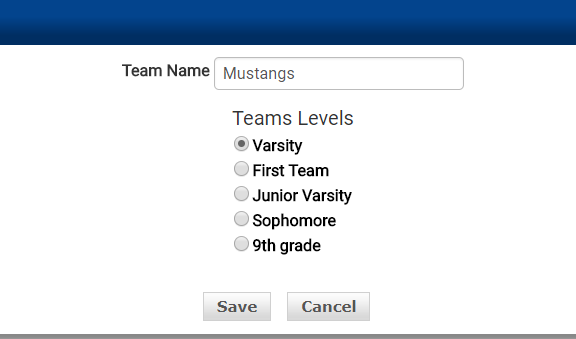
Tip: You can only select one level at a time. Repeat this step to add additional levels for the same sport.
Team Name field and Team Levels radio buttons with Save and Cancel buttons
5 Adding Multiple Teams at the Same Level

You can add the same level multiple times. For example, you can add multiple 8th Grade Level Teams and distinguish them by the team name.

Team list showing Mustangs A Team and Mustangs B Team both at 8th grade level

Example: Two 8th grade teams distinguished by name (Mustangs - A Team, Mustangs - B Team)