Rank One Pro
Rank One Pro
Rank One Pro
You must have Administrative Access to add an away venue to the list of away venues.
Hold your cursor over the "Schedules Tab", you will get a drop down menu. Select Manage Venues from the list.

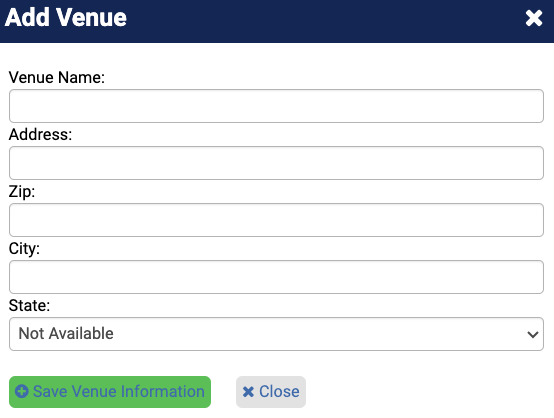
Click the "Add New Away Venue" box at the bottom of the page.
Enter in the Venue Name, Address, Zip, City, and State. It is very important that the correct address is entered — the address is used in Google Maps for directions to the facility. Click "Save Venue Information" and the venue will be added to the list.