Rank One Pro
Rank One Pro
Rank One Pro
This tutorial shows how to view game schedules and sync them to your phone's calendar using the Rank One Coach/Admin mobile app.
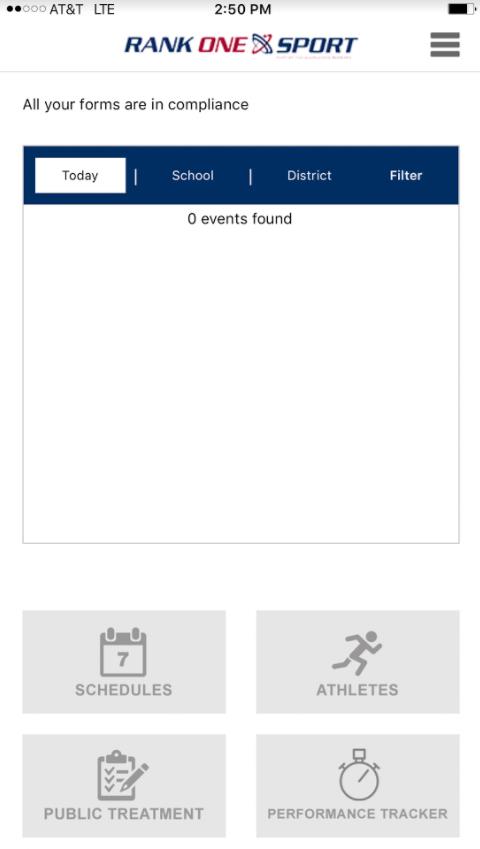
Log in to the Rank One Coach/Admin app and tap Schedules from the home screen.
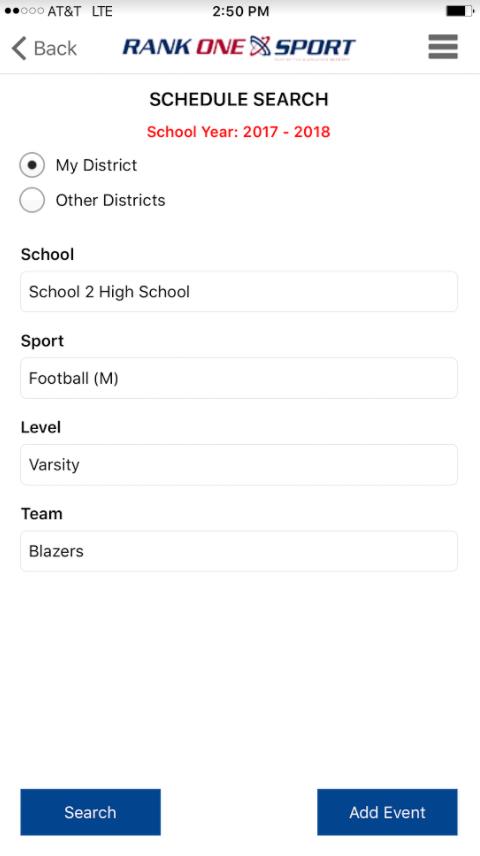
Select the School, Sport, Level, and Team. Then tap Search. The schedule will populate with your games.
The schedule will display all games for the selected team. Games marked with an asterisk (*) have a Special Note listed.
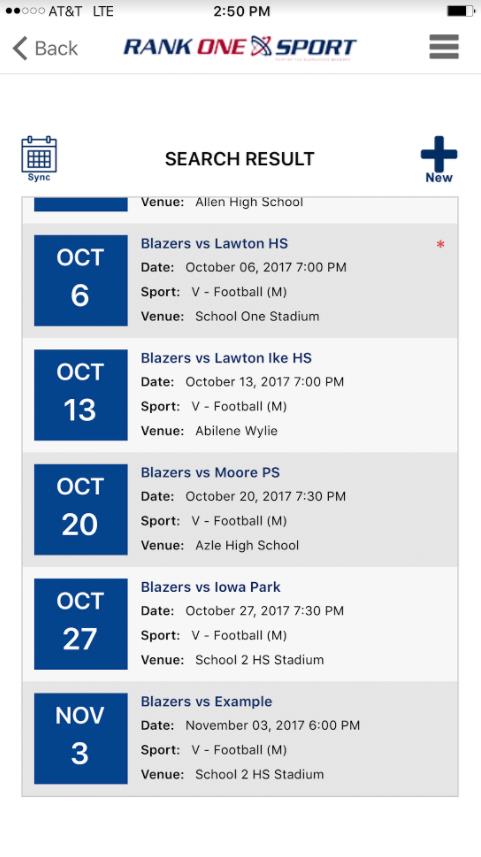
To view a Special Note, tap on the Date of the game that has an asterisk. The note details will appear.
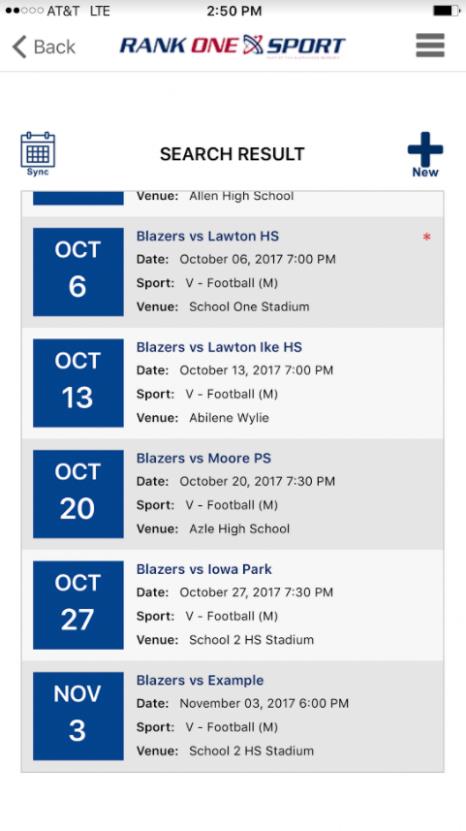
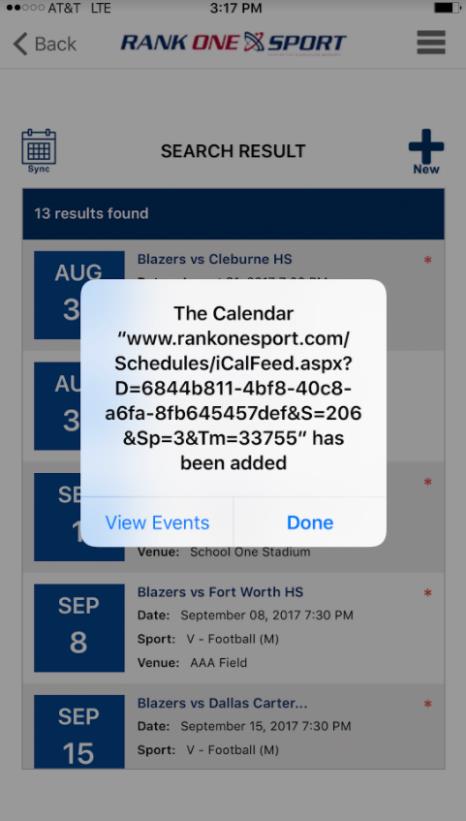
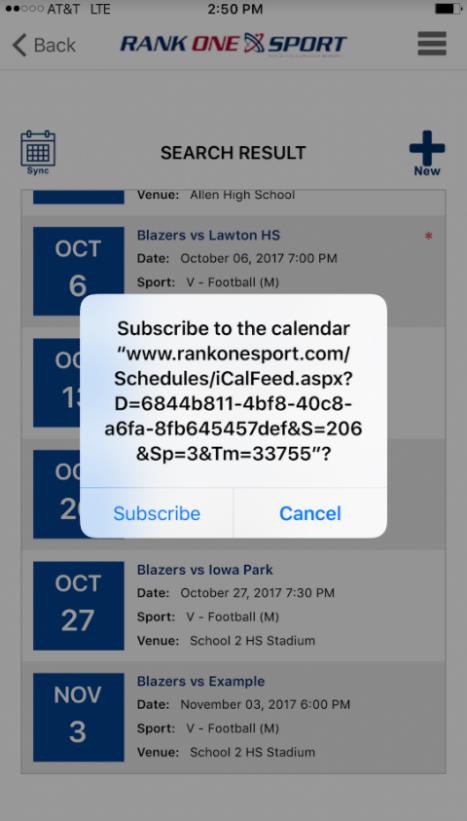
To sync the schedule to your phone's calendar, tap the Sync button. Then select Subscribe to successfully subscribe the game schedule to your phone's calendar.
The events will then be synced to your phone's calendar. You will see a confirmation that the calendar has been added.