 Rank One Pro
Rank One Pro
Rank One Pro
Adding awards to students can be done from the Master List or Manage Rosters tab. These tabs are found on the dropdown under the Athlete Management header.
Use the Name Search field to find the student you want to add an award to.
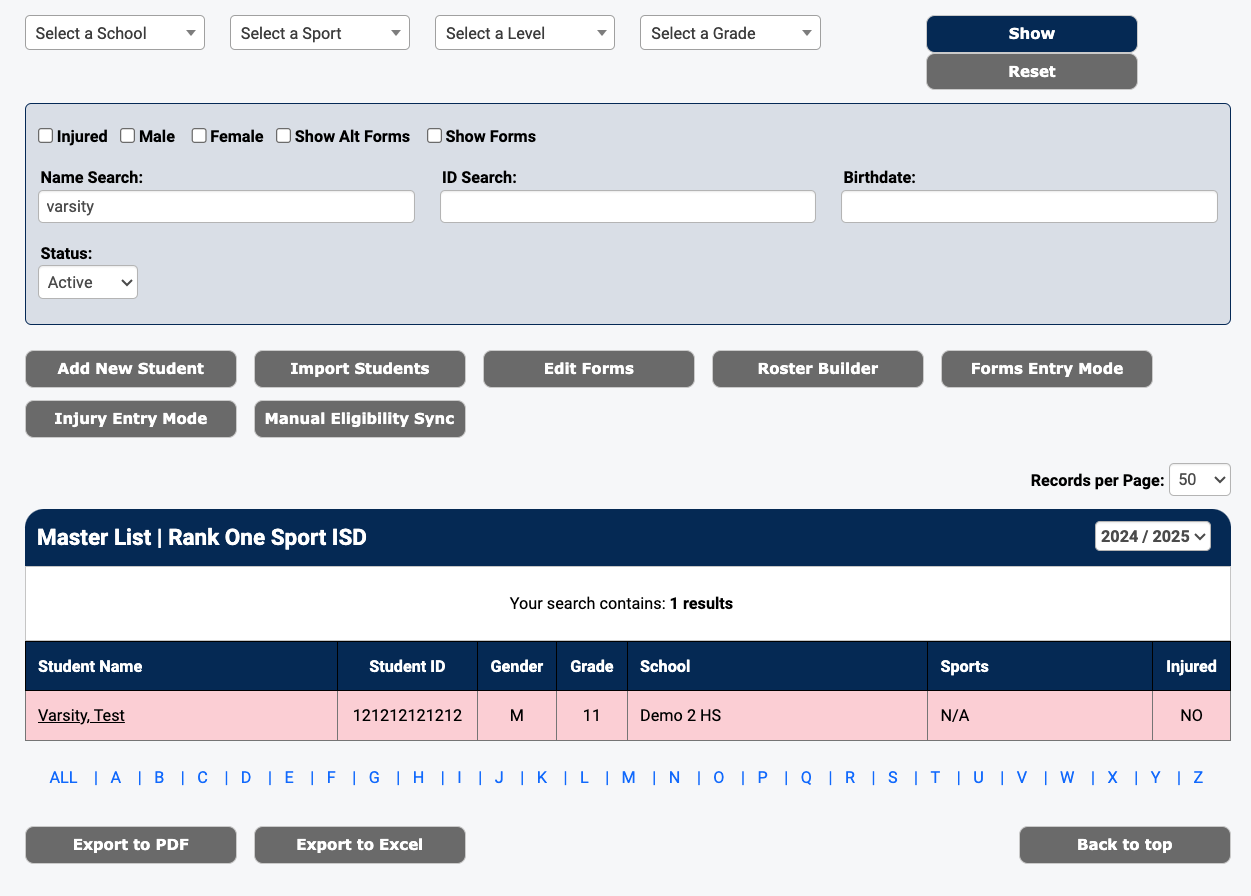
The Master List showing search filters and student results
Click on the student's name to open their Athlete Profile. Then click on the Awards Tracker tab.

The Athlete Profile tabs with Awards Tracker highlighted
Click on the "Click here to add an Award" link in the upper-right corner of the Awards section.
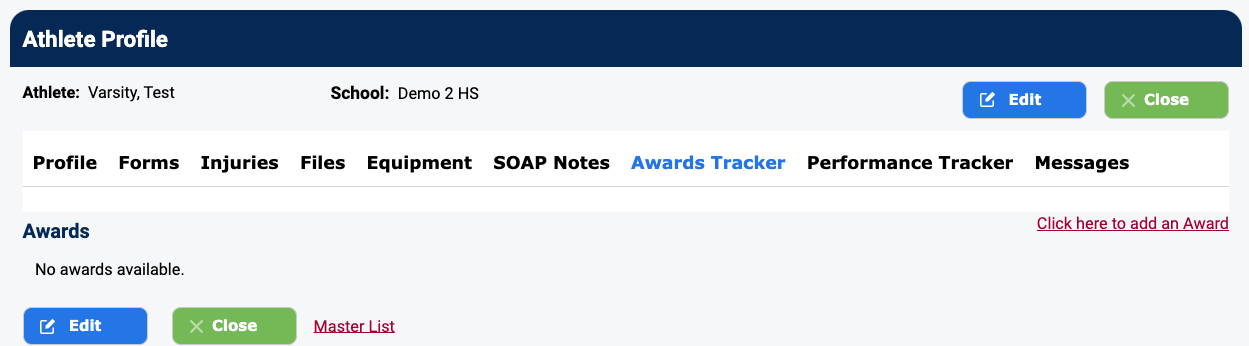
The Awards Tracker tab with the add award link
In the award entry form:
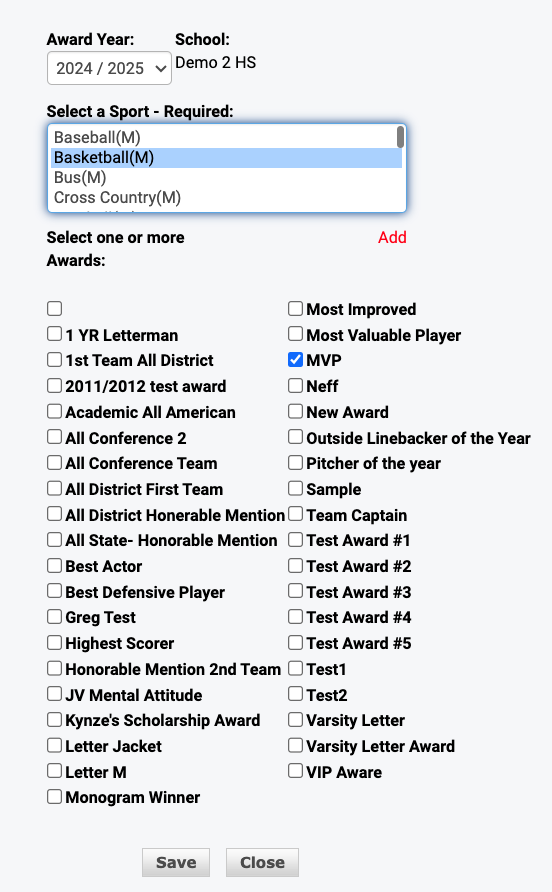
The award form showing sport selection and available awards
The award will now be added to the student's data. You can view award details including the year, grade, school, sport, and award name. You can also print a certificate or delete the award from this screen.
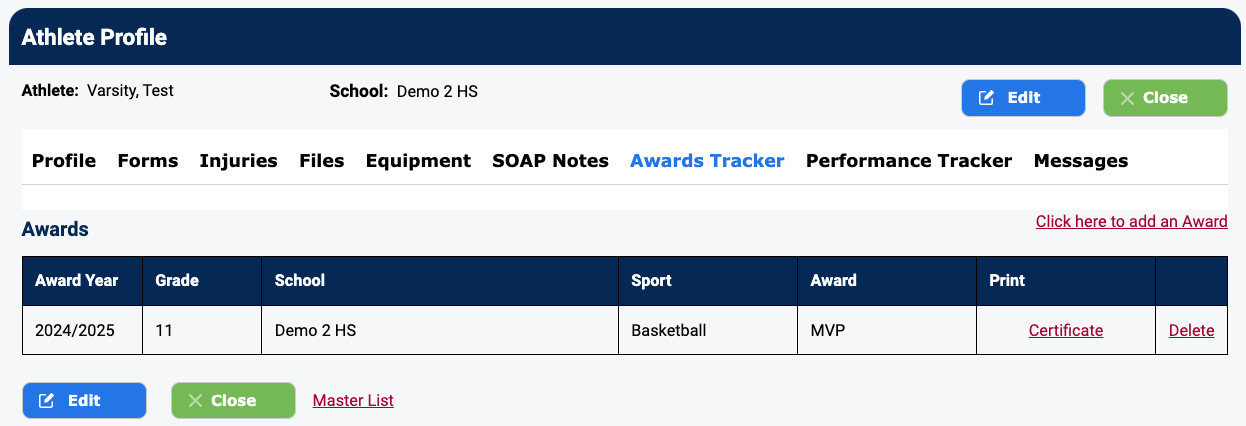
The completed award entry on the student's profile