 Rank One Pro
Rank One Pro
Rank One Pro
This tutorial explains how to send text and/or email notifications to campers and their guardians.
Hold your cursor over the Camps tab and click on Manage Camps. Find the camp that contains the registrants you wish to send a notification to, then click View Registrants.
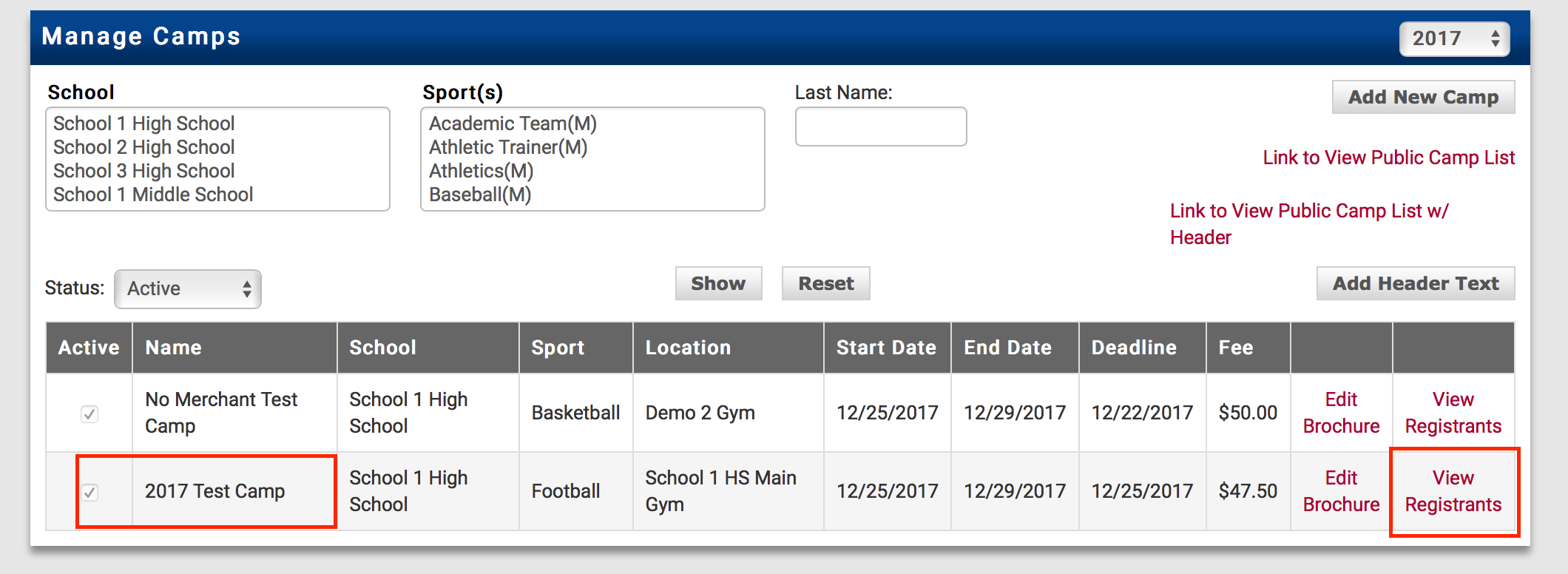
Click View Registrants next to the desired camp.
The page will display a list of all who are registered for the camp. Choose who should receive the notification:
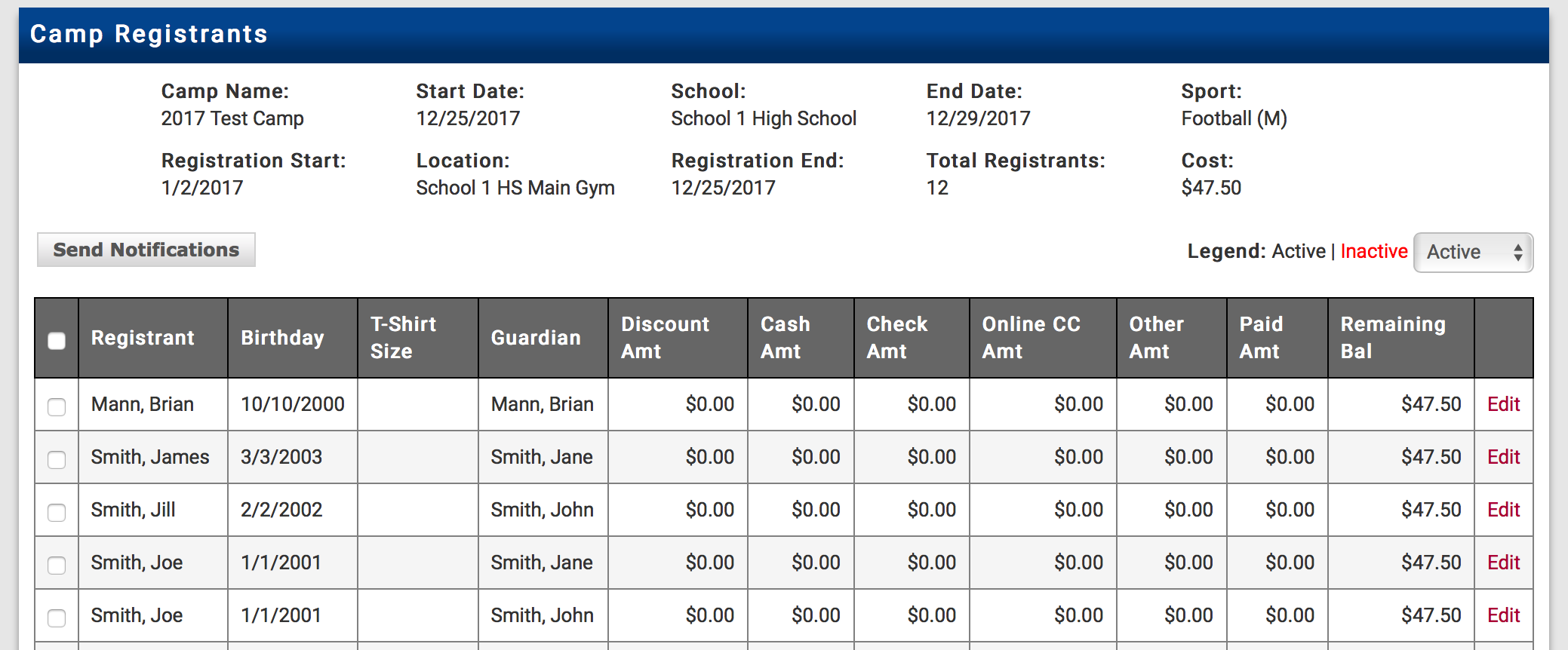
Check the top box for all registrants, or select individual campers.
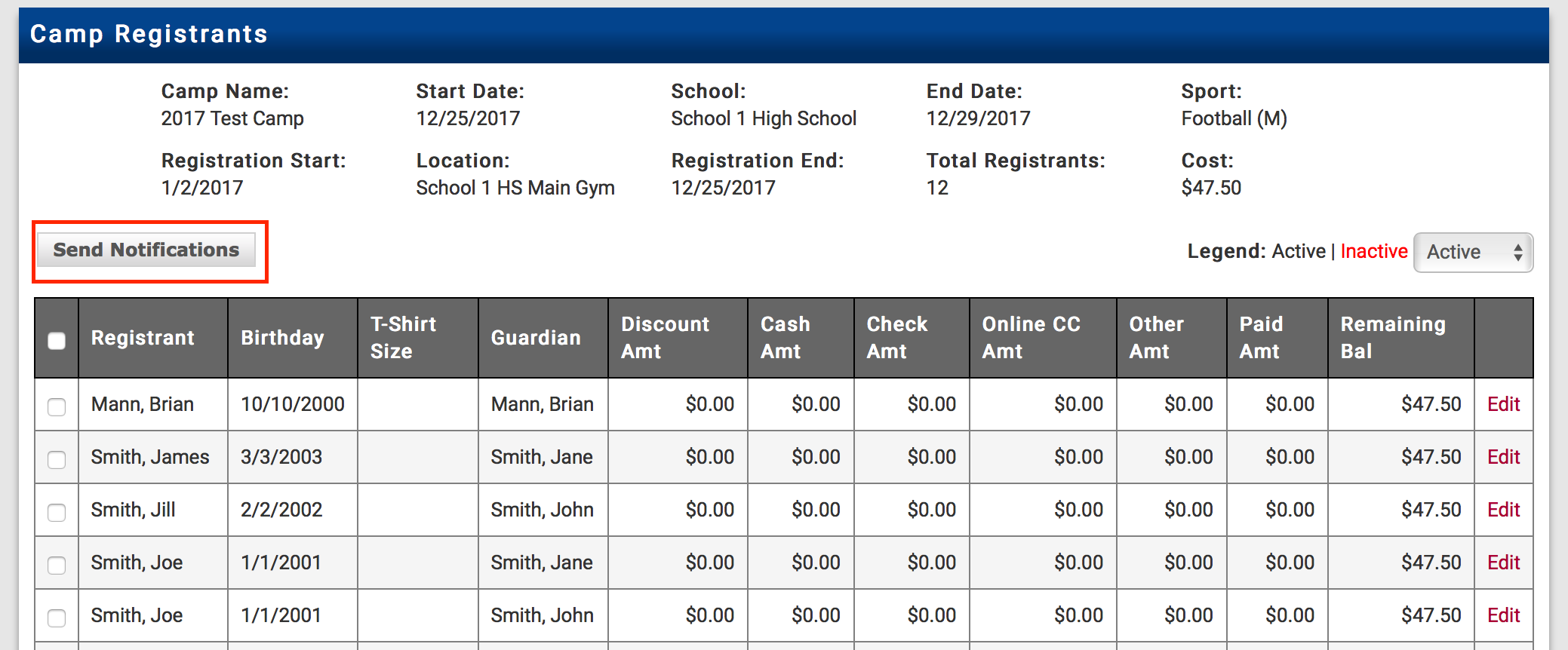
Once you have determined who you want to send the notification to, click on the Send Notifications tab.
Configure the notification options:
Once you have selected who and what type of notifications you wish to send, type the content in the Message box and click the Send button.
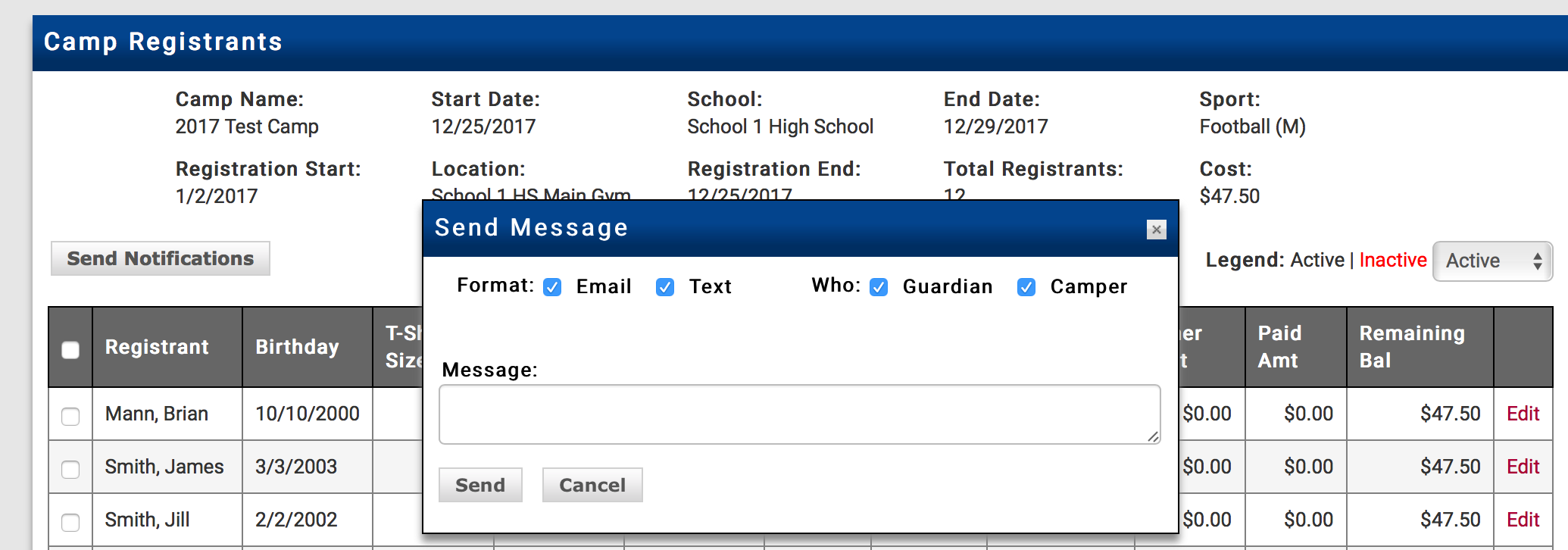
Compose your message and click Send to deliver the notification.