 Rank One Pro
Rank One Pro
Rank One Pro
Follow these steps in the exact order to switch sports from a Male/Female designation to a combined Co-Ed designation. This process involves selecting co-ed sports, creating teams, updating facilities, assigning coaches, and then removing the original Male/Female sports.
Hover over the Admin tab and select My School Information.
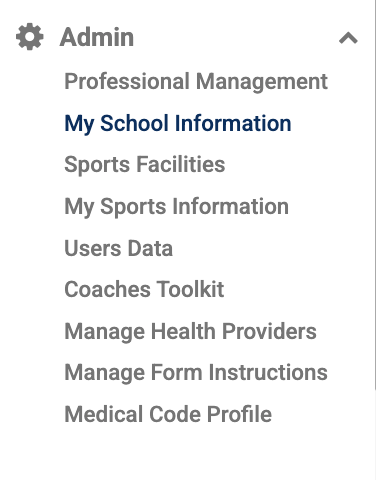
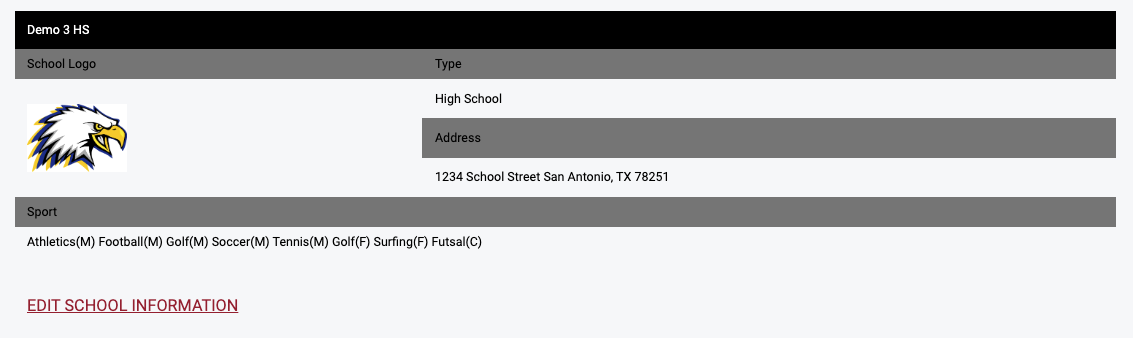
Find the school you would like to set up the Co-Ed sport(s) for and click Edit School Information.
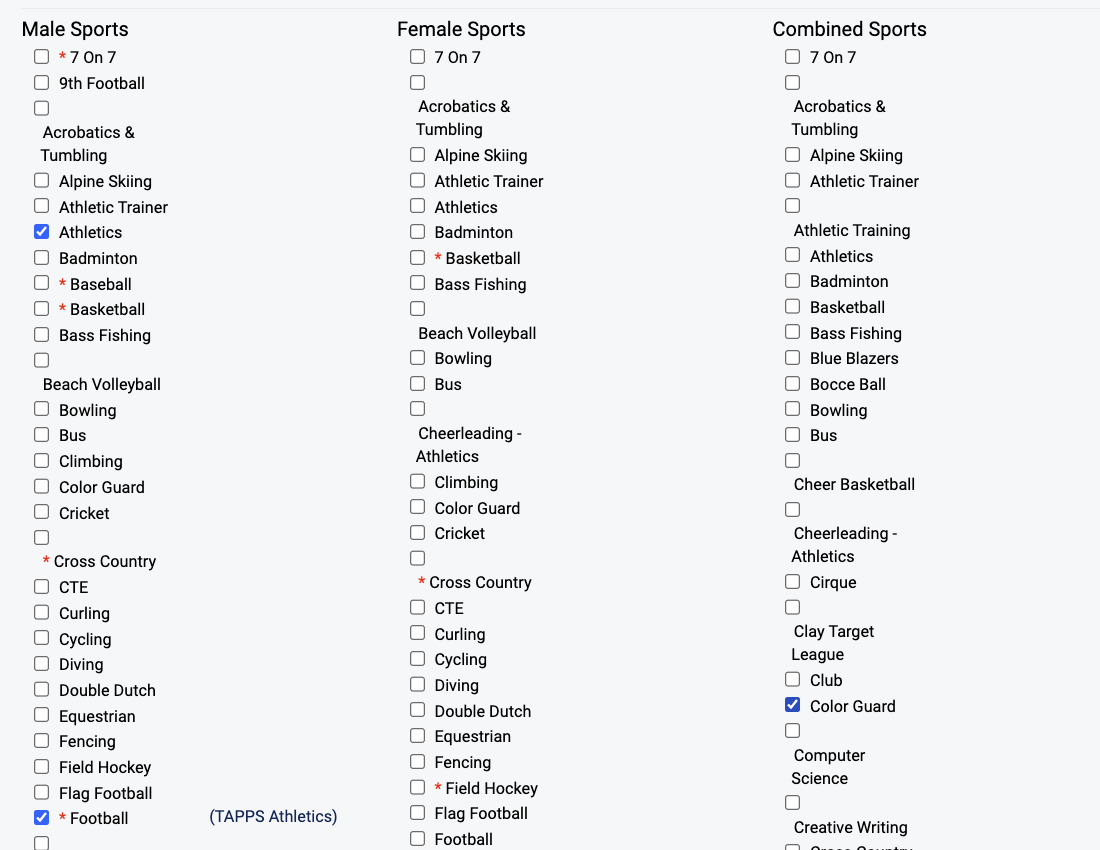
In the Co-Ed Sports column, select all sports you would like to set up as Co-Ed. Click Save at the bottom of the screen.
If you have multiple schools you would like to set up Co-Ed sports for, return to Step 1 and repeat for all schools before proceeding to Step 4.
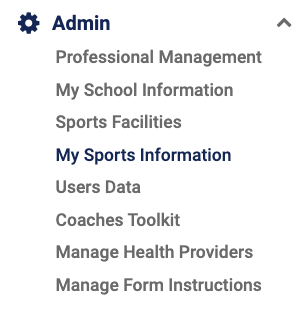
Hover back over the Admin tab and select My Sports Information. Click View on the row of the school you are setting up the Co-Ed sport for. The Co-Ed sports selected in the first three steps will appear at the bottom of the sports listing. Scroll down to find them.
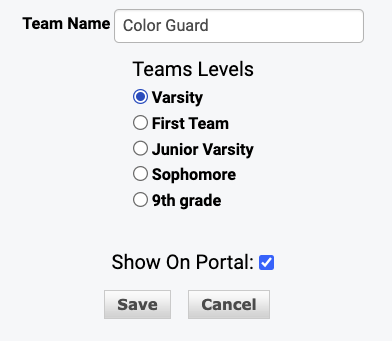
Under the Co-Ed sport you are setting up, click the Add New Team link. Type the desired team name for the Co-Ed sport and select the level for that team.
If you are setting up multiple Co-Ed sports and levels, repeat Steps 4 and 5 for all sports before proceeding.

Hover over the Admin tab and select Sports Facilities. In the following steps you will set up the home sports facilities for the Co-Ed sport.
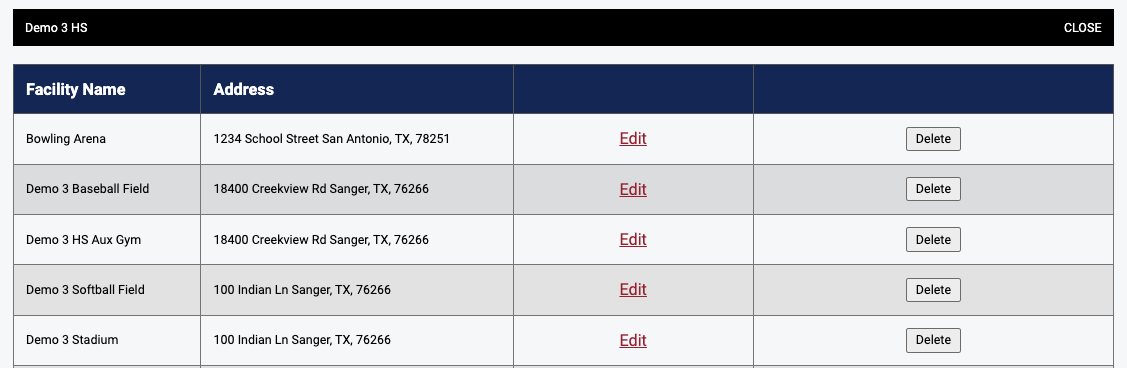
Find the appropriate facility that the Co-Ed sport will be using and click Edit on that line.
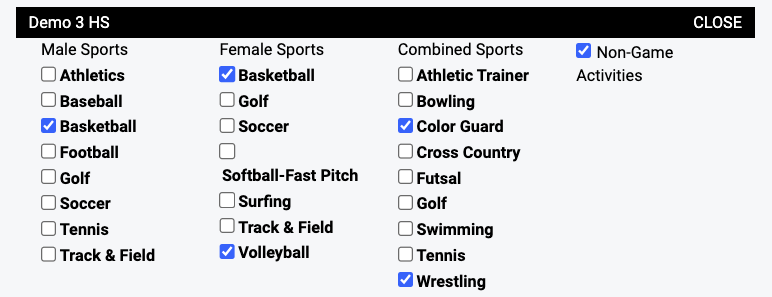
Click View to show the list of sports. Select the Co-Ed sports that will be allowed to schedule home games and practices in the facility. You can also unselect the Male and Female sports at this time.
If teams from multiple schools utilize the same facility, repeat Step 8 for those teams as well. Once you have granted access to the facility, click Save.
Hover over the Admin tab and select User's Data. Find the coach's profile who will be coaching the Co-Ed sport and click Edit. If the coach does not currently have a Rank One account, click Add User.
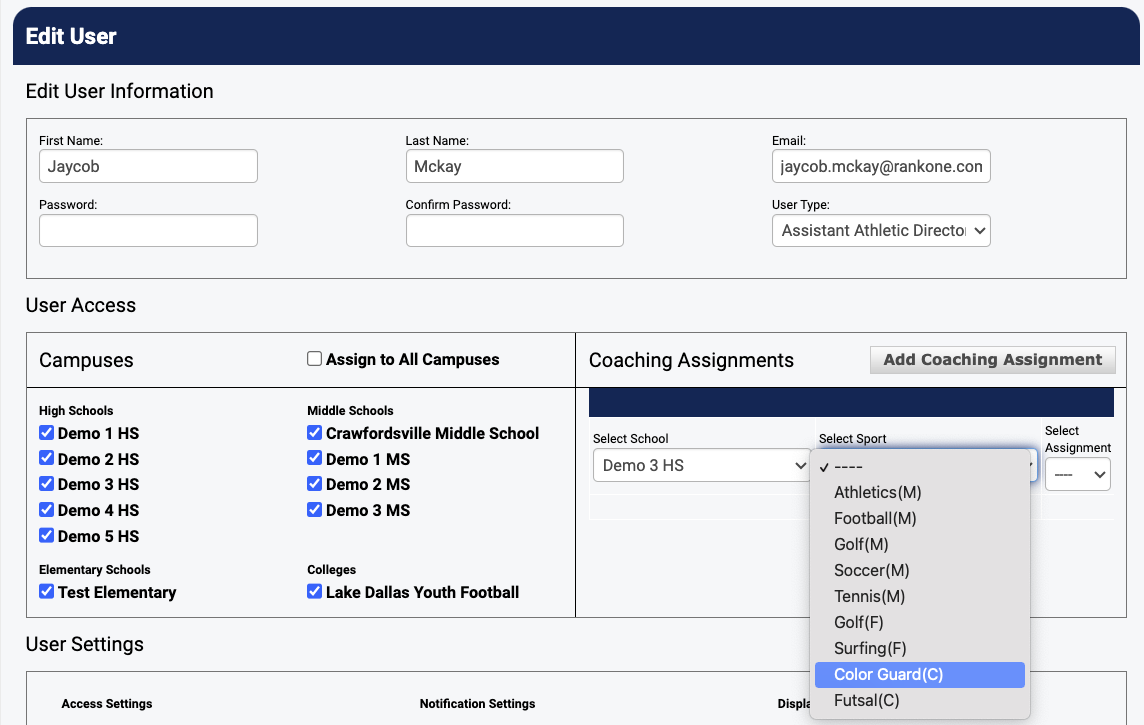
Under the Coaching Assignments drop-down, scroll down to find the correct Co-Ed sport and select it. You can also remove the Male/Female coaching assignments that will no longer be applicable.
At this point, the coach will see the Co-Ed sport when logging in.
Hover over the Admin tab and select My School Information.
Click Edit School Information under the school you are removing the Male/Female sport from. Uncheck the appropriate sport(s) under the Male and Female columns.
Click Save to finalize the removal of the Male/Female sport designations.