 Rank One Pro
Rank One Pro
Rank One Pro
In Rank One Pro, forms and notes can be marked as confidential. When a form or note is set to confidential, only users who have been explicitly granted access to view confidential forms will be able to see them. This tutorial covers how to grant confidential form access to users, how to mark forms as confidential, and how to upload a confidential note.
From the main menu, go to Administration and select Users to view the list of all users in your system.
Find and click on the user you want to grant confidential form access to. This will open their user profile settings.
Locate the Allow to View Confidential Forms setting in the user's data access section. Change the value from NO to YES.
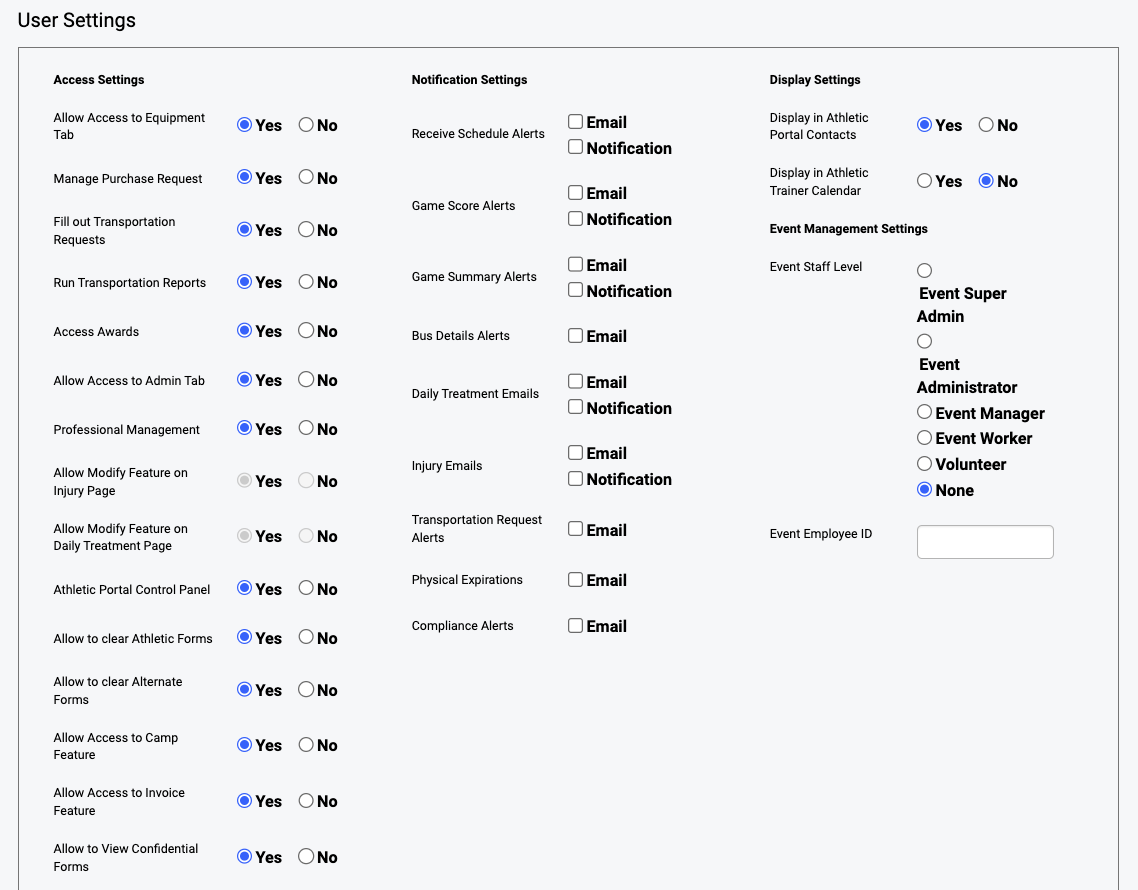
The data access section of a user profile with the confidential forms setting highlighted.
Click Save to apply the updated permissions. The user will now be able to view any forms or notes that have been marked as confidential.
From the main menu, go to Administration and select Forms to view the list of available forms.
Find the form you want to make confidential and click the Edit button to open the form settings.
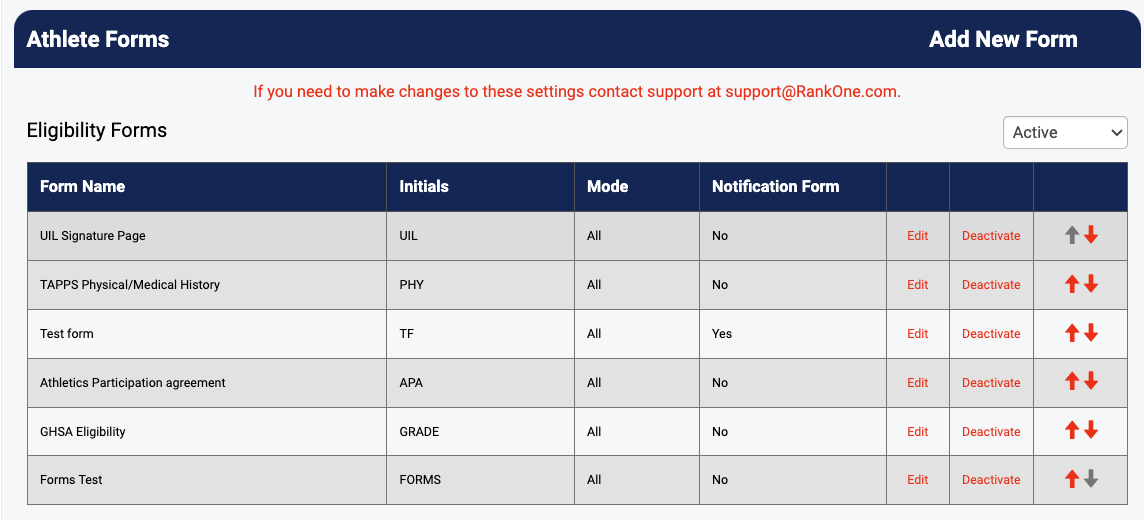
The forms list showing the Edit button for each form.
In the form settings, locate the Confidential option and set it to YES. This will restrict the form so that only users with confidential access can view it.
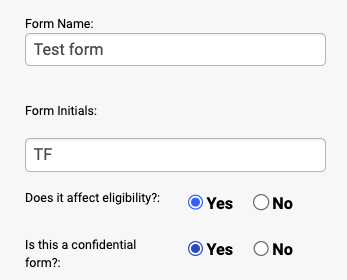
The form settings page with the Confidential option enabled.
Click Save to apply the confidential setting. The form will now only be visible to users who have been granted access to view confidential forms.
Search for and open the profile of the student you want to add a confidential note to.
Within the student profile, navigate to the Notes section where existing notes are displayed.
Click the Add Note button to create a new note for the student.
Fill in the note title and content with the information you want to record.
Check the Confidential checkbox to mark this note as confidential. This ensures only authorized users can view it.
If needed, attach any supporting documents or files to the note by clicking the Upload button.
Click Save to upload the confidential note. The note will now only be visible to users who have been granted confidential form access.