 Rank One Pro
Rank One Pro
Rank One Pro
This tutorial explains how to block specific sports or activities from displaying on your athletic website. This is managed at the campus level in the Control Panel.
This is done at the campus level in the Control Panel. Select the school in the top section of the Control Panel.
Click on the Sports Available tab to view the list of sports and activities for that campus.
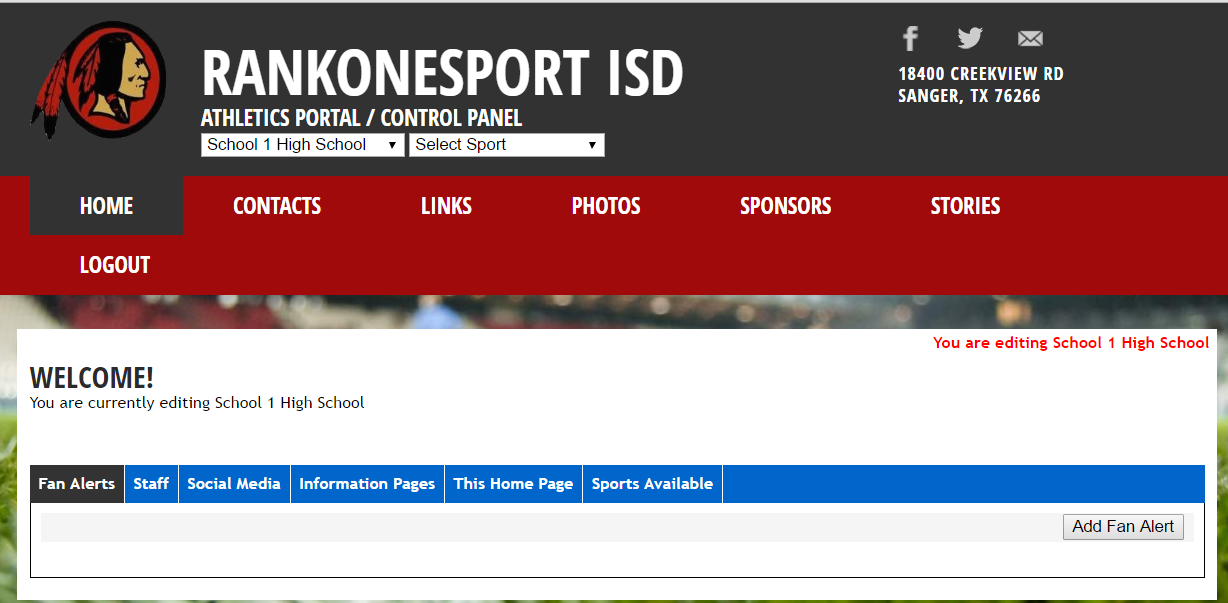
The Control Panel with the school selected (#1) and the Sports Available tab (#2).
Uncheck any sport or non-sport you do not want to display on the website, then click the Save button. The unchecked items will no longer show up on the website.
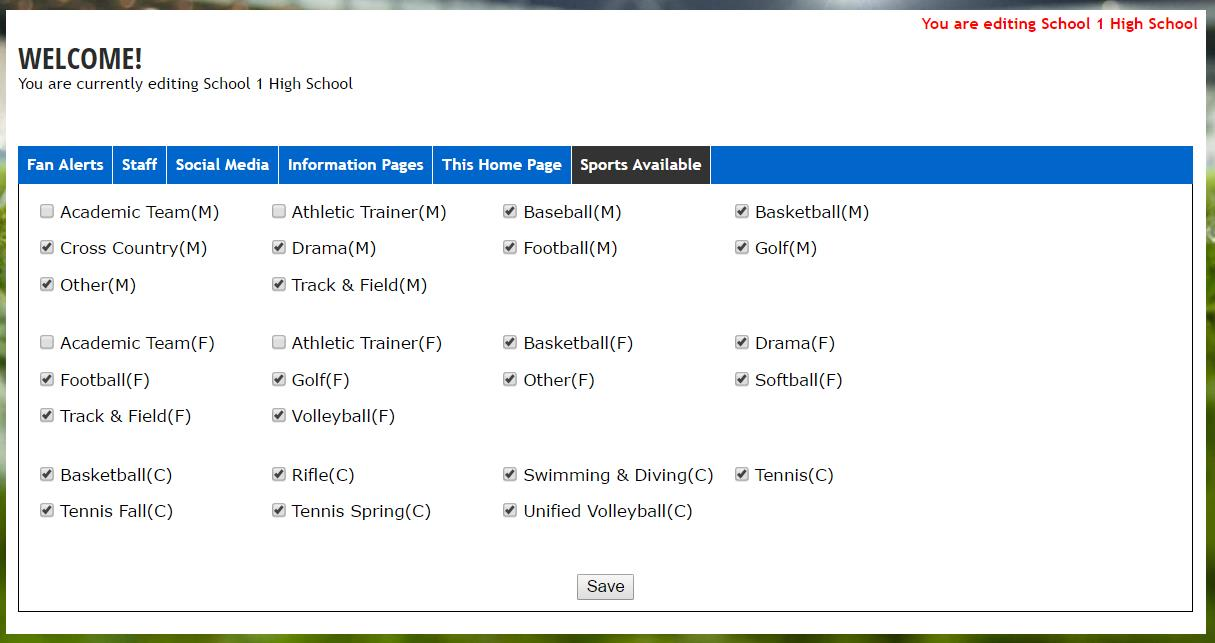
Uncheck any sports on the list and click Save.
Repeat the steps above for all schools that have the sport or non-sport on their list.