 Rank One Pro
Rank One Pro
Rank One Pro
Switching the Daily Treatment Log to "Public View" allows students to sign in for treatment on their own. This tutorial walks through enabling the public sign-in page, the two sign-in methods available to students, and how to manage treatment entries afterward.
Hold your cursor over Athlete Management and select Daily Treatment Log from the dropdown menu.
The Athlete Management dropdown menu showing Daily Treatment Log
Click the "Switch to Public View" button in the upper-right corner of the Daily Treatment Log page.
The Switch to Public View button on the treatment log
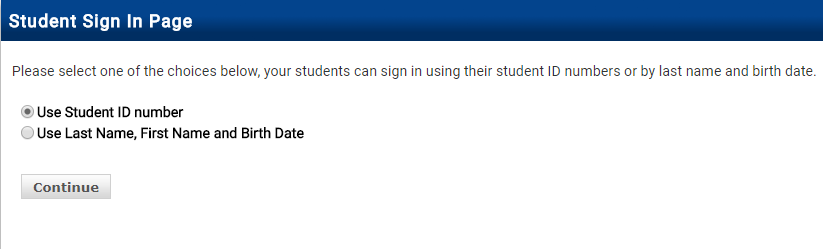
Select one of the two sign-in methods for students, then click Continue:
The Student Sign In Page with both sign-in options
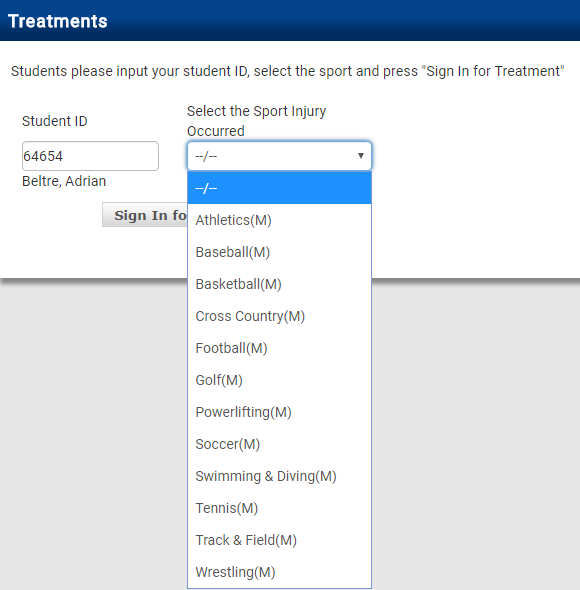
If you chose Option A, type the Student ID number in the box and wait for the system to recognize the student's name. Once the name populates, select the Sport Injury Occurred from the dropdown.
Student ID sign-in with sport selection dropdown
Once the information has been entered, click "Sign In for Treatment." You will receive a "Success" message confirming the sign-in.
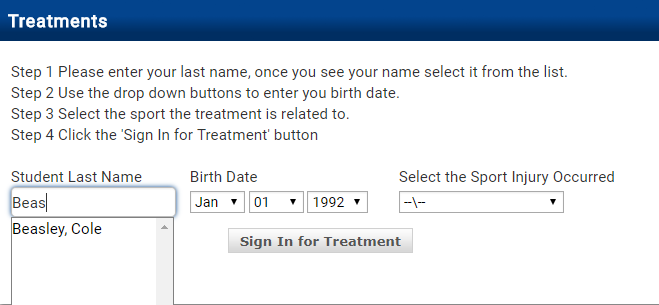
If you chose Option B, type the student's last name and select the appropriate student from the dropdown menu.
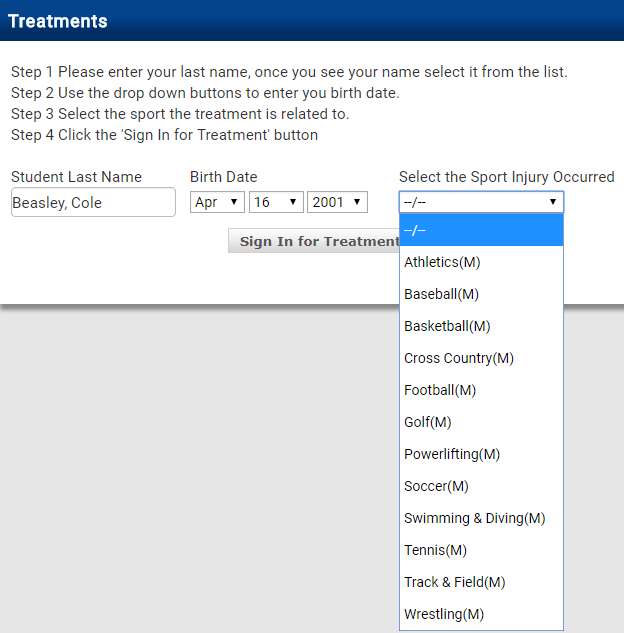
Last name search with student selection
Enter the correct Date of Birth and select the appropriate Sport Injury Occurred from the dropdown.
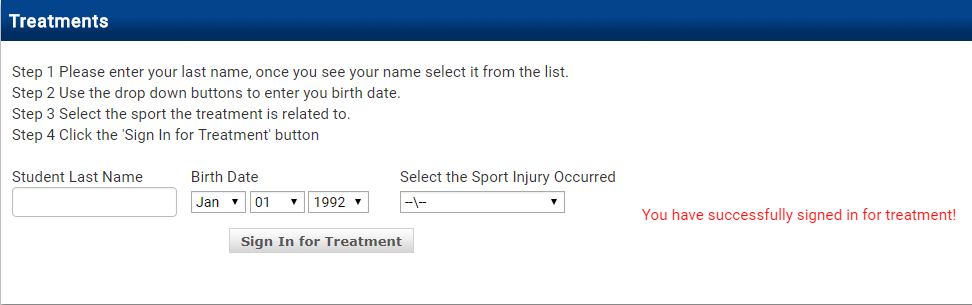
Date of birth entry and sport injury selection
Click "Sign In for Treatment." You will receive a "Success" message confirming the sign-in.
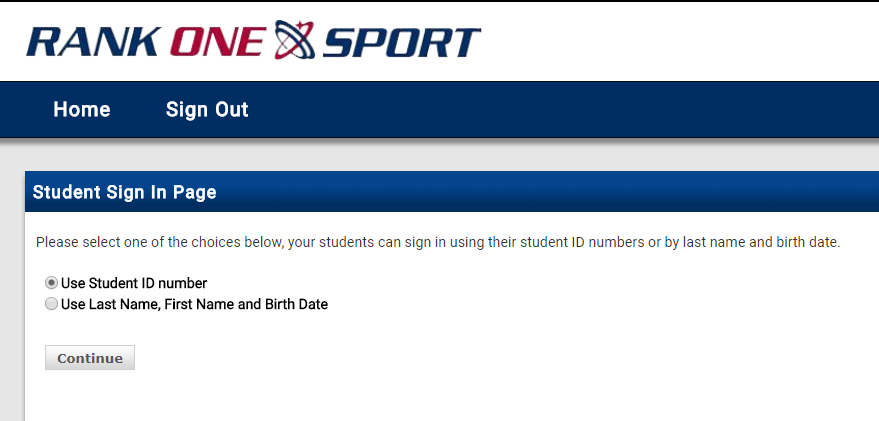
The success confirmation message
To return to the Student Sign In page, select Home. To log back into your Rank One account, select Sign Out.

The Home and Sign Out buttons on the public view
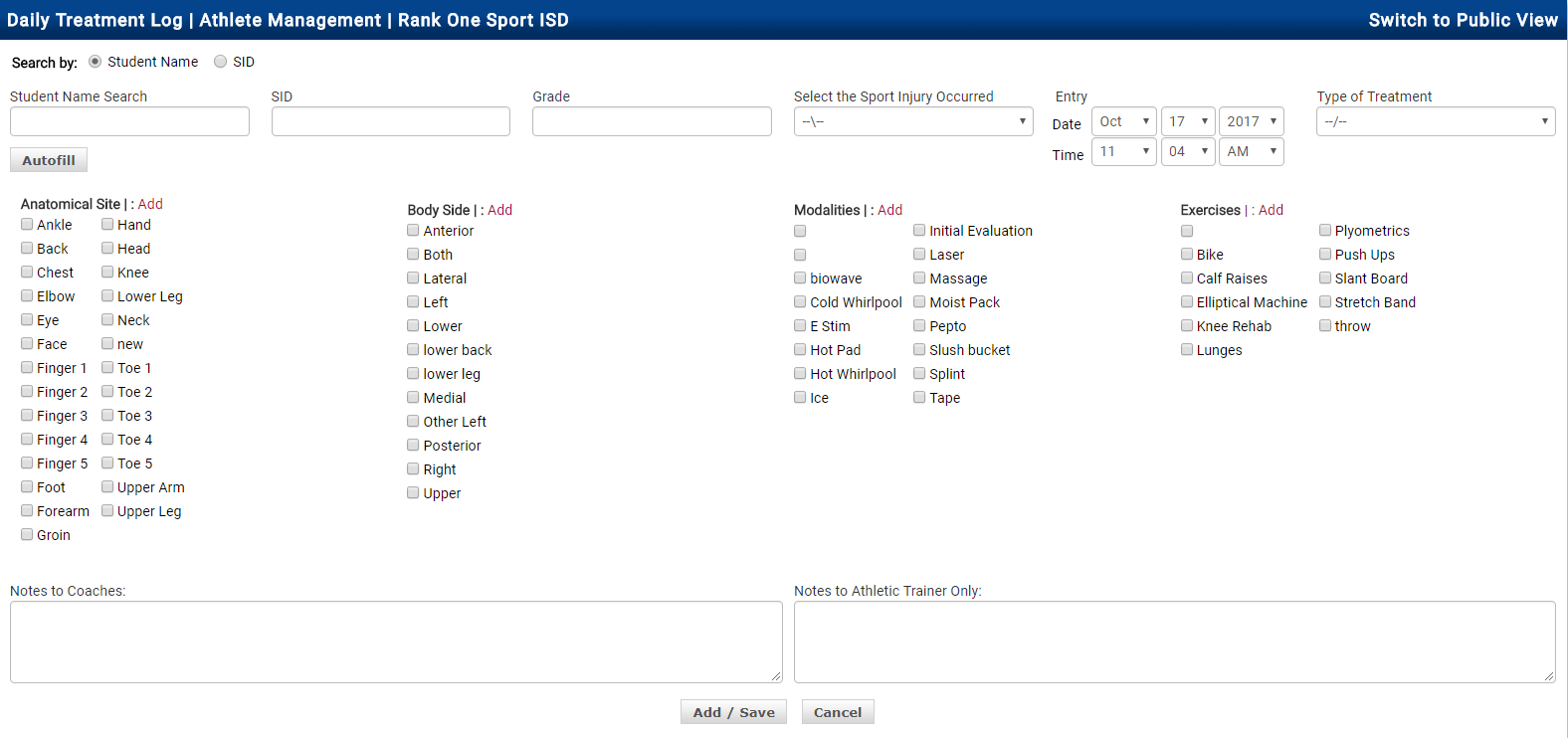
After logging back in, you can edit treatments for students who used the Public Treatment Sign In at the bottom of the Daily Treatment Log. Select the athlete's name from the list and click Edit to enter treatment information, or Delete to remove the athlete from the list.
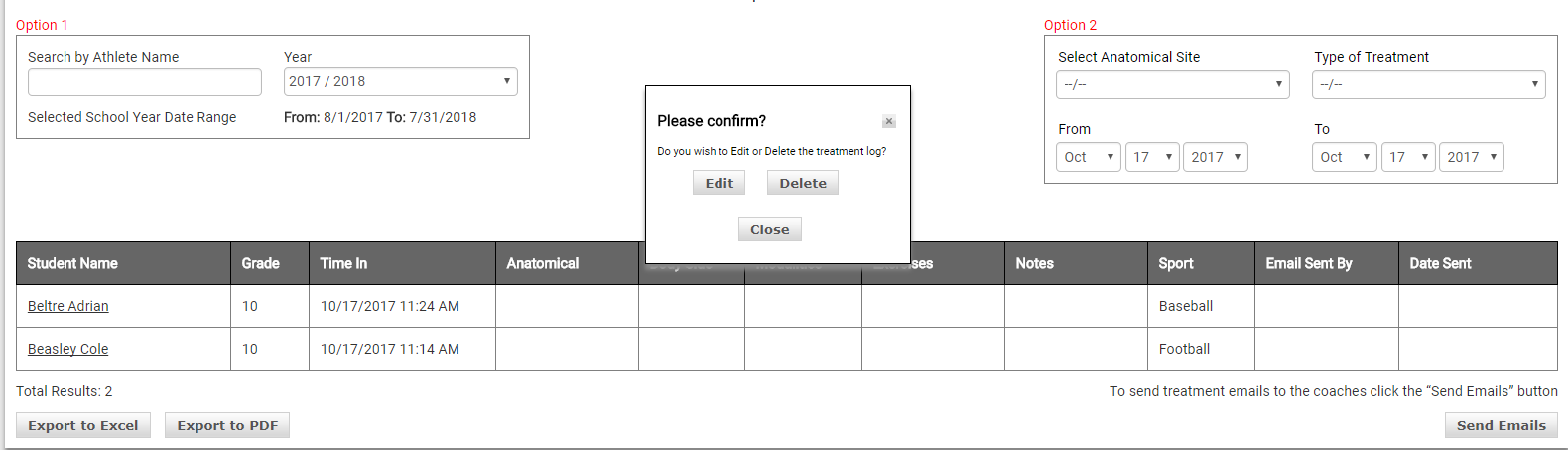
The treatment log with Edit and Delete confirmation dialog