 Rank One Pro
Rank One Pro
Rank One Pro
This tutorial explains how to filter camps by School, Sport, Last Name, and status, as well as how to view inactive camps from previous years.
Login to Rank One and access Camps & Commerce under the Camps tab.
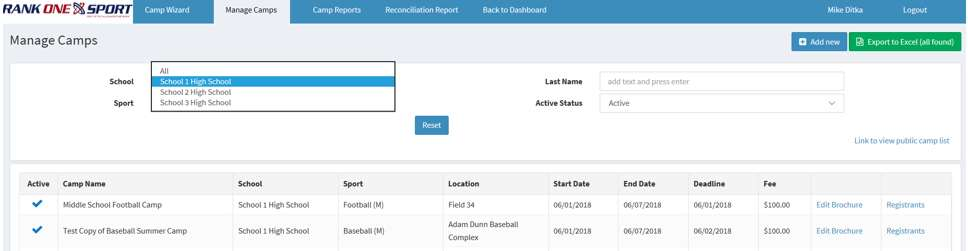
To view camps available for a specific campus, choose a selection from the School drop-down menu.
Select a school to filter the camp list by campus.
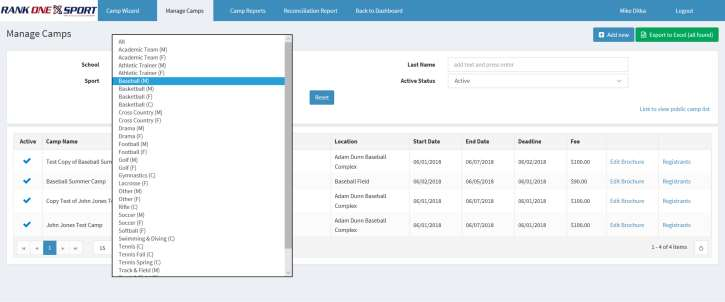
To view camps available for a specific sport, choose a selection from the Sport drop-down menu.
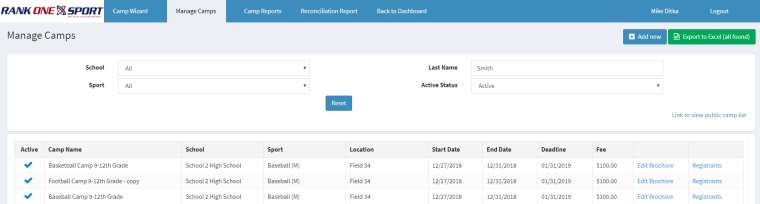
To view camps that specific registrants have signed up for, search by name using the Last Name filter. This allows you to view what registrants have signed up for either in all camps or with more detailed results based on other filter selections.
To view inactive camp information or camps from previous years, change the status to show Inactive and select the correct Year.
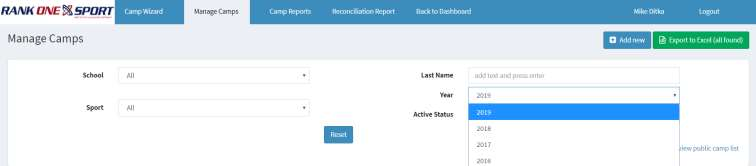
Change the status and year to access archived camp data.