This tutorial explains how to add and edit form requirements in Rank One.
1
Navigate to Edit Forms
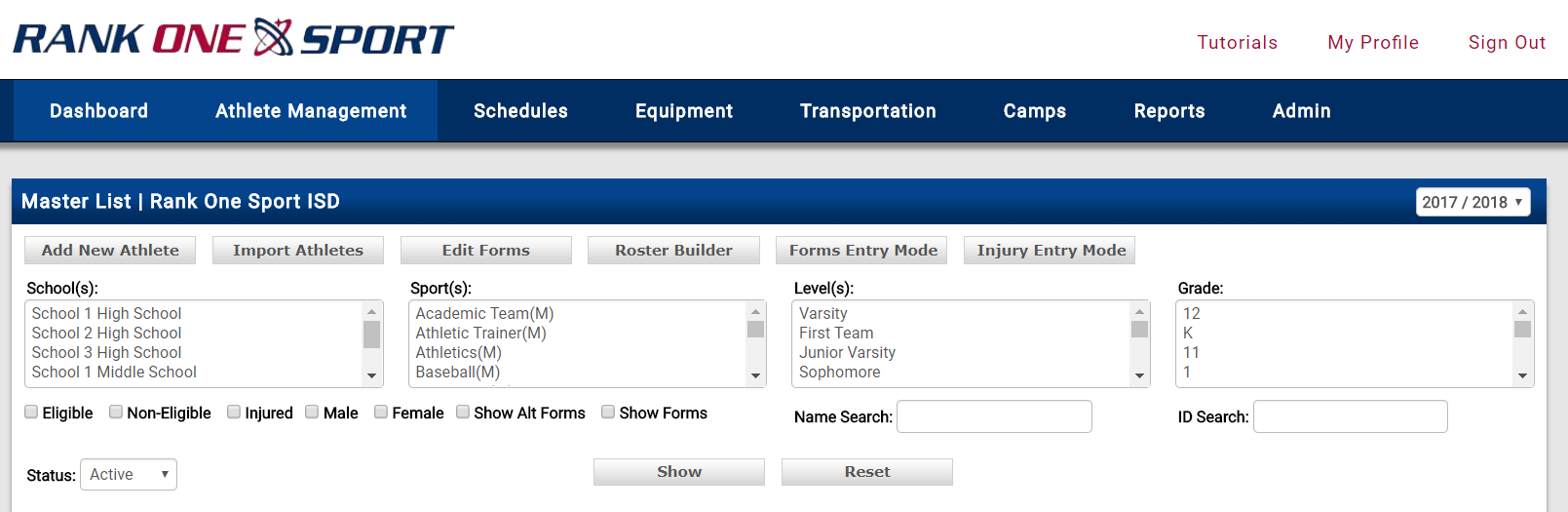
Hold your cursor over the Athlete Management tab and select Master List. Then select Edit Forms.
2
View Existing Forms
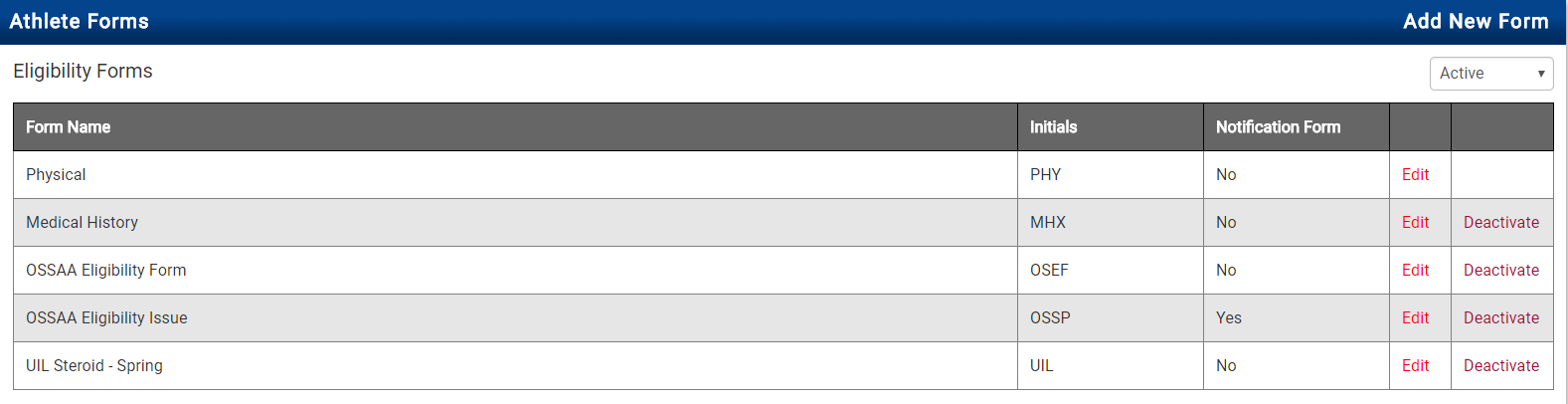
You will see a list of existing eligibility forms with their names, initials, and notification form status. From here you can edit or deactivate existing forms.
3
Add a New Form
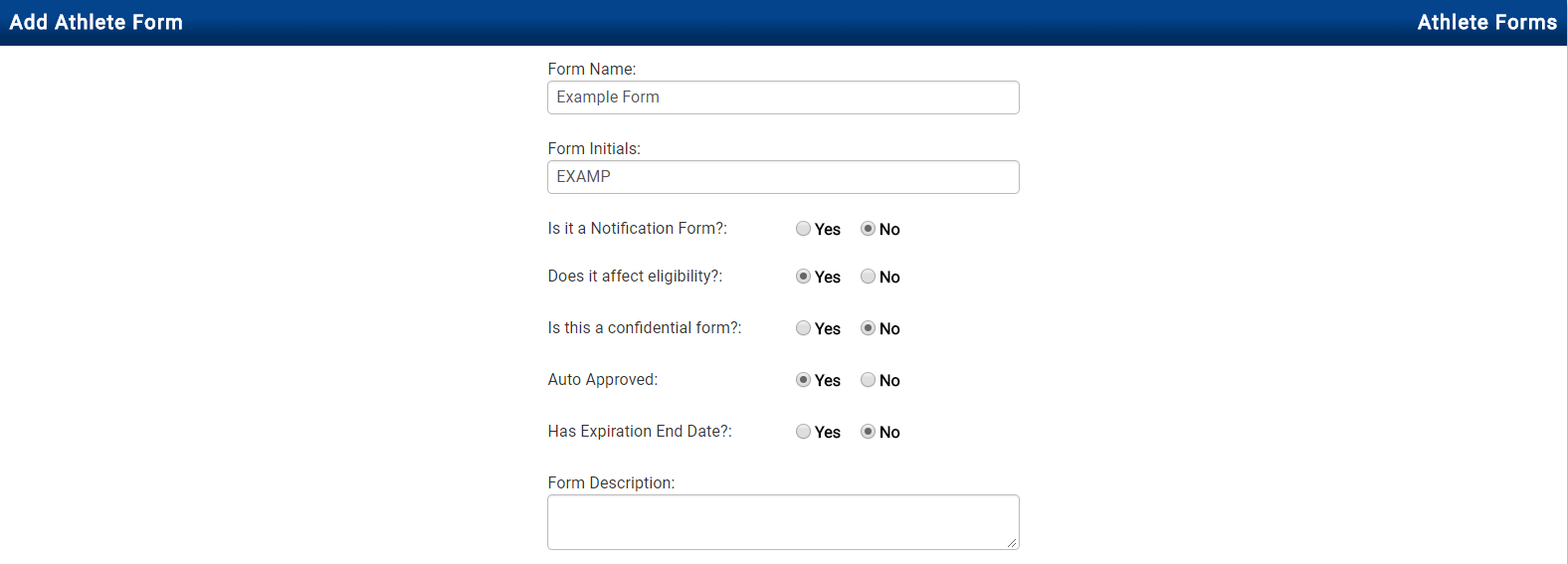
To add a new form, select Add New Form. Type in the Form Name and Form Initials (Form Initials will be used to display form requirements in a spreadsheet view for ease of viewing).

4
Configure Form Settings
Configure each of the following settings for the new form:
- Is it a Notification Form? Generally this should be set to "No." Notification forms can be set up when using Electronic Forms to flag a student when selected questions are answered in a certain way. Contact a Rank One representative to create a notification form (programming required).
- Does it affect eligibility? If the form is required by your district for a student to participate in athletics, check "Yes." This will also affect the student's Red/Green Status. If you check "No," the form will be considered an "Alternate Form" and may be tracked but will not affect whether a student is cleared to participate.
- Is this a Confidential form? If "Yes" is checked, only users with access to view confidential forms will be able to view the form. Generally this is kept as "No."
- Auto Approved? If "Yes," after a form is submitted by a Parent/Guardian, the form will automatically populate into the student's Notes Section and will check off "Yes" for that form in the student's Forms Tab. If "No," the form will populate under Athlete Management > Electronic Forms where an Administrator will review and manually Approve or Deny the form.
- Has Expiration Date? By default, form requirements expire at the end of the school year (June 1). Set to "No" if the form must be turned in each school year. Set to "Yes" to specify a custom validity period by entering the number of days in the "Days to Expiration" field (e.g., enter 365 for one year). Generally this is set to "No."
5
Save the Form
After configuring all settings, click Save.
Tip: If you have any questions regarding forms setup, please contact a Rank One Representative or email support@rankone.com.
Important: Adding or editing forms requirements may only be performed by users with Athletic Director or Assistant Athletic Director user types.
 Rank One Pro