This tutorial walks you through how to complete your student's online forms as a guest, without creating a parent account. While this option is available in many districts, we recommend creating an account for full access to compliance status, form downloads, and school notifications.
Important: Without a parent account you will not be able to see your student's compliance status, download the completed forms, or view notifications sent to you by your student's school. We recommend that all parents create an account.
1
Review Instructions and Proceed to Online Forms
Read through your district's instructions page and select "Proceed to Online Forms" or "Click Here" at the top of the page.
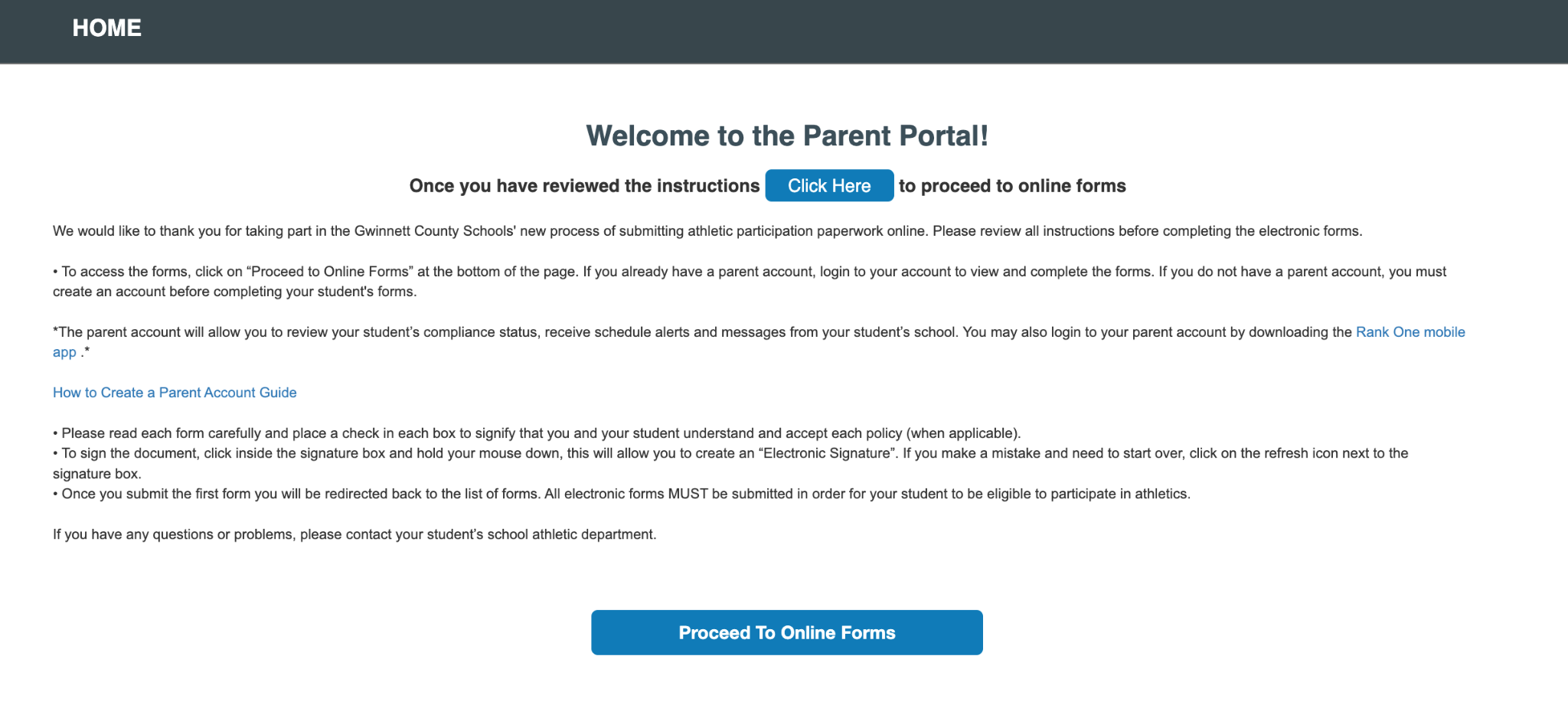
The district instructions page with the "Proceed to Online Forms" button at the bottom.
2
Continue as a Guest
You will be prompted to the next page where you can either log in with an existing parent account, create a new parent account, or Continue as a Guest.
Select the "Continue as a Guest" button to proceed without an account.
Tip: Guest access is disabled in some areas due to state regulations, and some districts may also require an account. If you do not see the "Continue as a Guest" option, you must create a parent account and log in to complete your forms. Please see the "How to Create a Parent Account" tutorial for help.
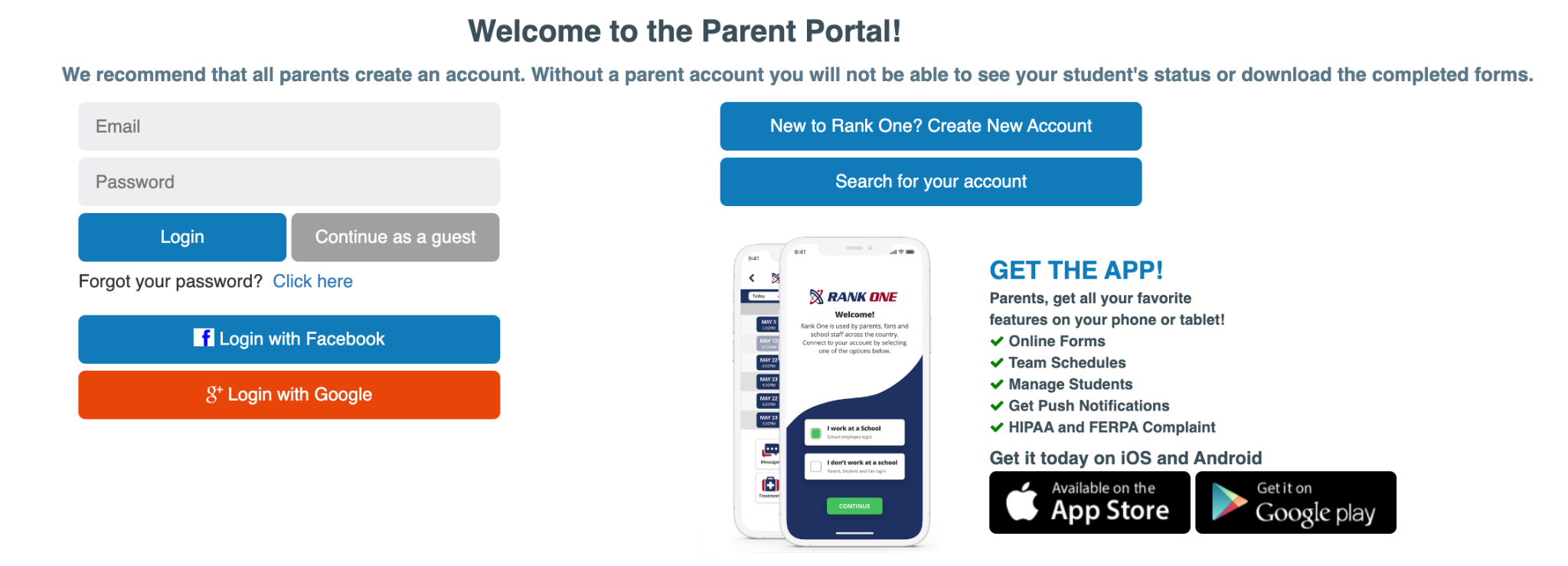
The Welcome to the Parent Portal page showing login options and the "Continue as a Guest" button.
3
Select Grade Level (If Applicable)
After continuing as a guest, you may see the option to select the appropriate grade level for your child. If this applies to your school district, select your student's grade and the forms will populate.
Tip: If you do not see this page, you will be directed straight to the forms list.
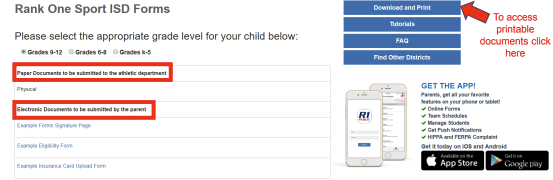
Select the appropriate grade level for your child (e.g., Grades 9-12, Grades 6-8, or Grades K-5).
4
Complete the Forms
You will see two sections: Paper Documents and Electronic Documents.
- Paper Documents: To print a blank Physical form or other printable documents, click on the "Download and Print" tab on the right side. In most cases, printable forms such as the Physical should be turned in to the school manually. However, some schools may allow you to upload these documents to an electronic form titled "Physical Upload Form."
- Electronic Documents: To complete the electronic forms, click on the link to open the form. The form status will show as "Incomplete" until after the school has approved your student's forms.
Tip: Some schools may require multiple forms to be completed. If you have any questions related to the forms, please contact your student's school.
The forms page showing both Paper Documents and Electronic Documents sections, with the "Download and Print" tab on the right.
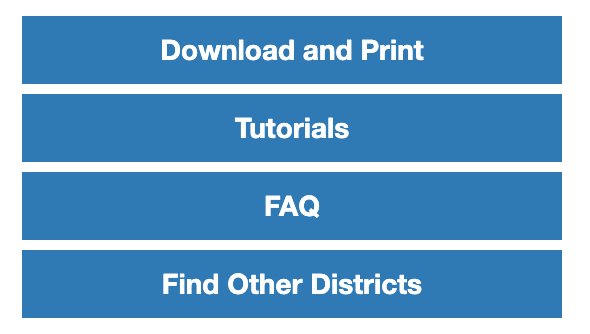
Additional Features Inside the Forms Page
- Download and Print – Access documents that you can print
- Tutorials – Access tutorials to help you complete electronic forms and manage your account
- FAQ – View Frequently Asked Questions and Answers
- Find Other Districts – Search for other schools
 Rank One Pro