Rank One Pro
Rank One Pro
Rank One Pro
This tutorial walks you through how to create a parent account and complete online forms for your student in Rank One Pro.
Visit rankone.com and select PARENTS CLICK HERE at the top of the page. Then select Go to Forms, choose your State, and select your Student's School District.
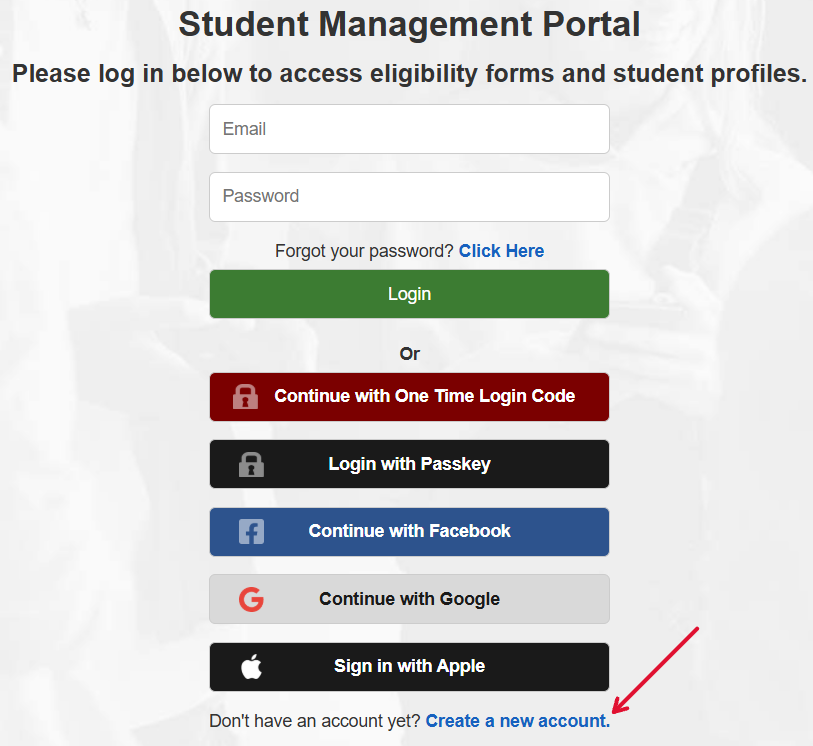
To create a new parent account, select "Create a New Account" at the bottom of the screen to register using an email address and password.
You may also use your Passkey, Facebook, Google, or Apple credentials to create your parent account by selecting the appropriate icon.
If you already have a parent account, use your existing credentials to log in. If you forgot your password, select "Click here" next to "Forgot your password?" to receive a reset link via email.
Enter your information and select Register. You will be emailed a link to confirm your account.
If you do not receive a confirmation email, please check your junk/spam folders or email support@rankone.com to have your email address verified.
Click on the confirmation link in the email you received. The link will redirect your web browser. Then click "here" to sign into your parent account.
If you created your account via email, enter your Email Address and Password and select Sign In. If you used Facebook or Google to create your account, select the appropriate icon to sign in.

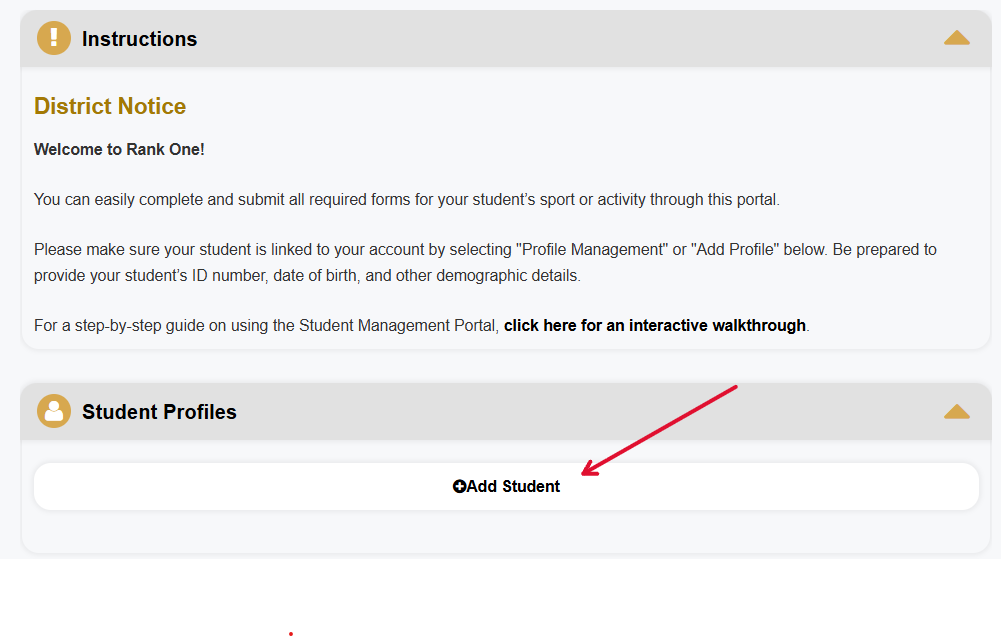
Select +Add Student to claim your student to your account. If you have multiple children, you will have the opportunity to link multiple students.
Enter the information requested to claim your student. Districts require one of the following to verify your student:
Enter your student's information and select Find Student. You will see your student linked to your account.
To add another child, select "Find Another Student" and enter the requested information. To begin completing forms, select "Start Forms".

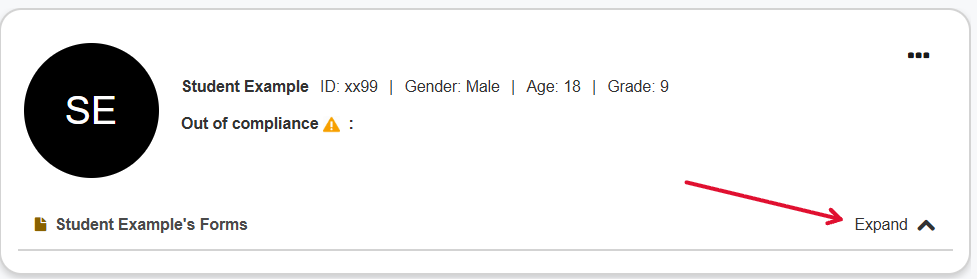
You will see your student's name and their Compliance Status. Click "Expand" to access the forms.
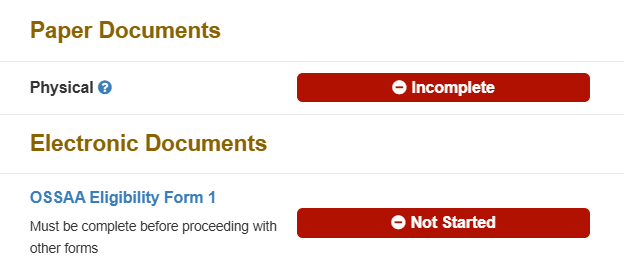
You will see two sections:
In some cases, printable forms such as the Physical should be turned in to the school manually. However, some schools may allow you to upload these documents to an electronic form titled "Physical Upload Form." If your school allows this option, it will appear under Electronic Forms.
Submit all electronic forms to complete the forms process.