 Rank One Pro
Rank One Pro
Rank One Pro
This guide walks parents through the process of creating an account, linking their student, and completing online forms in Rank One Pro. Follow the three parts below to get started.
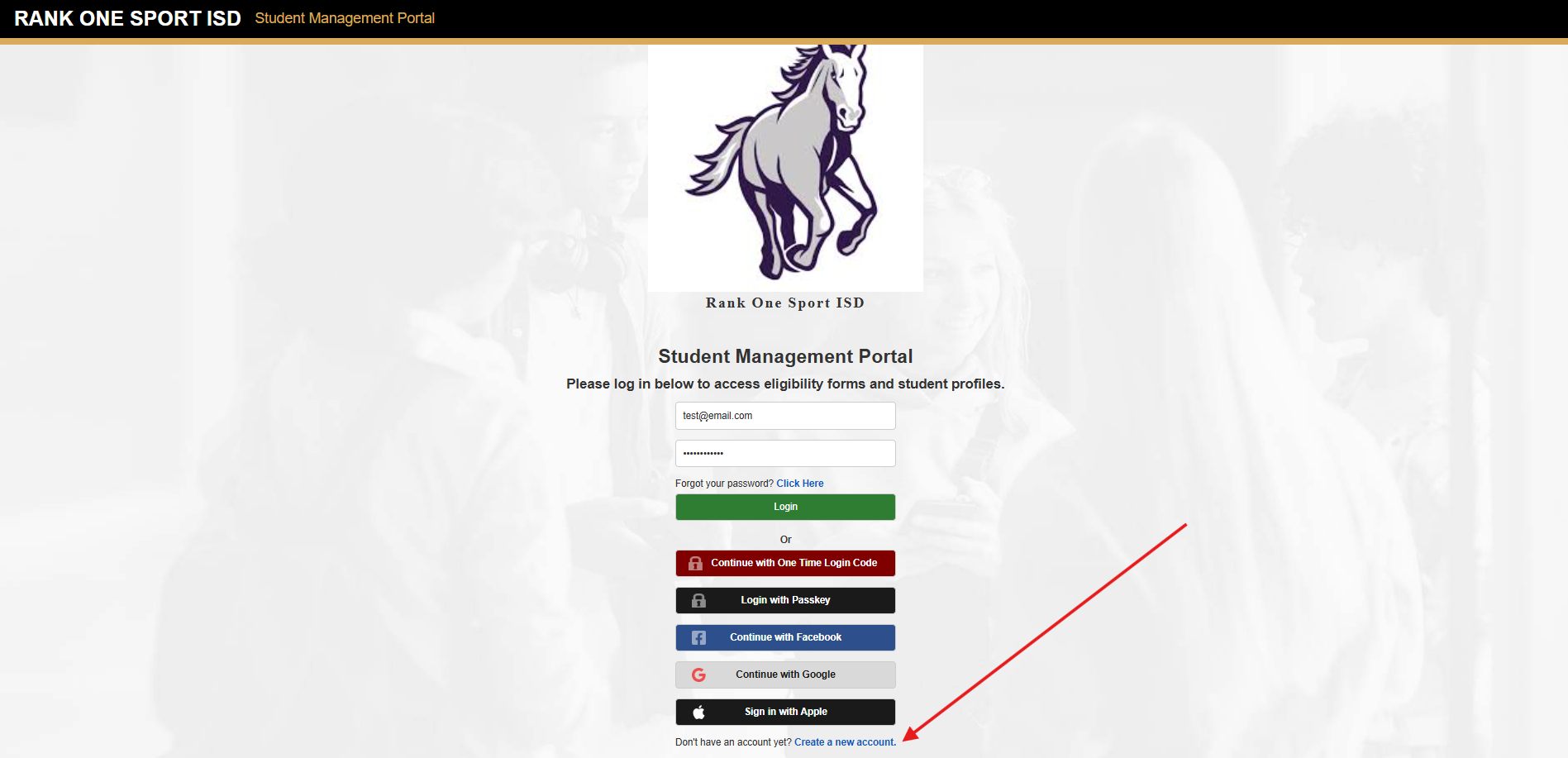
If this is your first time using the online forms portal, click Create Account to register. If you already have an account, click Log In to sign in with your existing credentials.
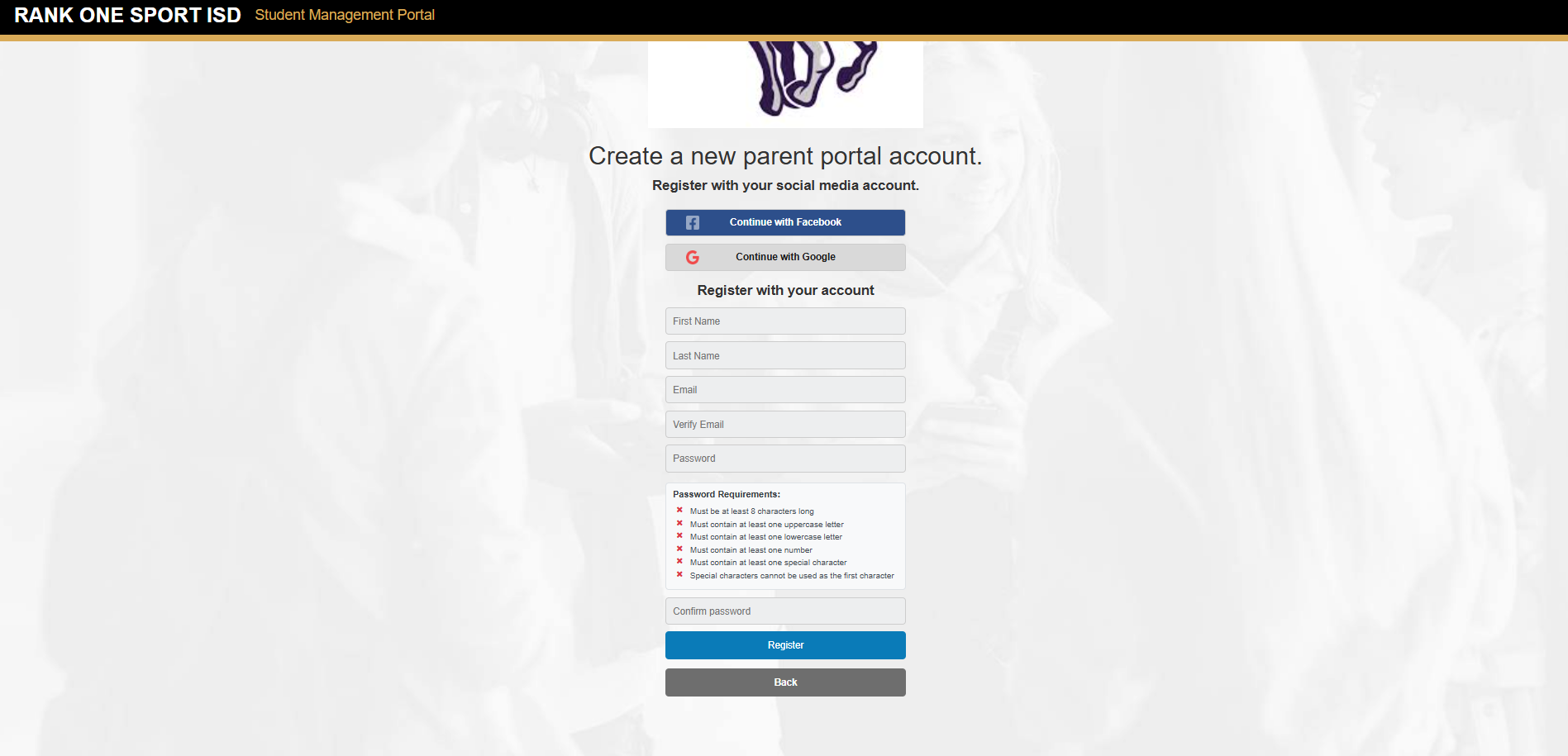
Fill out the registration form with your name, email address, and a password. Make sure the email address you enter is one you have access to, as you will need to confirm it in the next step.
Check your email inbox for a confirmation message. Click the verification link in the email to activate your account. If you do not see the email, check your spam or junk folder.

After confirming your email, return to the online forms portal and log in using the email and password you registered with.
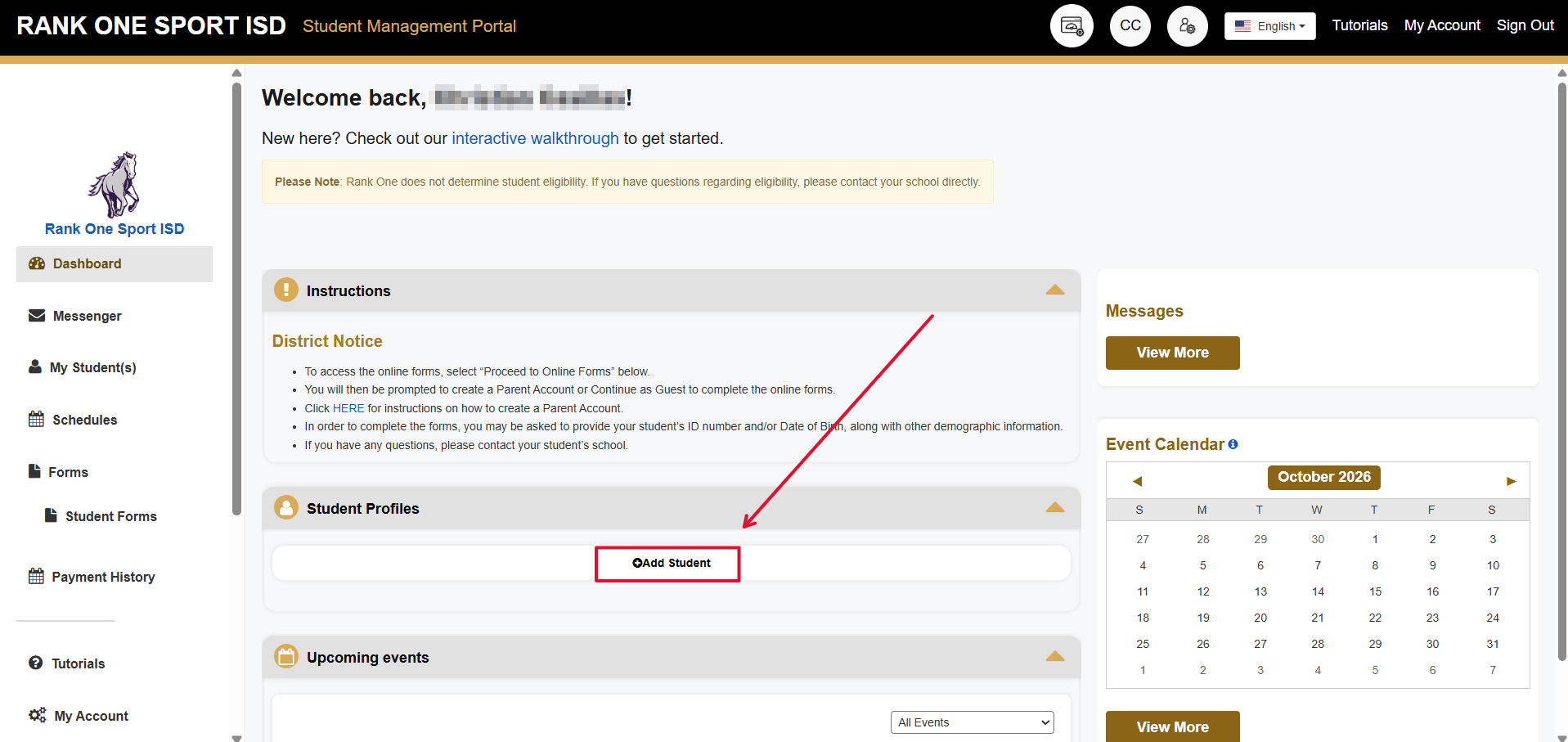
Once signed in, you have the option to link a student to your account. Click the Add Student button and enter the required student information such as their name, date of birth, or student ID as specified by your school.
Begin by reading the instructions provided by your school. This section contains any specific directions from your school district.
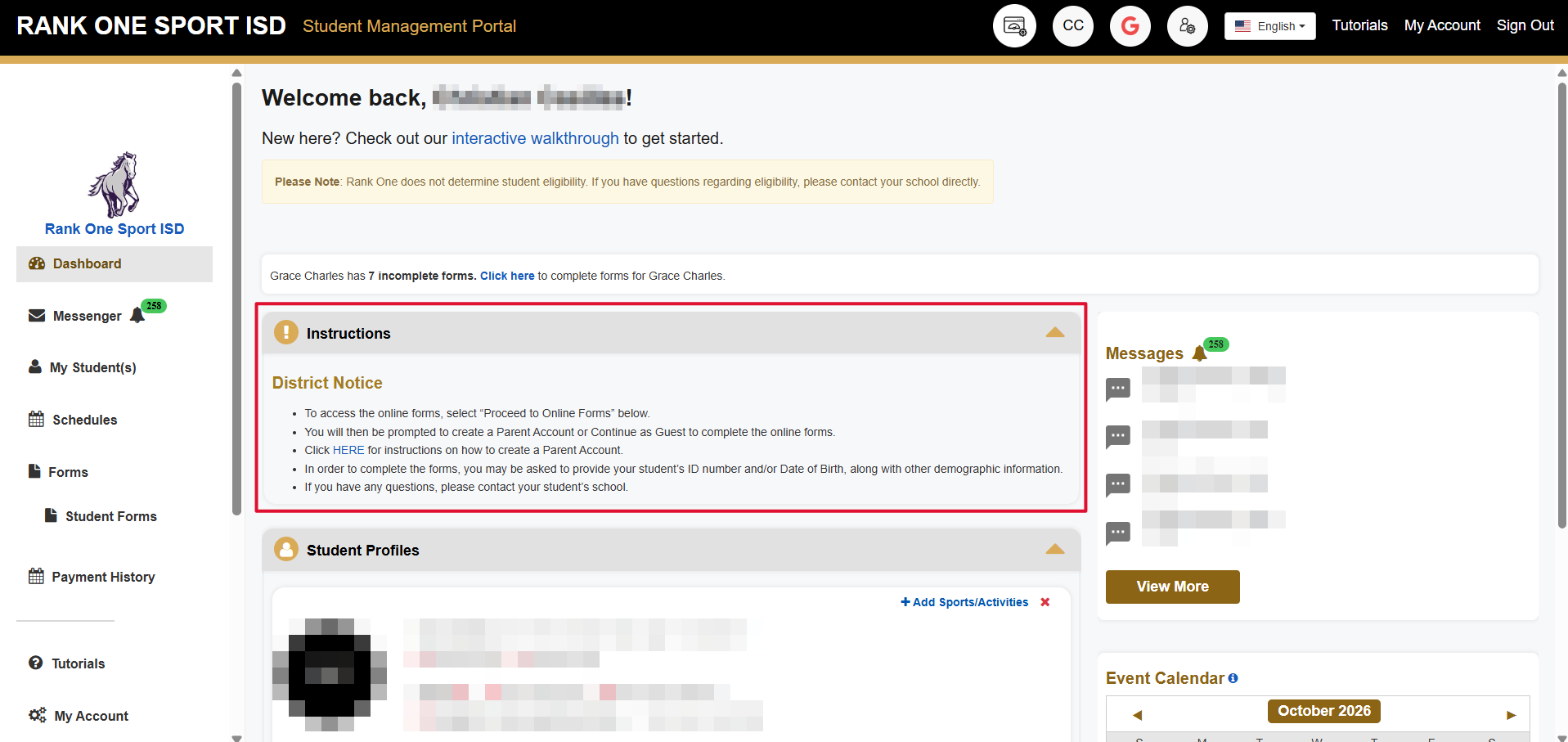
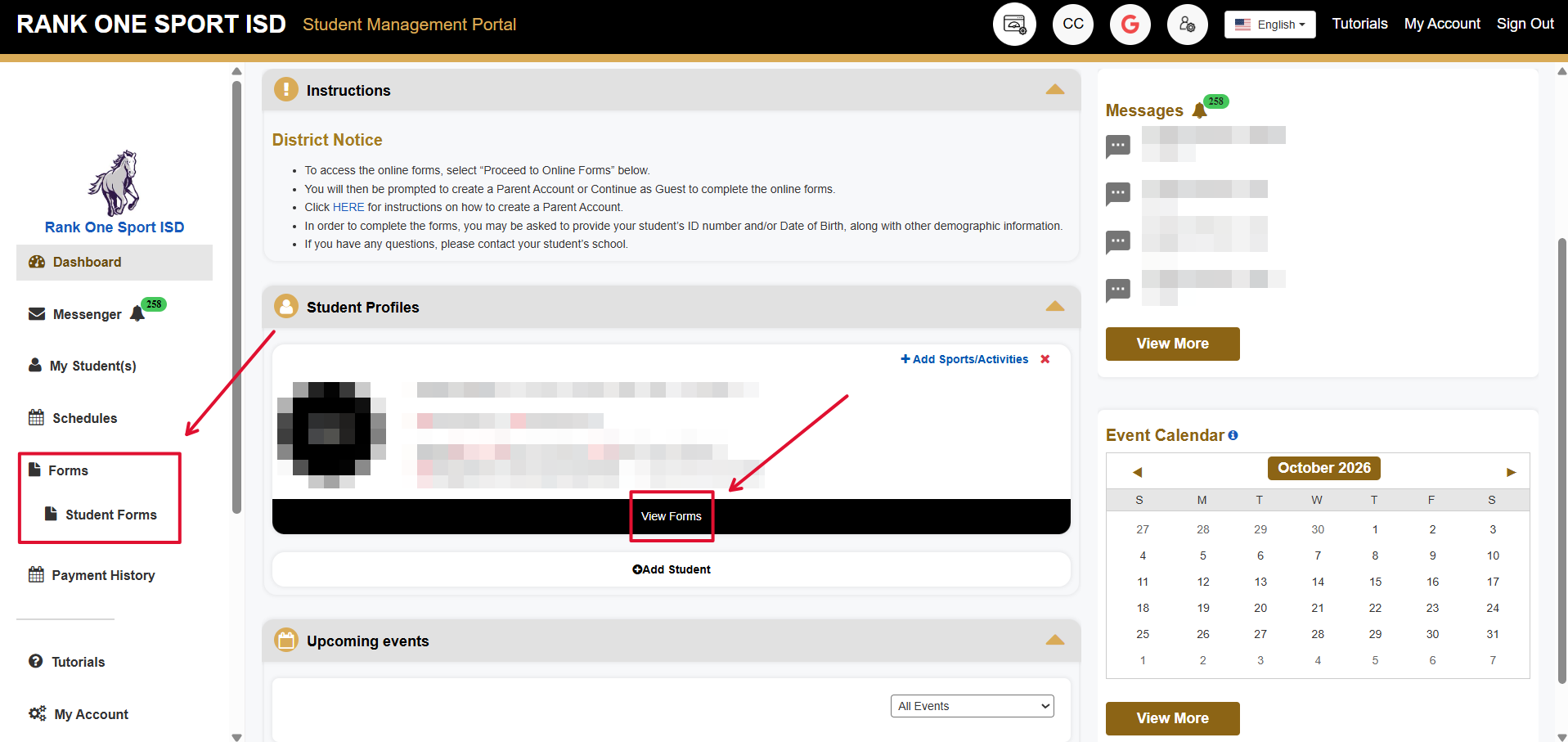
After linking your student, you will see them listed on your dashboard. Click on the View Forms button below your student's name or the Forms menu option to access the required online forms.
Review the completion status for each required form. Forms that still need to be completed will be marked accordingly. Work through each form until all items show as approved. There is a form status legend below the forms list that will help to understand each form status.
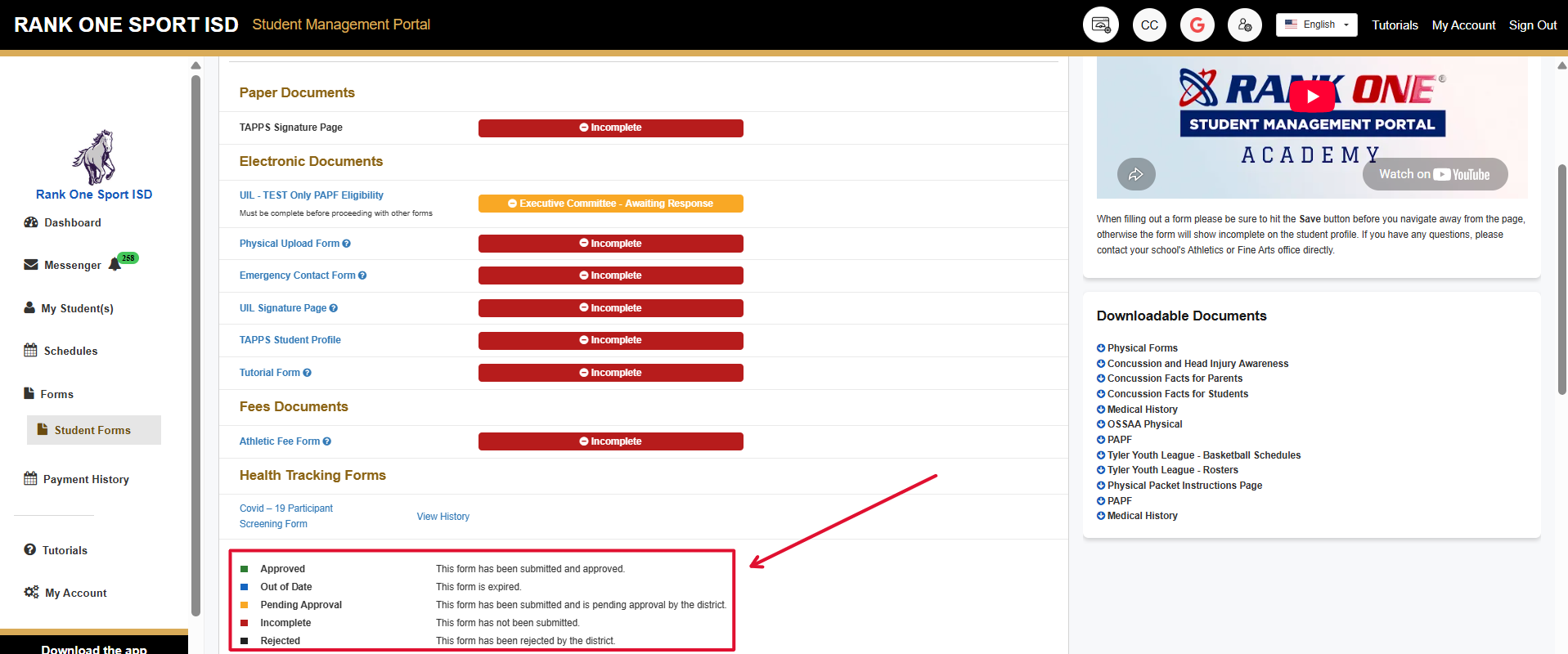
Click on each electronic form to open it, fill in all required fields, and submit. If a form is listed under the Electronic Documents section, the title will be a blue hyperlink that can be clicked on to open the form. If a form is listed under the Paper Documents section, this will be a form that is NOT submitted electronically and needs to be submitted directly to your school.