Rank One Pro
← Back to Rank One Pro

How to Edit Contacts on Athletic Portals

Rank One Pro · Last updated April 20, 2026

The Web Portal Contacts can be generated automatically from the Users Data section inside a district's Rank One account. However, personnel positions may not always be accurate. For example, inside Rank One a user may have the user type of "Assistant Athletic Director" but their true job title is "Administrative Assistant". This tutorial explains how to correct contact information on your Athletic Web Portal.

Important: You must have AD or Assistant Athletic Director access in order to update Contacts on the District Page.
1 Disable Auto-Generated Contact in Rank One

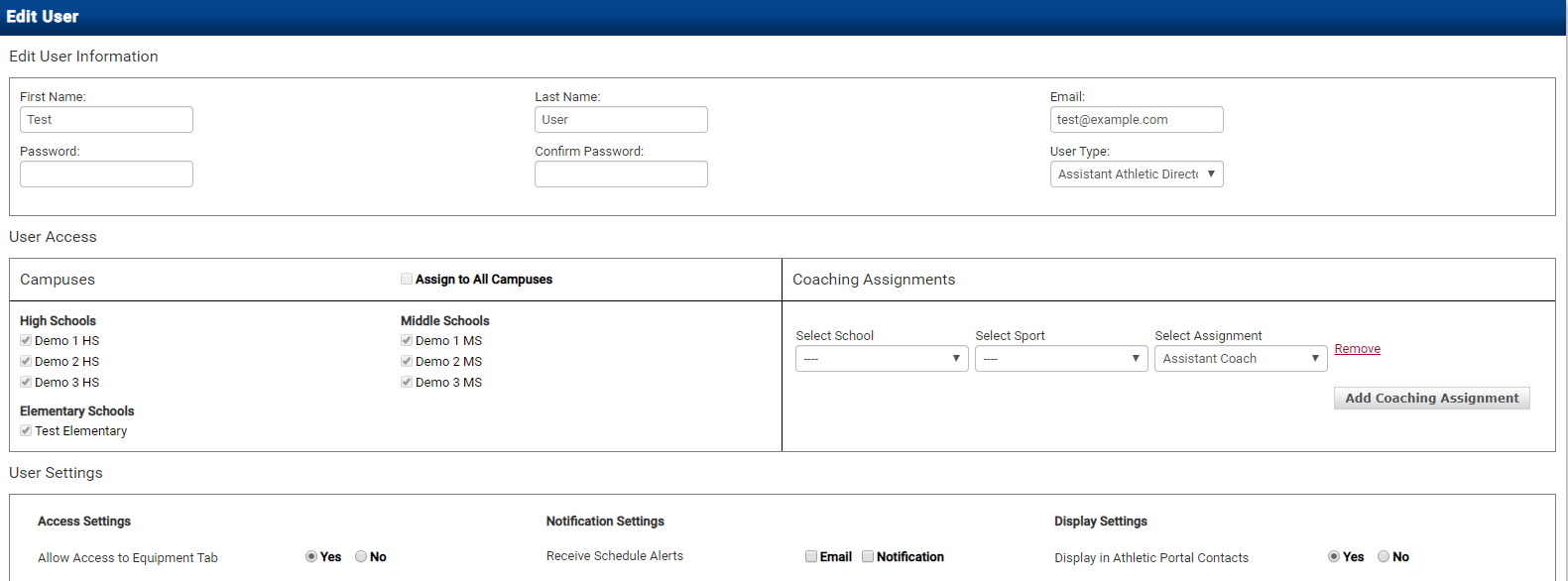
Log into Rank One and go to Admin > Users Data. Click Edit next to the user's name and select "NO" next to Display in Athletic Portal Contacts. Click Save.

2 Log Into the Web Portal Control Panel

After saving your changes in Rank One, log into your Athletic Web Portal Control Panel.

3 Open the Contacts Page and Add a Contact

Open your Contacts Page and select "Add Contact" next to the applicable Contacts section:
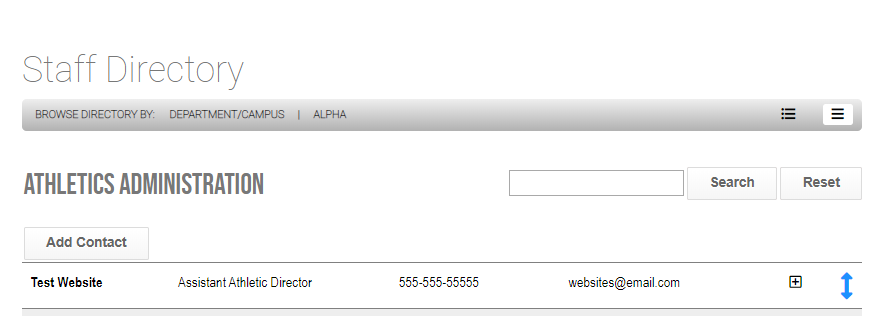
  • Athletics Administration Section -- Includes administrators over the entire district
  • Campus Specific Section -- Includes administrators/coaches at a specific campus
Contacts page with Add Contact option Add Contact button next to section
4 Enter the Contact Information

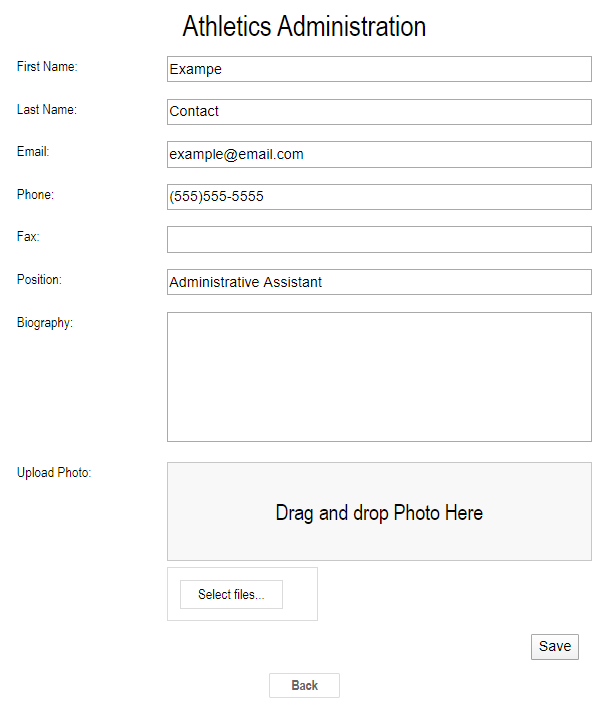
Enter the user's information:

  • First Name
  • Last Name
  • Email Address
  • Phone (Office Phone Number)
  • Fax (optional)
  • Position
  • Biography (optional)
  • Upload Photo (optional)

Click Save Changes.

Contact information form
5 Re-Order and Review Contacts

To re-order the Contacts, click and drag the blue arrow icon to re-order them.
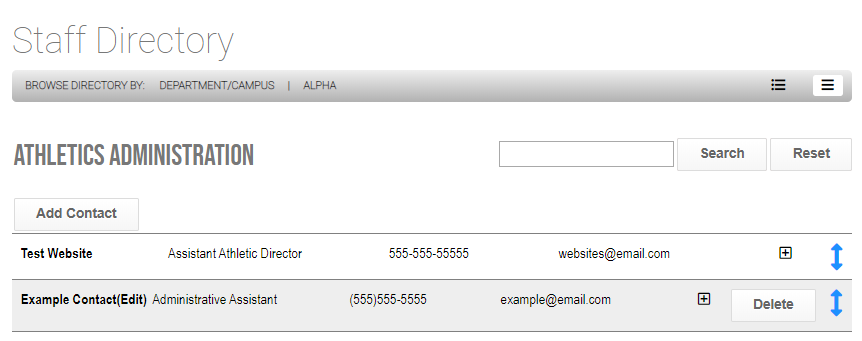
Tip: Contacts that were automatically generated from the Users Data section in Rank One will appear differently from contacts added directly through the Web Portal. Portal-added contacts will also have an "Edit" option next to their name.
Contacts list showing auto-generated and manually added contacts