 Rank One Pro
Rank One Pro
Rank One Pro
This tutorial shows you how to subscribe to email alerts for your student's athletic schedule on Rank One. Once subscribed, you will receive email notifications about schedule updates, cancellations, and changes.
Open your web browser and navigate to www.rankone.com.
On the Rank One Parent Portal homepage, click the "Go to Schedules" button to access the schedule finder.

The Rank One Parent Portal with options for Online Forms, Schedules, Unified App, and Recruiting.
Search for your district by choosing the state in which your district resides.
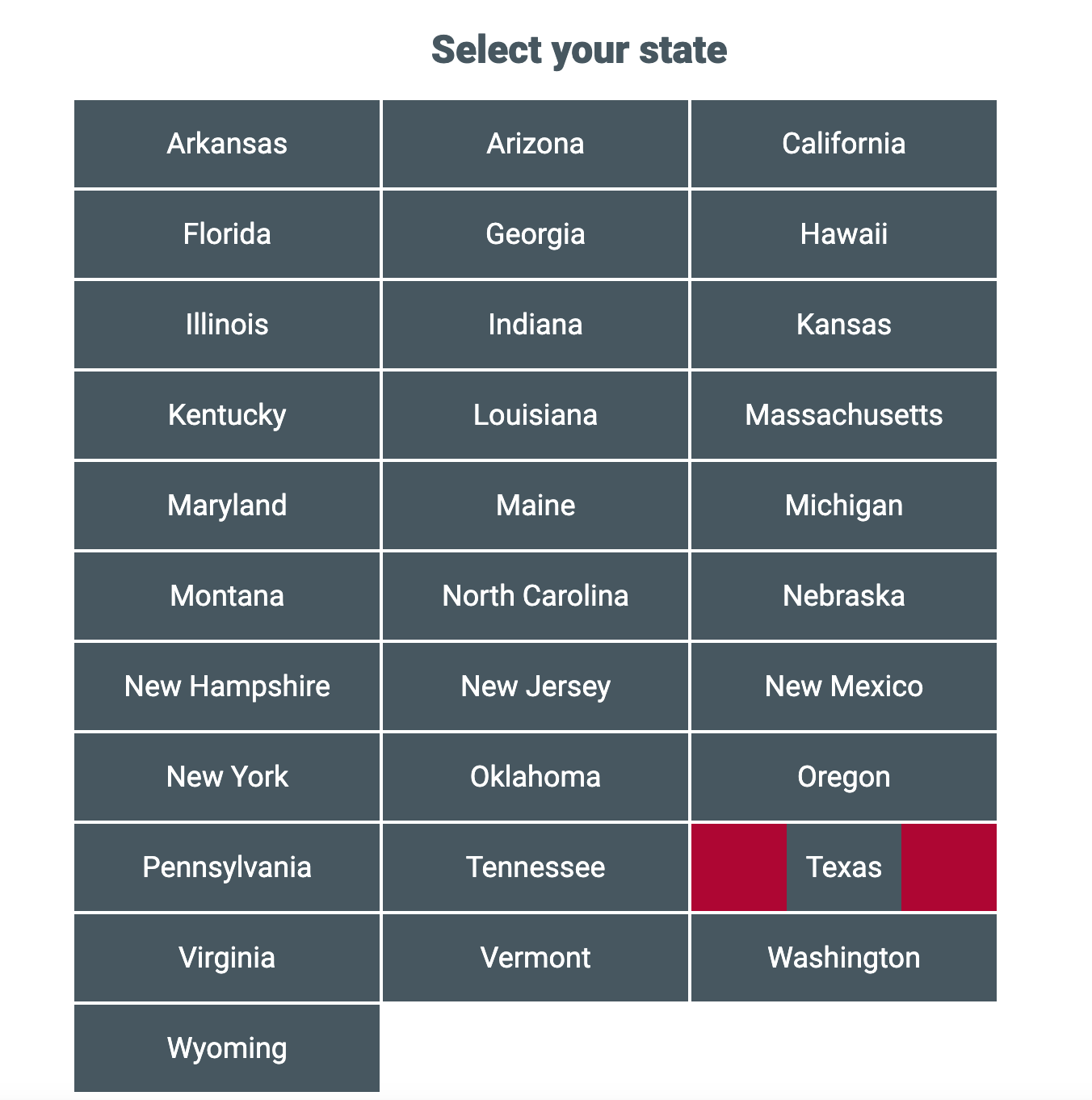
Select your state from the list to narrow down district results.
Use the search field to find and select your school district from the results.
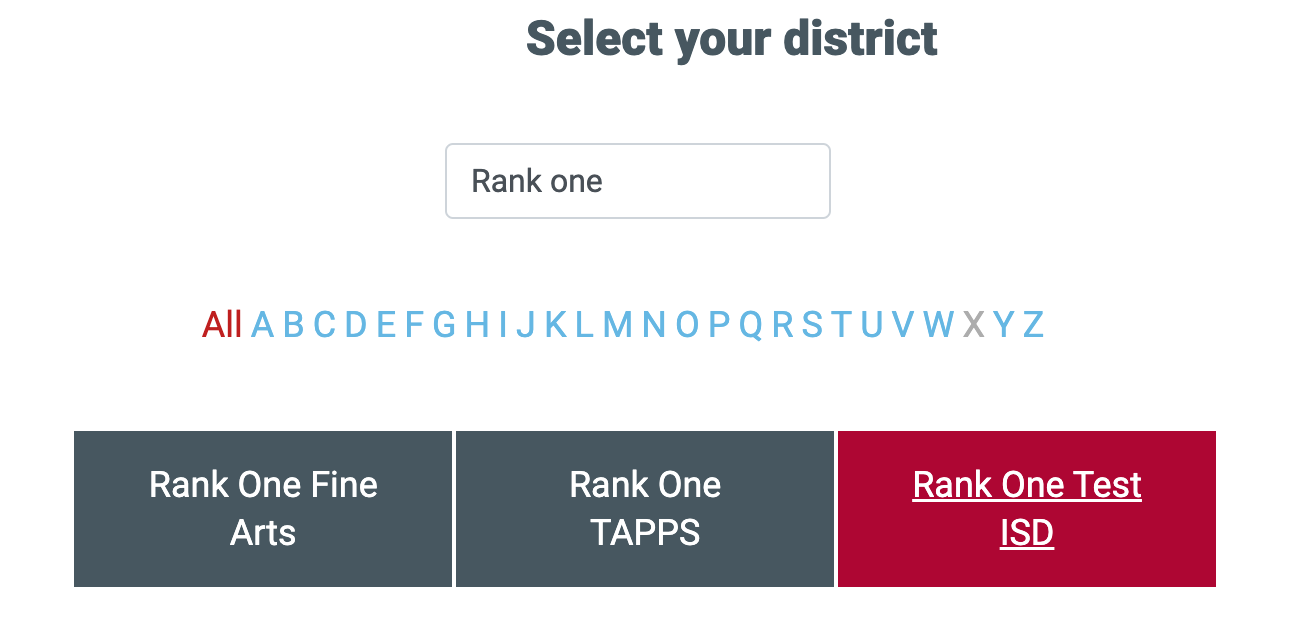
Type your district name in the search field and select it from the results.
Choose the appropriate campus (high school or middle school) and then select the sport for the schedule you wish to view.
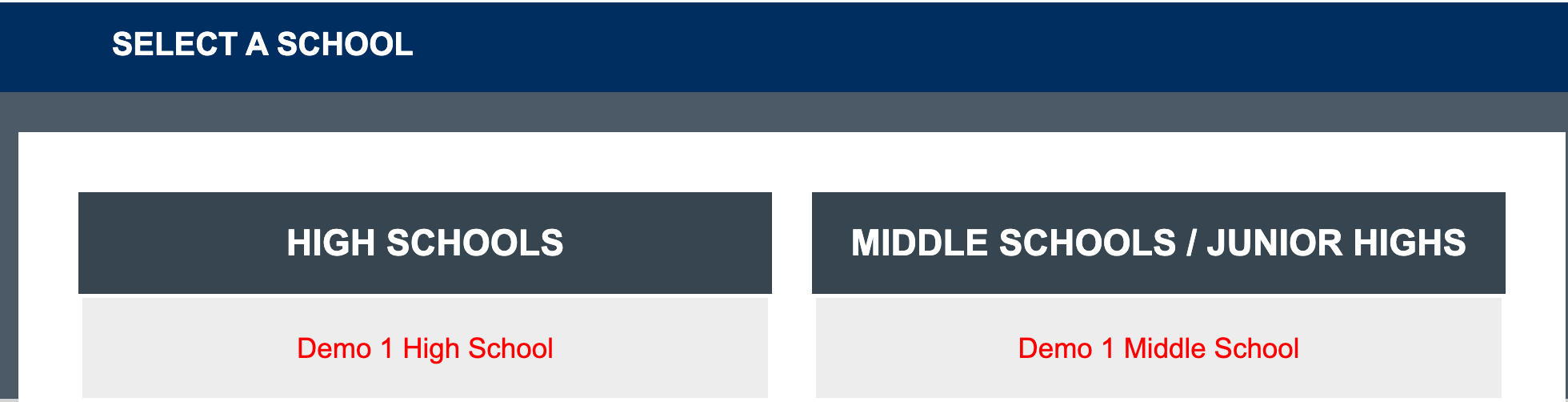
Select the appropriate campus for your student.
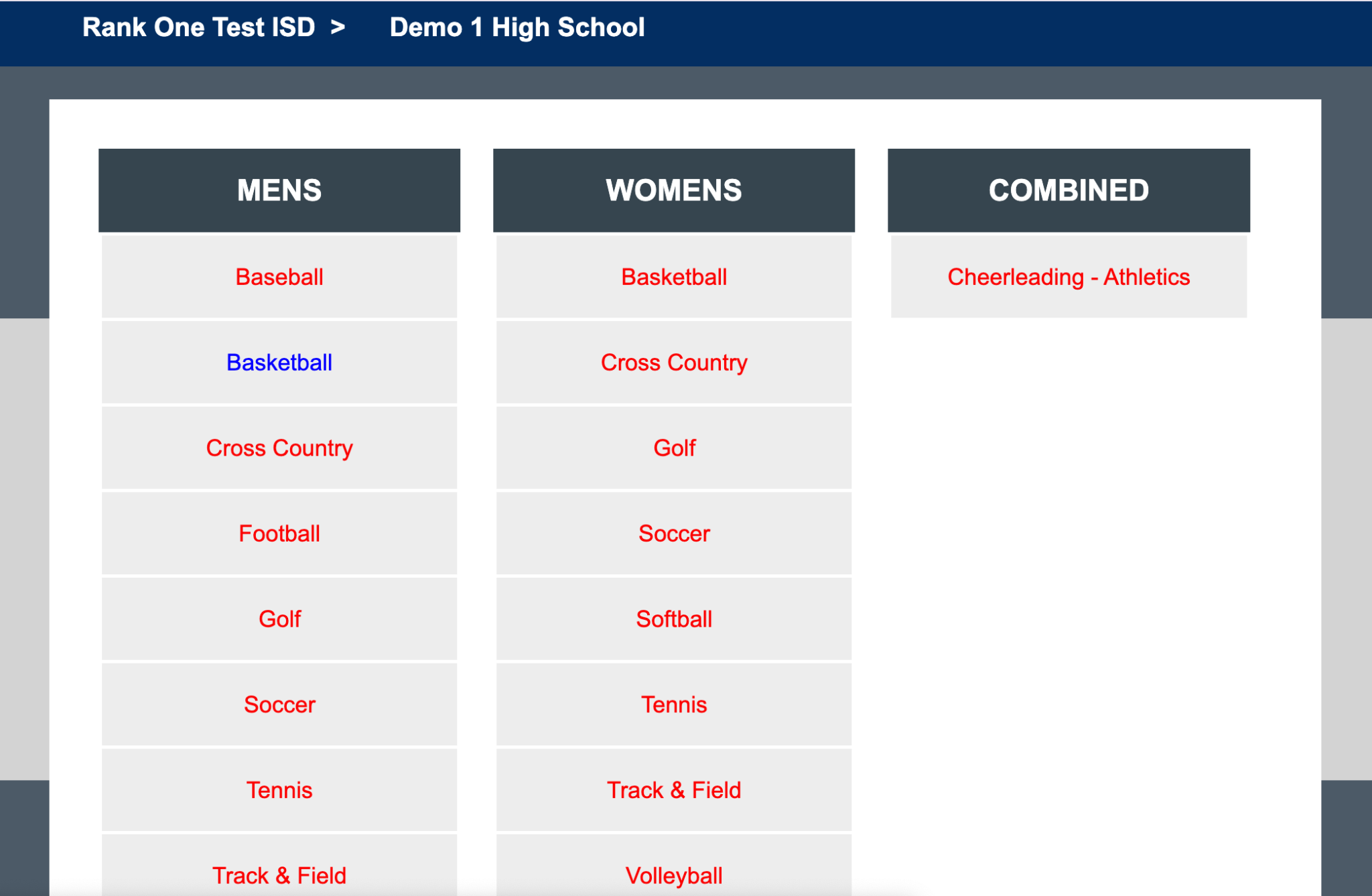
Select the sport from the available categories (Mens, Womens, or Combined).
Select the Team Level (e.g., Varsity, JV) and choose "View Schedule" to display the full game schedule.
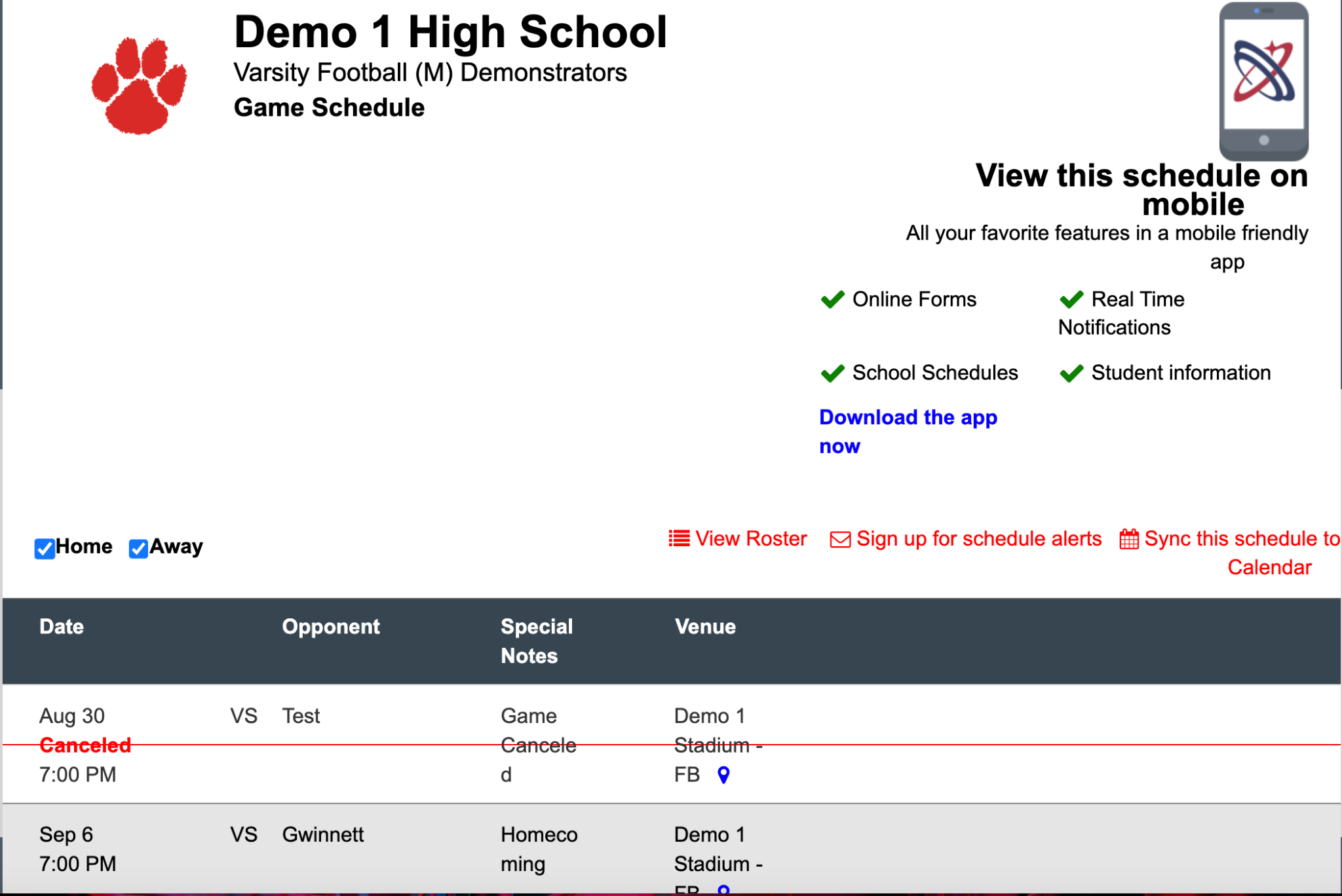
The game schedule displays dates, opponents, special notes, and venue information.
On the schedule page, select "Sign up for schedule alerts" (located near the top of the schedule view).
Insert your email address in the provided field and select "Subscribe" to start receiving schedule alerts.
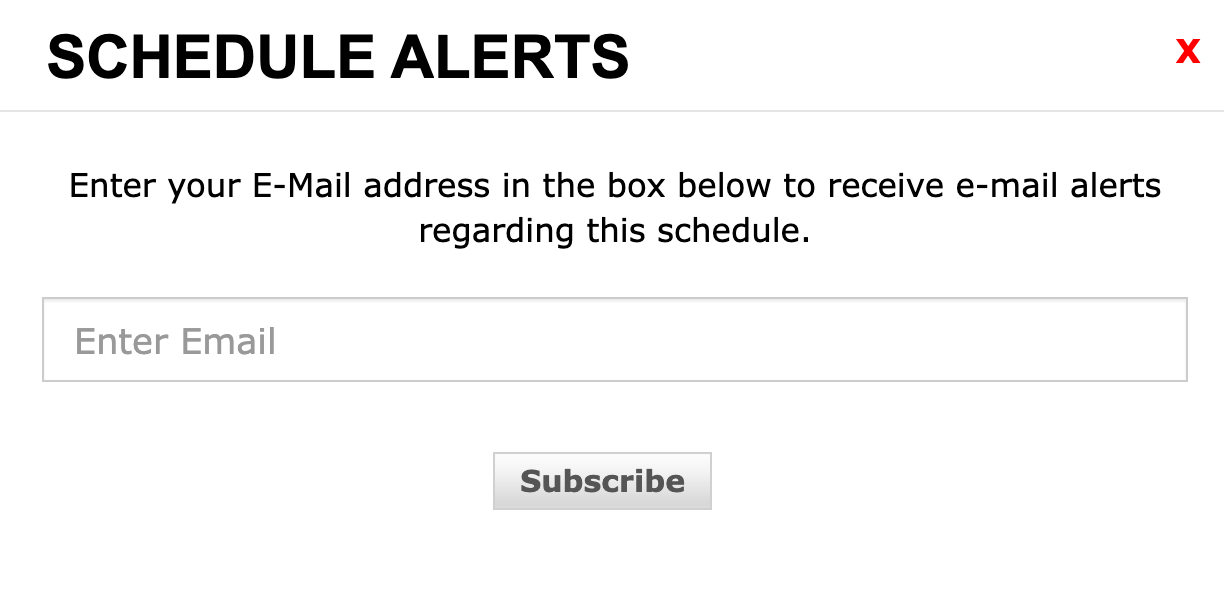
Enter your email address and click Subscribe to receive alerts for this schedule.