Rank One Pro
← Back to Rank One Pro

Importing Students to Rank One

Rank One Pro · Last updated April 27, 2026

Student names and other relevant information may be imported to Rank One from a properly formatted .CSV file. The .CSV file must exactly match the template provided by Rank One in order for the import to be successful.

Tip: Contact someone in your IT department or those who have access to your student information system. They will most likely be able to run a report and export the data to match the spreadsheet template. Rank One also offers automated processes such as SFTP and APIs -- contact a Rank One Representative for more information.

Required CSV Columns

Your .CSV import file must include the following columns:

Important: Do NOT make up Student ID numbers for your student data. The Student ID is the one unique field that Rank One uses to keep student records separated. This should be the number issued by your school that your students know. Making up Student ID numbers will lead to problems with your student data at a later time.
1 Find Your Campus ID Numbers

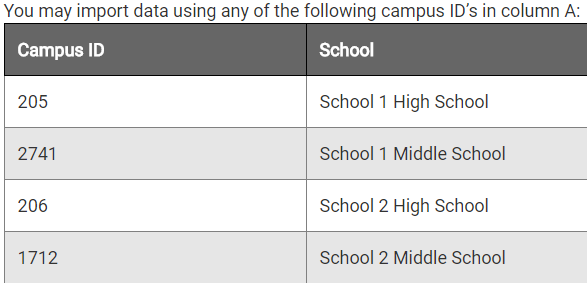
The Campus ID is a number assigned by Rank One. To find the campus ID numbers for your district, hover your mouse over Athlete Management and select Master List. At the top of the Master List page, click the Import Athletes button. The campus ID numbers will be listed in a table on that page.
Tip: If your student data file has campus numbers other than those assigned by Rank One, you will need to replace those numbers with the campus IDs shown on this page.
Campus ID table showing school names and their assigned IDs

Campus ID numbers assigned by Rank One for each school in your district.

2 Prepare and Save Your File

Manipulate your file in Excel to match the Import Template. Once your Excel file is properly formatted, save the file as a .CSV file.

3 Navigate to Import Athletes

When you are ready to import your file, hold your cursor over Athlete Management and select Master List. At the top of the Master List, select Import Athletes.
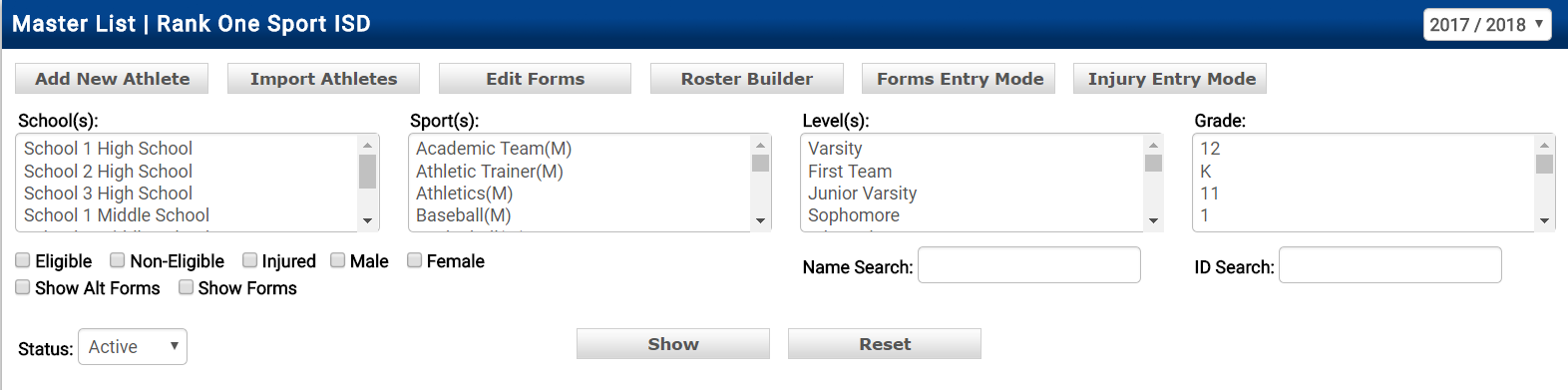
Master List page with Import Athletes button
4 Upload Your Data File

Follow the Data Import Wizard instructions. Select Choose File and select the student data file from your documents.
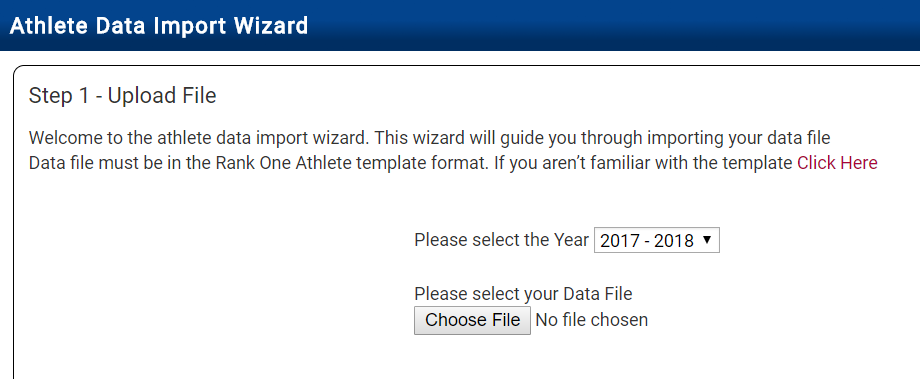
Athlete Data Import Wizard showing file upload step
5 Wait for File to Load

After choosing the file, select Next. Wait for the file to load.

Import wizard showing loading progress bar
6 Confirm the Import

If there are no errors with your file, select Confirm to proceed with the import.
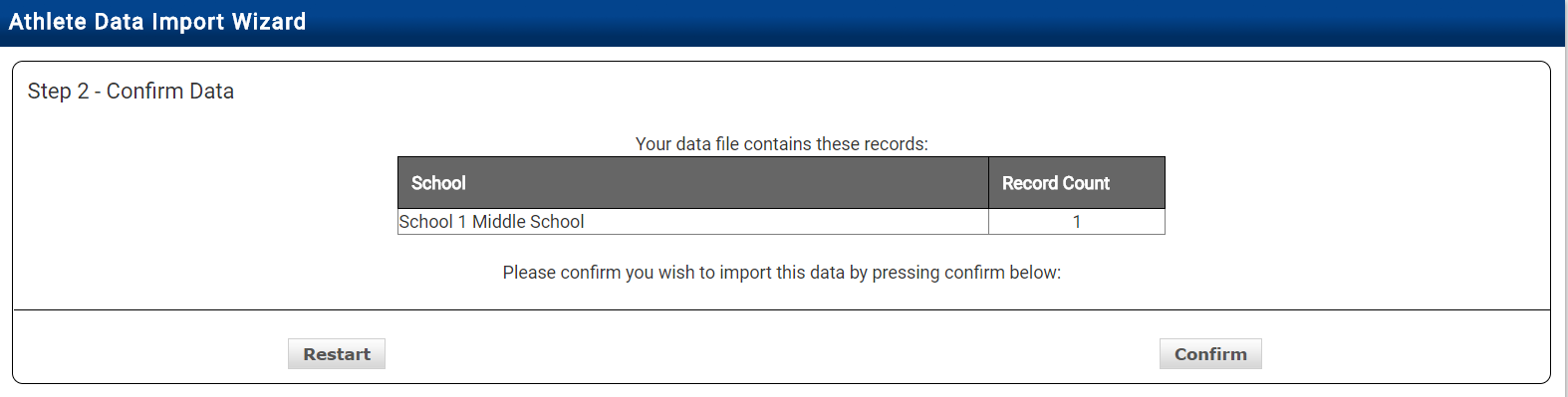
Tip: If there are errors in your file, the system will notify you. You can update the file and click Restart to re-upload the corrected file.
Import wizard Step 2 showing data confirmation with Confirm button
7 Finish the Import

Once the import is complete, select Finished. You can then search for the imported athletes under the Master List.
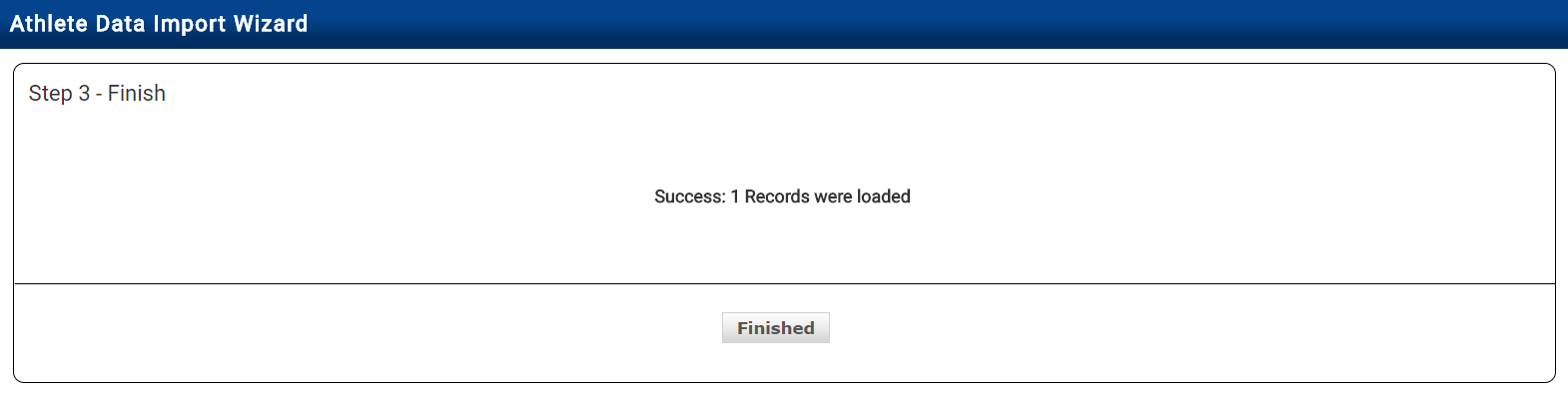
Import wizard Step 3 showing success message and Finished button