 Rank One Pro
Rank One Pro
Rank One Pro
The Injury Entry Mode button allows users to quickly add injury documentation for students directly from the Master List.
Hold your cursor over the Student Management tab and select Master List.
Select your school, then click the Injury Entry Mode button at the bottom of the page.
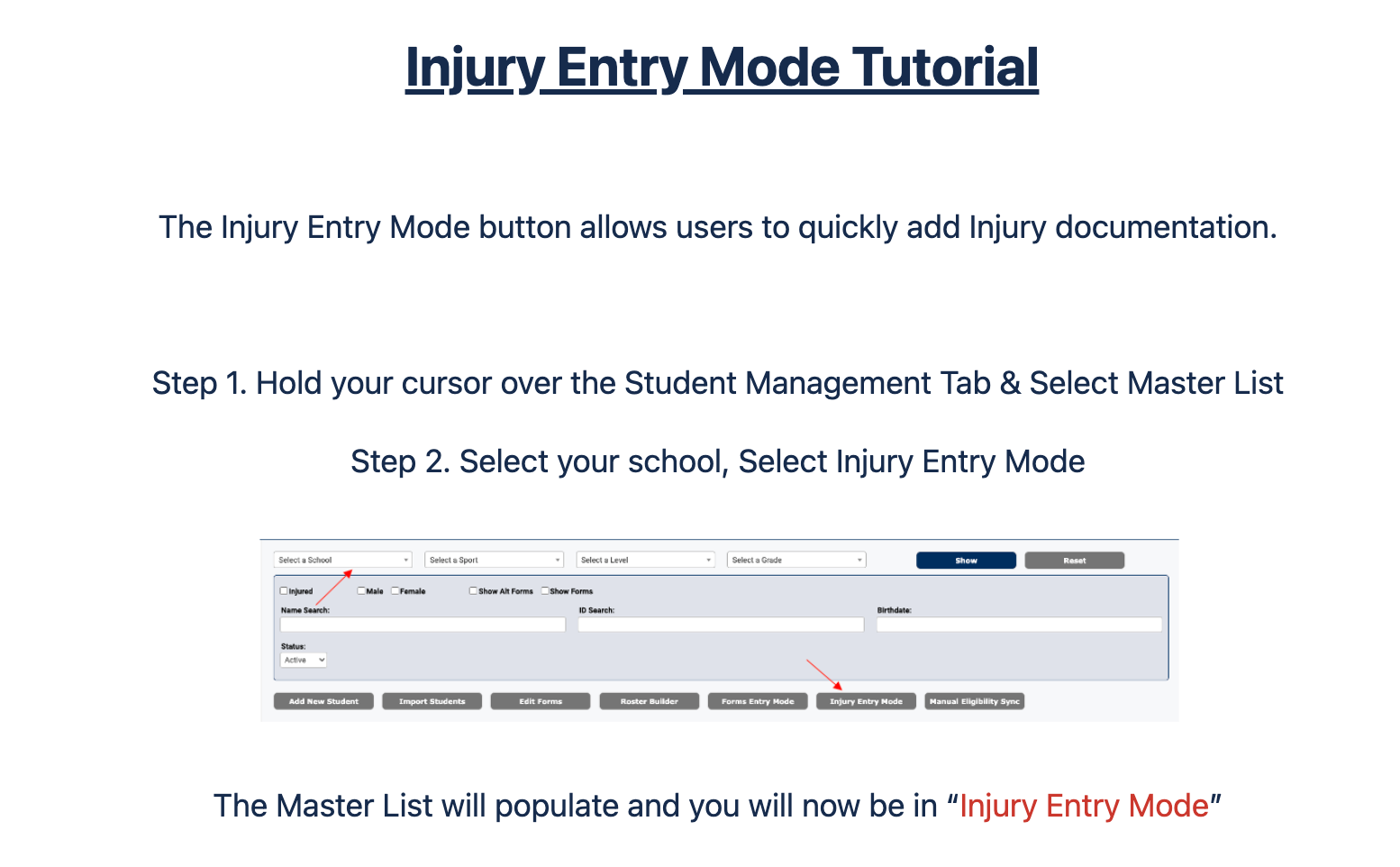
The Injury Entry Mode button is located along the bottom toolbar of the Master List.
The Master List will populate and you will now be in Injury Entry Mode.
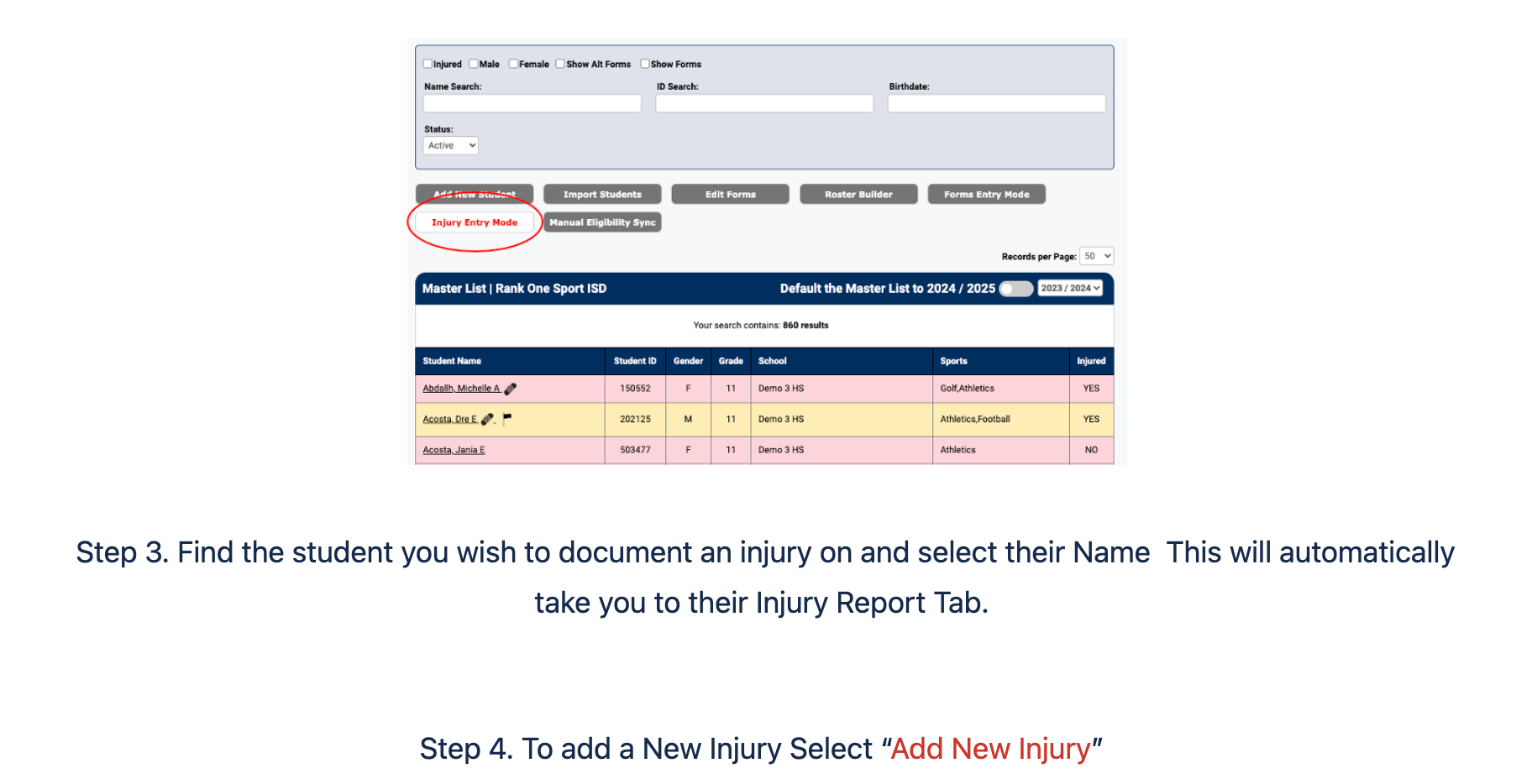
The Master List in Injury Entry Mode displays student names, IDs, and an Injured column.
Find the student you wish to document an injury for and select their Name. This will automatically take you to their Injury Report Tab.
To add a new injury, click the "+ Add New Injury" button on the student's Injury Report tab.
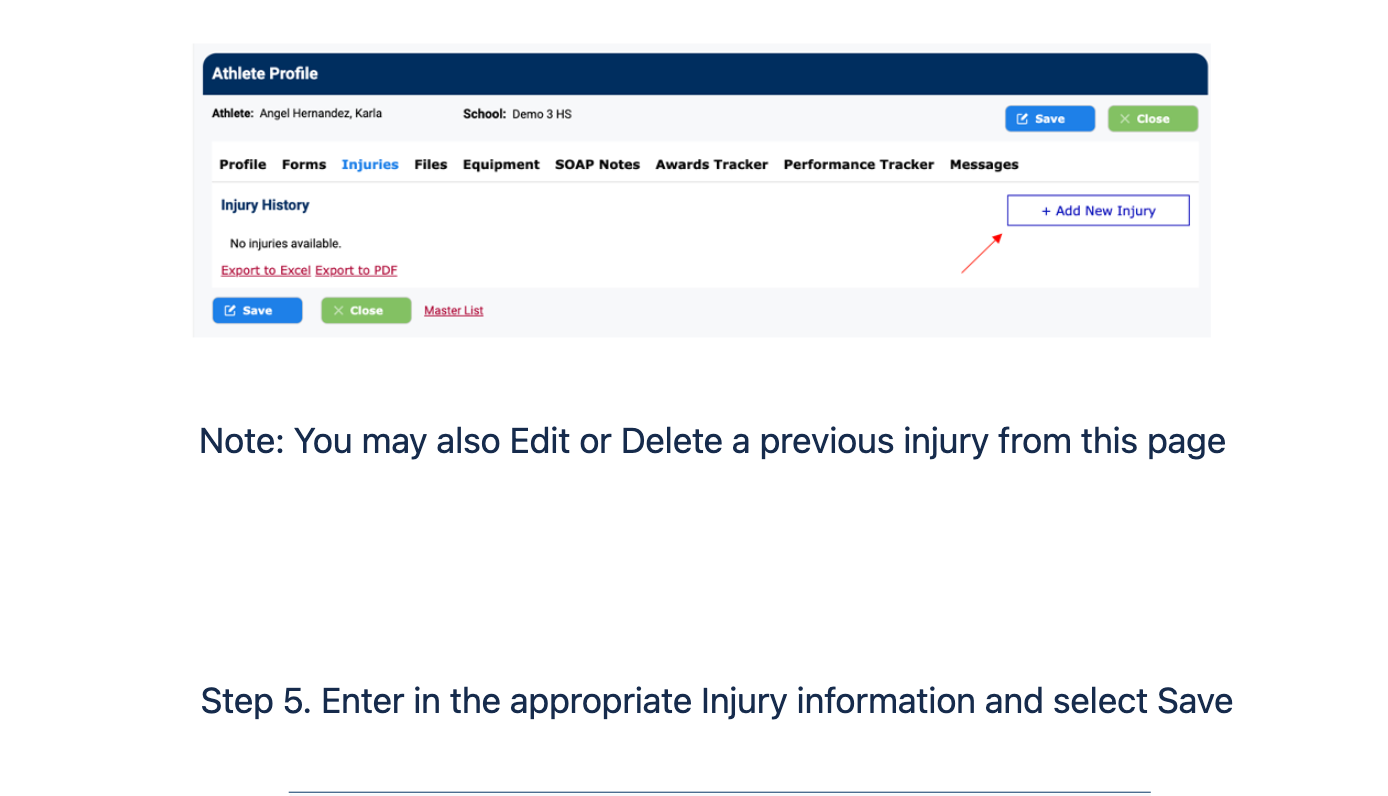
The Athlete Profile Injuries tab with the Add New Injury button in the upper right.
Enter the appropriate injury information in the form fields, including:
When finished, click Save Injury.
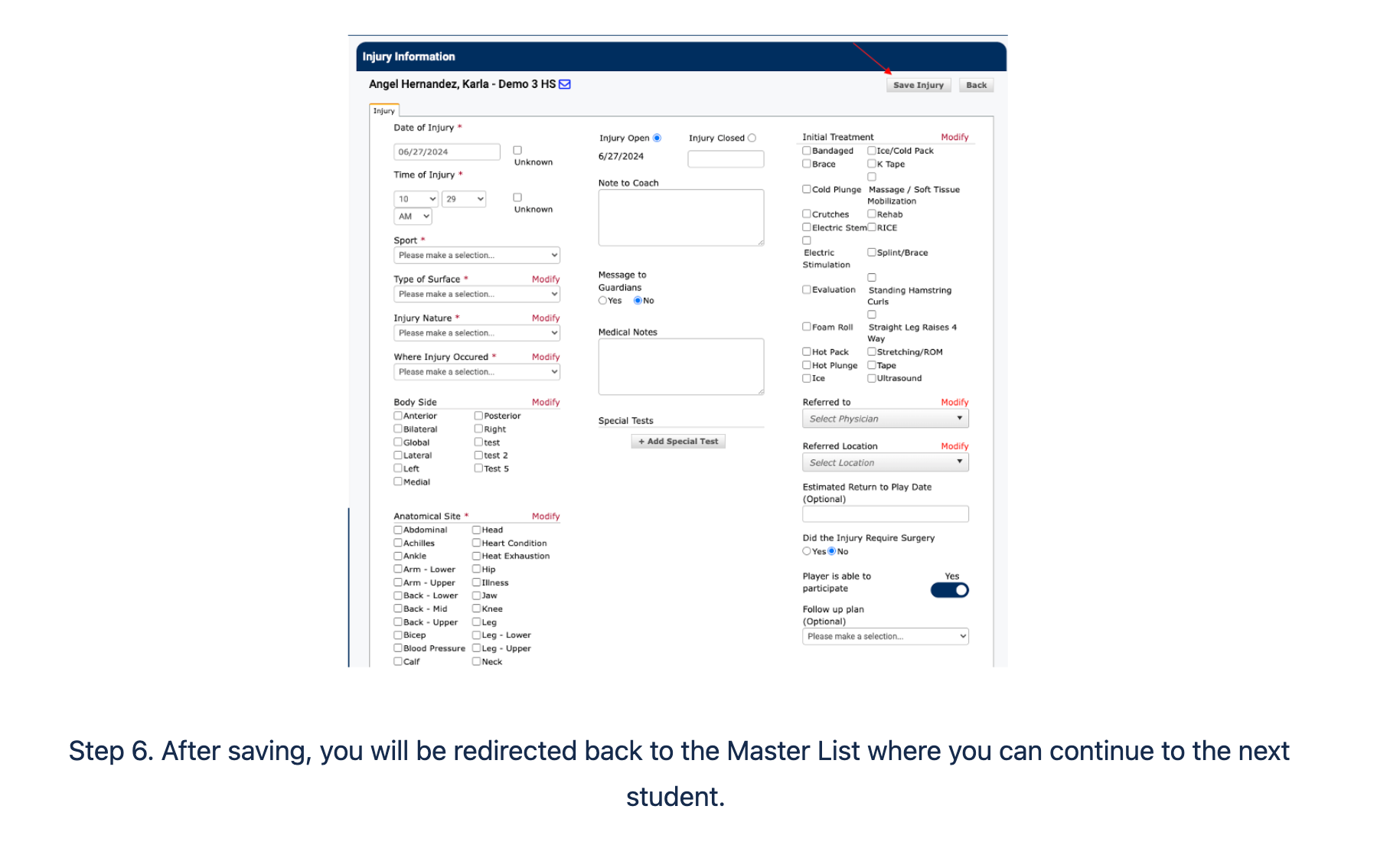
The Injury Information form allows you to document all details of a student's injury.
After saving, you will be redirected back to the Master List where you can continue to the next student.