 Rank One Pro
Rank One Pro
Rank One Pro
When manually approving or denying forms on the Electronic Forms page, you can send a note to parents/guardians and change the form entry and expiration dates.
To approve or deny a student's form, select the edit icon next to the student's name on the Electronic Forms Approval page.
The page will go into edit mode where you can select Approved or Denied, update the Form Dates, and send a note to guardians.
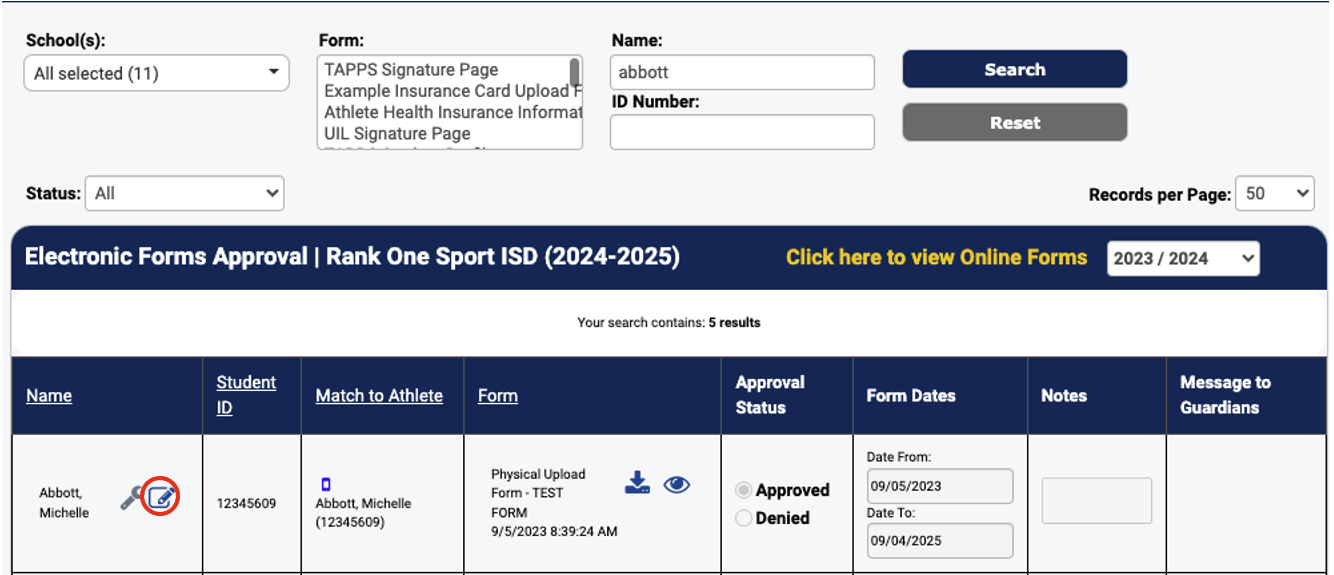
The Electronic Forms Approval page with search filters, form preview/download icons, and approval controls.
Select either Approved or Denied in the approval status column. You may also:

After selecting Approved, the Message to Guardians column appears with Yes/No options.
To save the student's information, click the Save icon next to the student's name.
The note that is entered will be communicated to parents/guardians that have a Rank One Parent Account or a valid email address in the student's profile. The system will indicate how the note was sent to the parent, or if there is no way to send due to no contact information.
If a parent account is created and the parent has the mobile app downloaded, the app icon will show next to the student's name. Notes will be sent via push notification to the parent/guardian's parent account through the Rank One mobile app.
If a parent account is created and the parent does not have the mobile app downloaded, the computer icon will show next to the student's name. Notes will be sent to the parent/guardian's parent account through the Rank One website.
If a parent account is not created but there is a guardian email address listed in the student's profile, the email icon will show next to the student's name. Notes will be sent via email to the parent/guardian's email address. The email will ask them to download the app or create an account to view the message.
If a parent account is not created or if there is not a valid email address in the student's profile, no communication will be sent.