Rank One Pro
Rank One Pro
Rank One Pro
This tutorial covers how to run and export the Medical Code Report, and how to configure district costs using the Medical Code Profile in Rank One Pro.
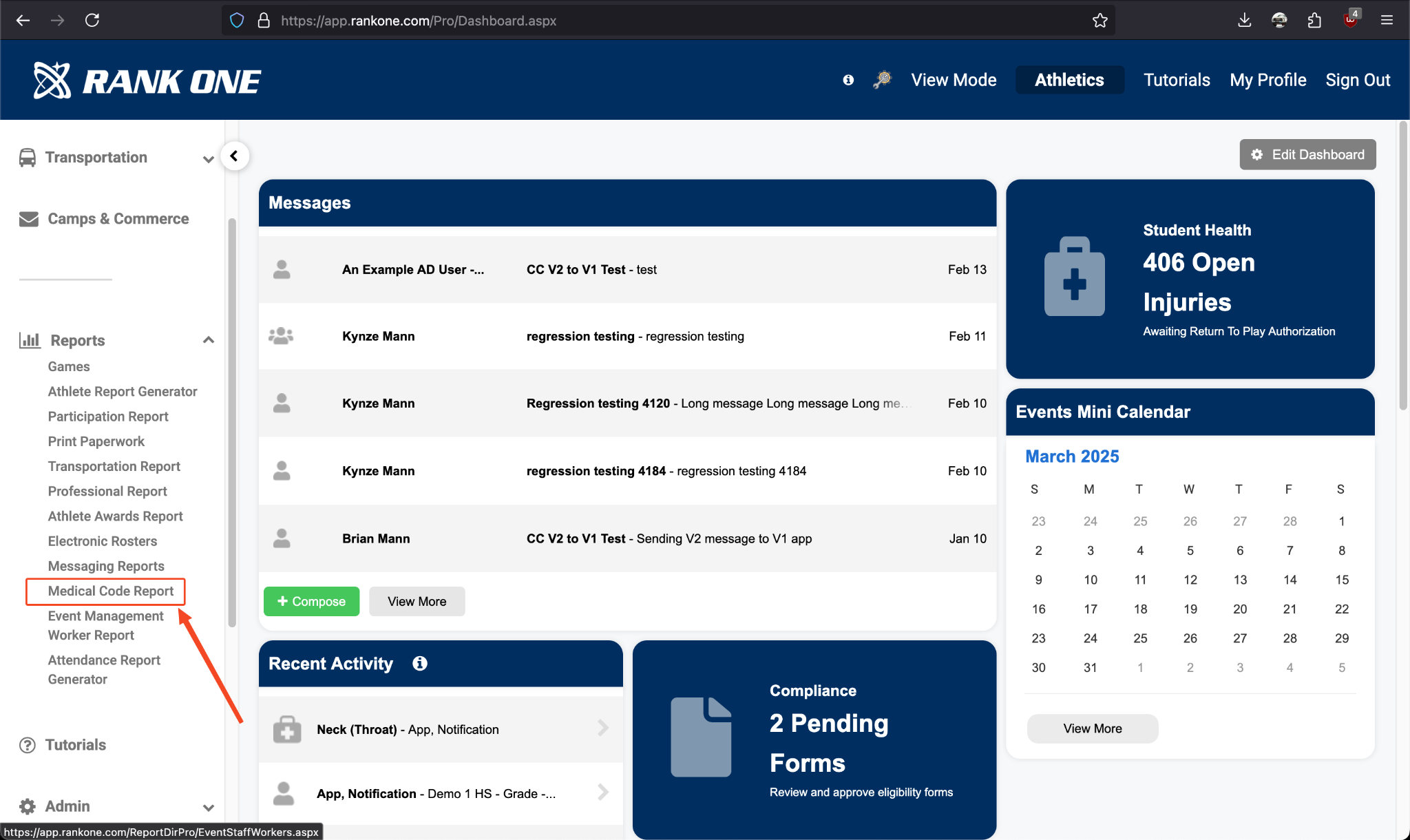
Select Reports to expand the dropdown, then find Medical Code Report.
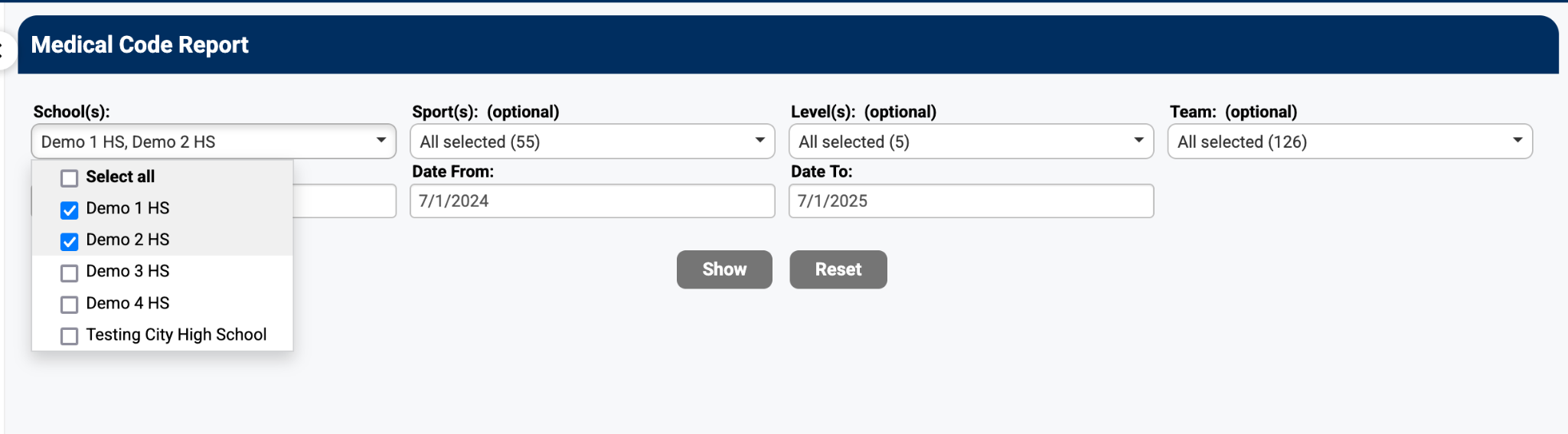
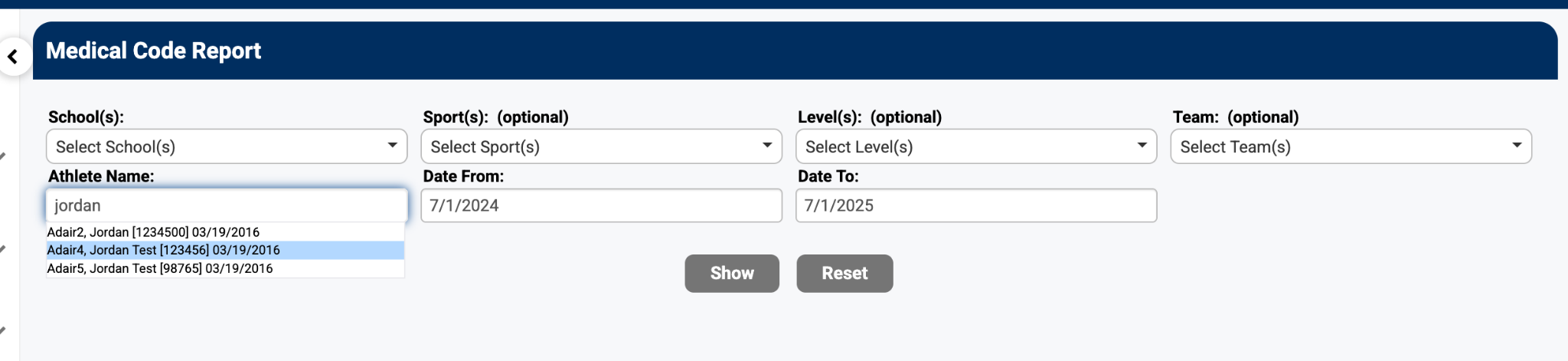
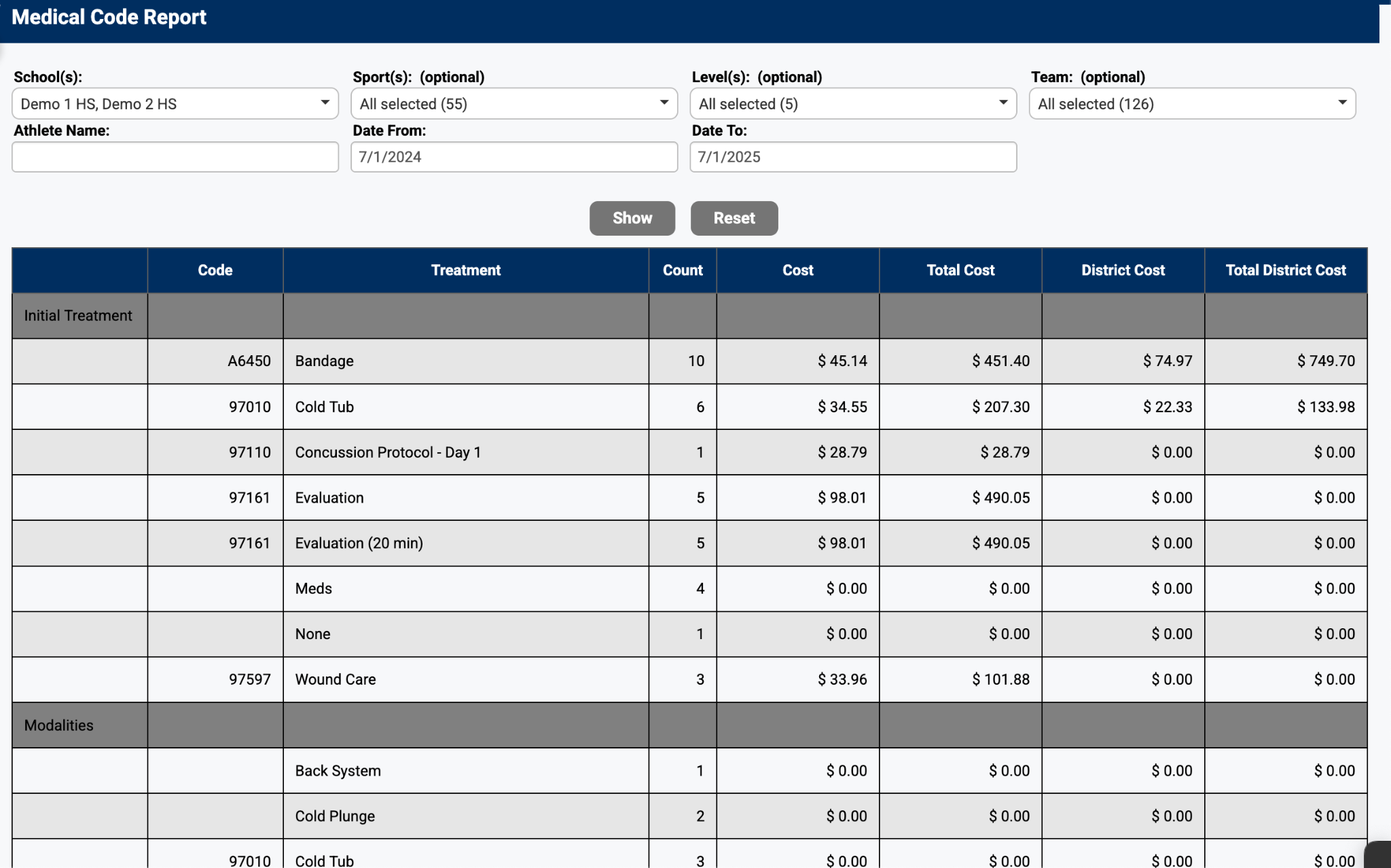
Enter your search parameters and click Show. To search for a single athlete, type their name in the Athlete Name field and select from the prepopulated list.
View results on screen, or select Export to PDF or Export to Excel.
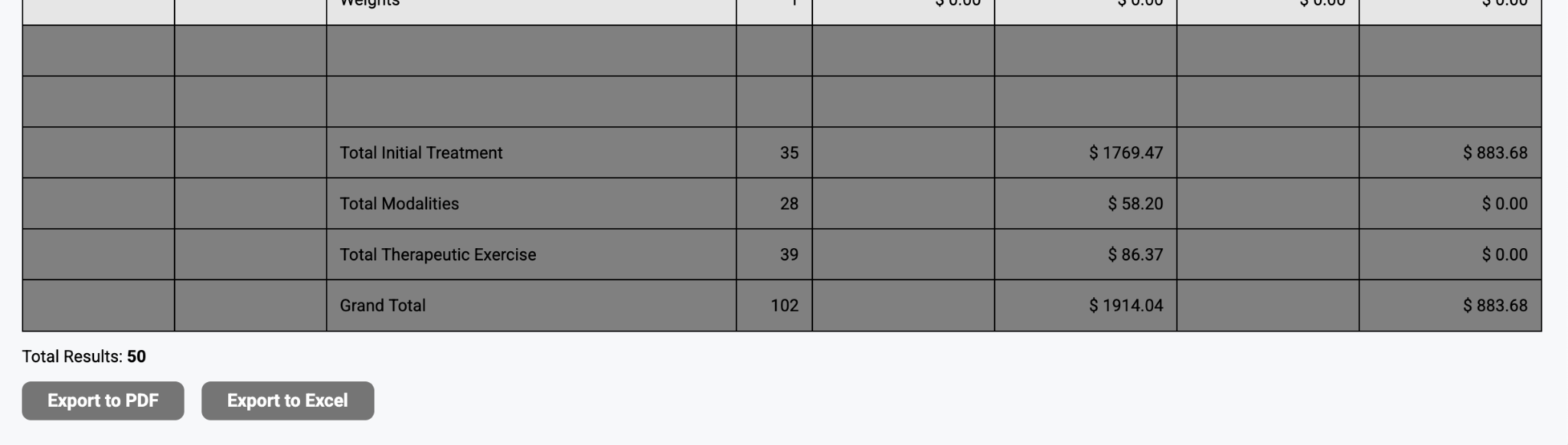
The report contains 3 sections: Initial Treatment, Modalities, and Therapeutic Exercises. Each section shows the medical code (HCPCS/CPT codes), treatment name, count, cost (provided by Rank One), total cost, district cost, and total district cost. The SUM appears at the bottom.
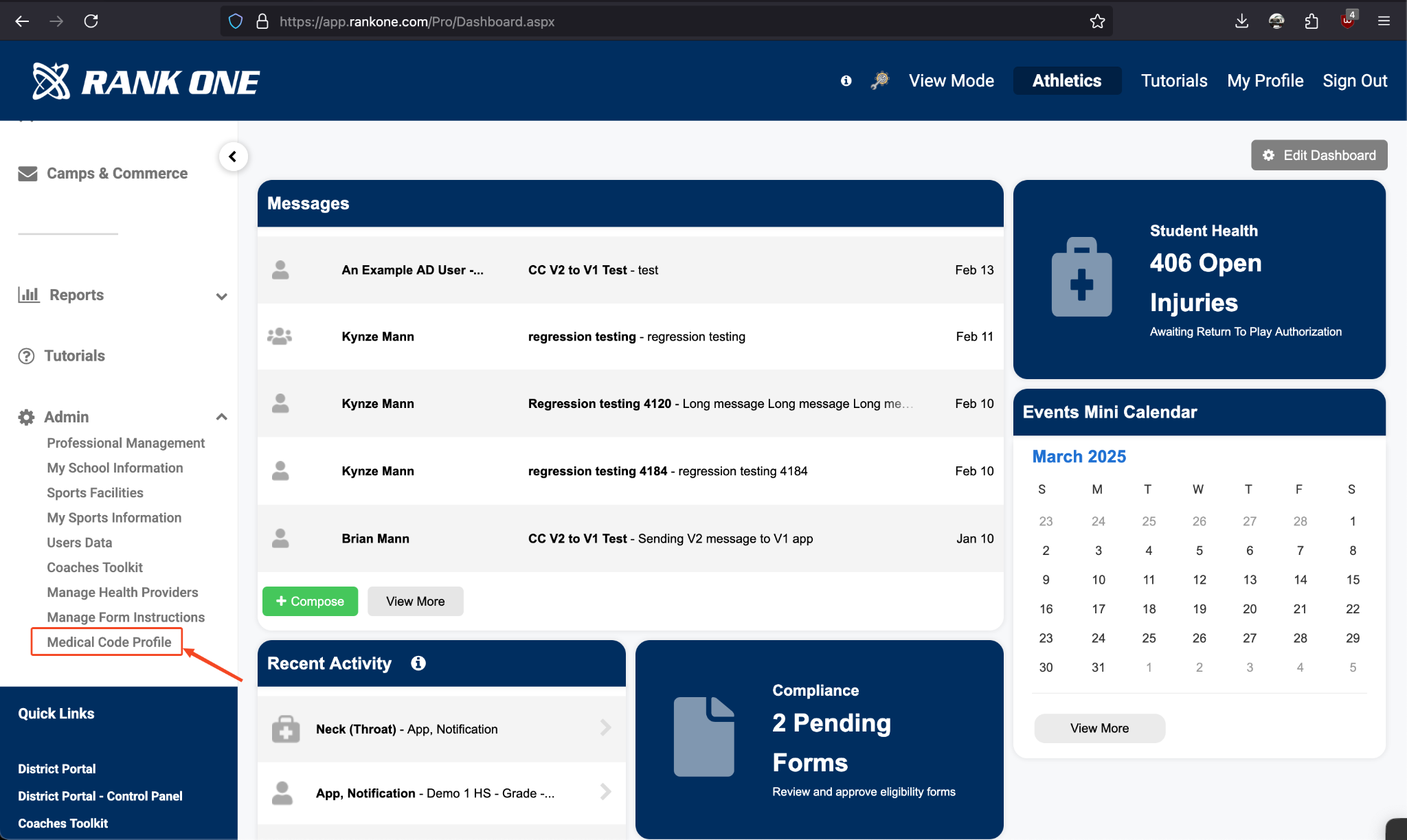
In the left navigation, select Admin, then select Medical Code Profile.
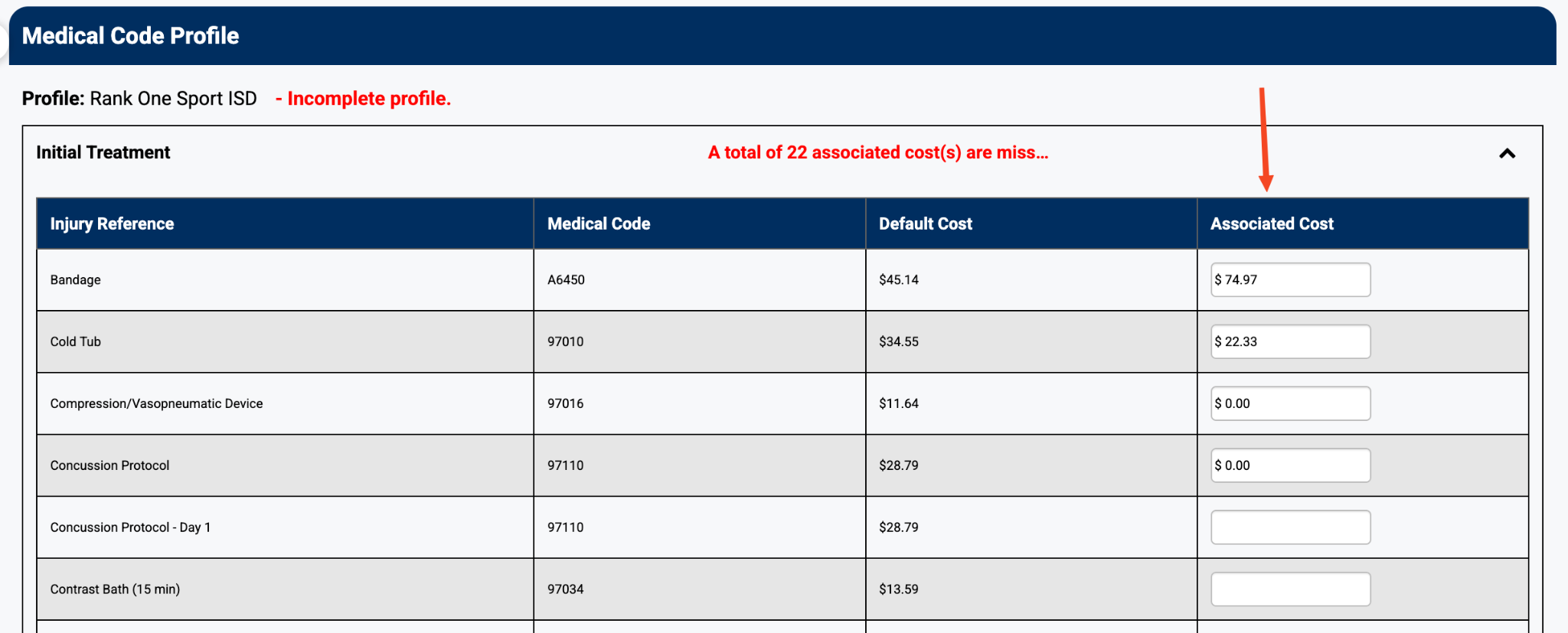
You will see 3 expandable sections: Initial Treatment, Modalities, and Therapeutic Exercise. Click the down arrow to expand each section.
In the far right column, the district can enter their own cost for each item. The field auto-saves when you press Enter or click outside the text box.
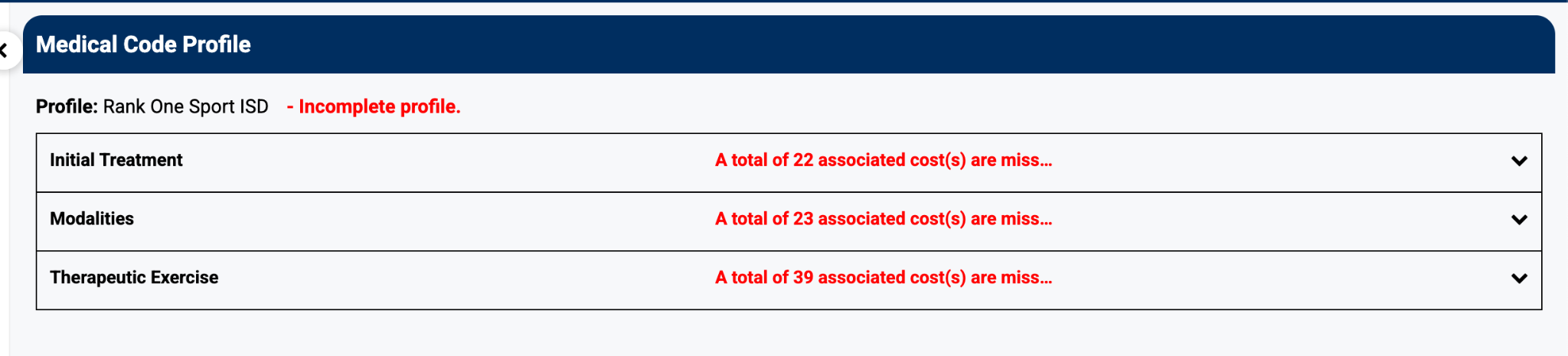
If data is missing, a red prompt at the top shows the count of missing items. This number auto-updates as you provide data.