Rank One Pro
← Back to Rank One Pro

Mobile Website for Parent and Community Member

Rank One Pro · Last updated May 8, 2026

This tutorial walks parents and community members through viewing athletic schedules and subscribing to email alerts using the Rank One mobile website at www.r1s.mobi.

Part 1: Navigating the Mobile Website

1 Open the Mobile Website

Go to www.r1s.mobi in your mobile browser. On the home page, tap the first tab labeled "Parents / Community - View a Schedule".
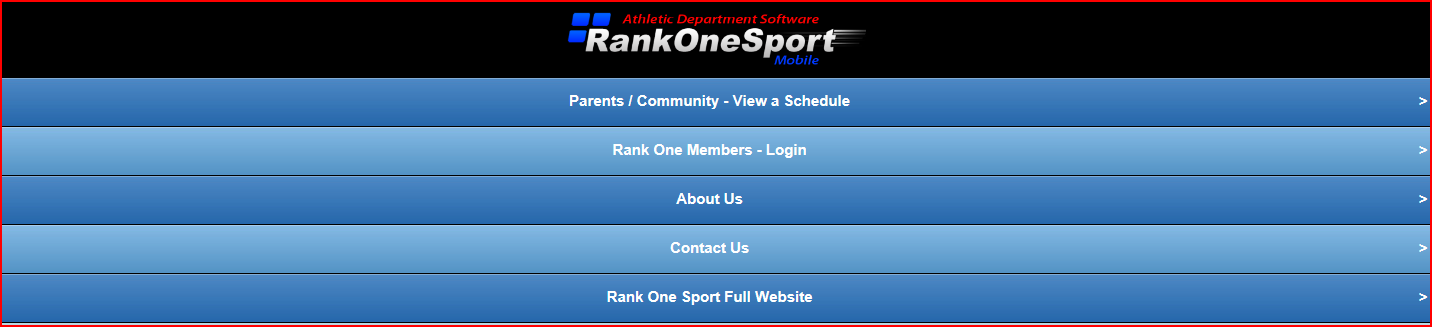
Mobile website home page showing Parents/Community option

The Rank One mobile website home page with navigation options.

2 Search for Your School

On the next page, enter the name of your school in the School field. A list of schools and teams matching your search will appear.

Tip: If there are multiple schools with the same name, use the City search field to narrow down the results.
Public Schedules page with school search field

Search results showing schools and teams matching the entered school name.

3 Filter by Sport

Once your school name has been entered, you can narrow your search by selecting a specific sport from the Sport drop-down list.

Public Schedules page with sport filter selected

Filtering results by selecting a sport from the drop-down menu.

Part 2: Viewing the Schedule

4 Click "View Schedule"

Click the "View Schedule" link on the right side next to the team whose schedule you want to see.

Important: If the View column says "Not Yet Public", the school has not yet published that team's schedule. Check back later.
Schedule list showing View Schedule link

Click the "View Schedule" link next to the team you want to follow.

5 View Schedule Details and Subscribe to Alerts

The full schedule will display with the following information: Date, Time, Opponent, and Location.
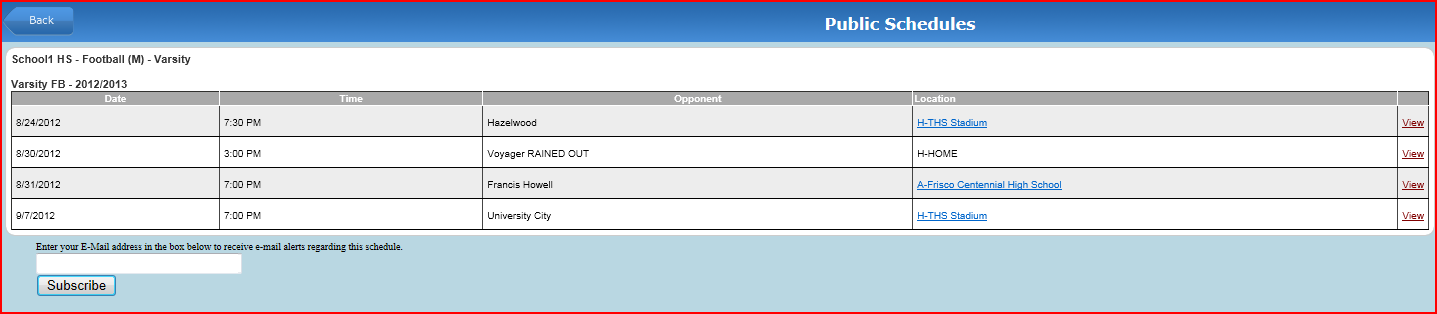
  • Get directions: Tap the location link and a Google Map will open with directions to the game.
  • View game details: Click "View" on the right side for more information about a specific game.
  • Subscribe to email alerts: Scroll to the bottom of the schedule, enter your email address, and click the "Subscribe" button to receive notifications about schedule changes.
Full schedule view with subscribe option

The schedule view showing game details, location links, and the email subscription area at the bottom.

Tip: Subscribing to email alerts ensures you are notified whenever the schedule is updated, including changes to game times, locations, or cancellations.