 Rank One Pro
Rank One Pro
Rank One Pro
The mobile website (www.r1s.mobi) was designed to provide access to student profile information, rosters, eligibility, and schedule editing. The mobile website does not contain all features present on the main site.
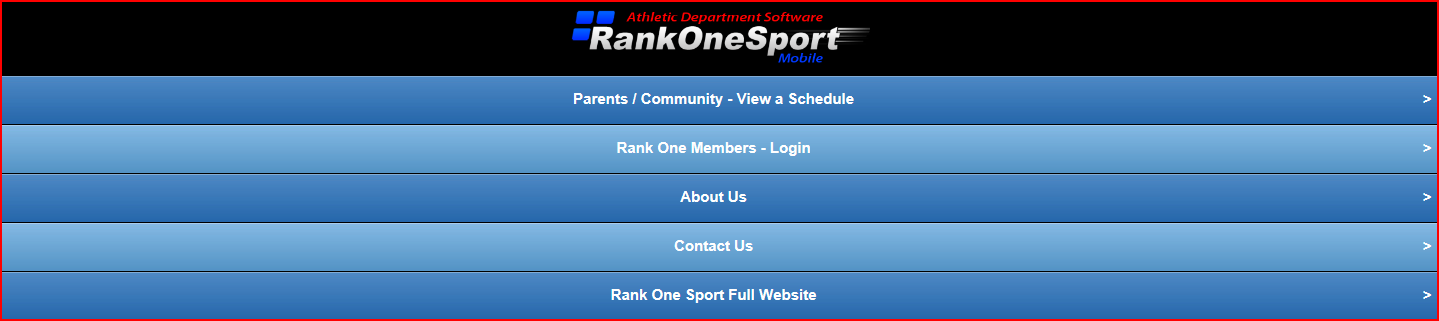
Go to www.r1s.mobi and click on the "Rank One Members - Login" tab.
There are 3 main tabs: Search for an Athlete, Search a Roster, and Manage Schedules.

Click the "Search for an Athlete" tab, then select the School Year, School, and Last Name.

Once the name appears, click on it to display the student's profile page.

Use the "Search a Roster" tab with the dropdowns to pull up a team roster. Click on any name to access that student's profile data.

Use the "Manage Schedules" tab. Go to the date you want to edit and click on the red number. Days shown in black have no scheduled games or activities.

Click on a date to see game/activity details. Click the Edit button, make changes, and save.
