 Rank One Pro
Rank One Pro
Rank One Pro
Physical expiration notifications are an important tool for keeping your district's student records current. However, you may notice that these automated notifications pause during the summer months. This tutorial explains why this happens, what to expect, and how you can track expiring physicals yourself during the notification pause window.
Rank One Pro sends automated email notifications to your district when student physicals are approaching their expiration date. These notifications alert you in advance so you can request updated physicals before they expire and students become ineligible to participate in sports.
The system monitors each student's physical expiration date and sends notifications based on your district's notification settings, with seasonal exceptions noted below.
Physical expiration notifications are paused from May 20th through the end of summer and resume after the summer window. This pause exists for an important reason: most districts use a default physical expiration date of June 1st.
If notifications were sent during this window, your district would receive hundreds or thousands of notifications at once—all for students whose physicals expire on the same day. This would overwhelm your staff with notifications that aren't actionable during the summer break when students aren't actively participating in sports.
By pausing notifications during this period, we allow your district to focus on summer activities and prepare for the new school year when physicals will need to be current.
During the notification pause window, your district will not receive automated email notifications for expiring physicals.
Make sure to plan ahead during this window and use the reporting method described below to identify students whose physicals will expire during the summer months.
Navigate to the Reports section of your Rank One Pro admin dashboard. Look for the physical expiration or eligibility report that shows all students and their current physical expiration dates.
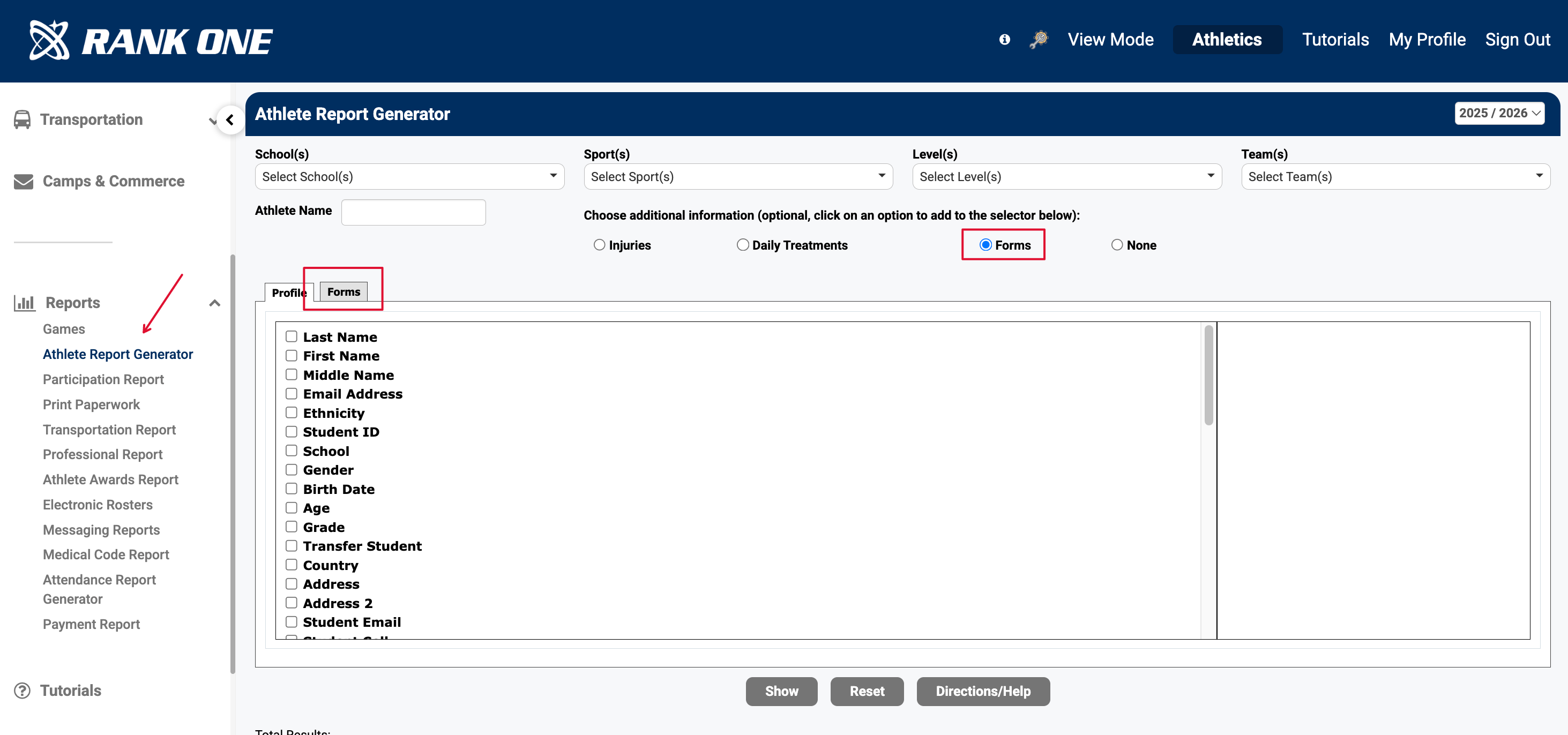
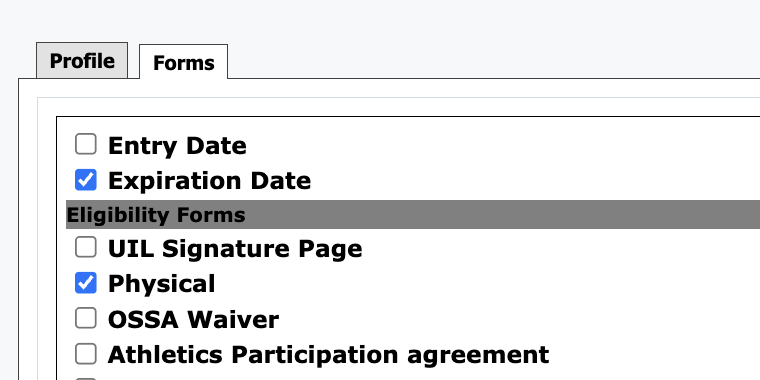
Select your school, campus, or district as needed, and run the report to generate a complete list of all students with physical information. On the Forms Tab, be sure to select the form and expiration date you wish to view.
Q: Why don't I receive notifications during certain times of year?
A: Notifications are paused to prevent overwhelming users with hundreds or thousands of notifications for students whose physicals all expire on the same day.
Q: Will I miss important expiration dates if notifications are paused?
A: No. By running the report method described above, you can proactively identify all students whose physicals will expire during the summer window. This gives you time to reach out to families before the pause begins.
Q: Does the pause apply to all districts, or just those with June 1st expiration dates?
A: The pause applies to all districts during the noted pause window, regardless of your specific expiration date settings. This includes districts using custom expiration methods like 365 days from entry date or manually overridden dates.
Q: When will notifications resume?
A: Notifications resume after the summer window ends, typically in September when the new school year begins. You will then receive regular automated notifications for any physicals approaching expiration.
Q: Can I request notifications be sent during the summer pause?
A: The summer pause is a system-wide setting designed to prevent notification overload. If you have specific concerns about tracking physicals during this period, use the manual report method described in this tutorial or contact support for assistance.