 Rank One Pro
Rank One Pro
Rank One Pro
This tutorial explains how an Athletic Director or Assistant Athletic Director can control the date range during which online forms are available to parents, and how to set a custom message that displays when forms are outside the active date range.
Hover over Student Management in the main navigation menu, then select Quick Promote Wizard from the dropdown menu.
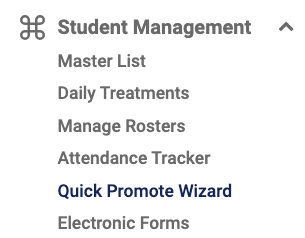
Hover over Student Management and select Quick Promote Wizard.
Locate the Date Forms Active From field. Click the field and select or enter the date when you want online forms to become available to parents. This is the earliest date parents will be able to access and complete the forms.
Locate the Date Forms Active To field. Click the field and select or enter the date when you want online forms to stop being available. After this date, parents will no longer be able to access the forms.

Set both the "Date Forms Active From" and "Date Forms Active To" fields to define the availability window.
After setting both date fields, click the Save button to apply your changes. The online forms will now only be accessible to parents within the date range you specified.
Locate the Inactive Forms Message text field. Enter the custom message you want parents to see when they attempt to access online forms outside of the active date range. This message should inform parents that forms are currently unavailable and, if desired, provide guidance on when to return.

Enter a custom message to display when forms are outside the active date range.
Below is an example of how the inactive forms message appears to parents when they visit the online forms page outside of the active date range.
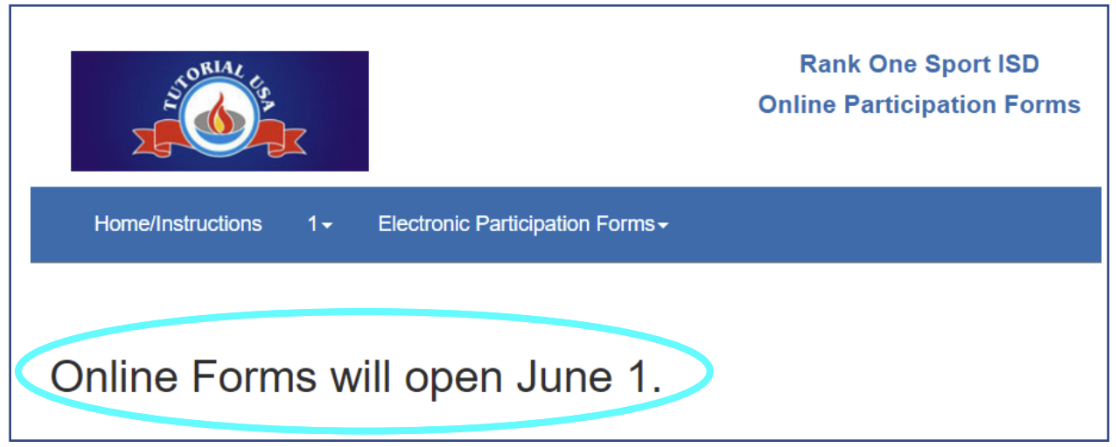
How the inactive forms message appears to parents when forms are outside the active date range.