This tutorial explains how to add and edit Performance Tracker entries using the Rank One Coach/Admin mobile app.
Important: You MUST have your list of items to track and roster previously set up through the website before you can add or edit Performance Tracker entries using the mobile app. Please see the "Performance Tracker Tutorial" for assistance in creating your list of items to track.
Part 1: Adding a New Entry
1
Log In and Select Performance Tracker
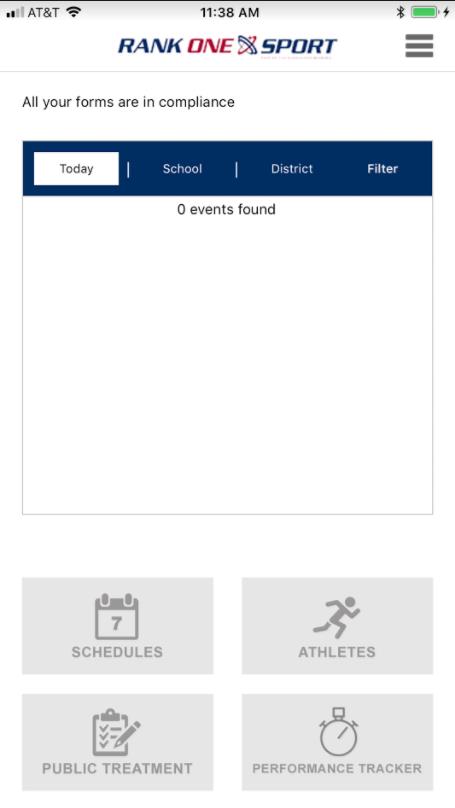
Log in to the Rank One Coach/Admin App and tap Performance Tracker from the home screen.
2
Select Tracking Data and Add New Entry
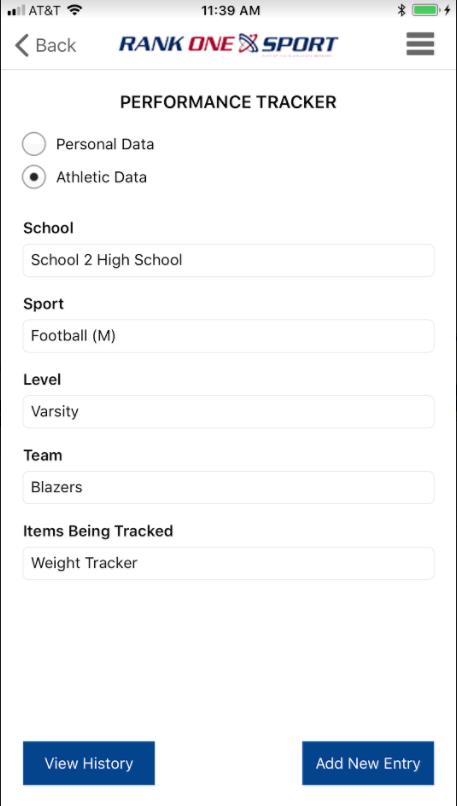
Select the data you are tracking by choosing the following:
- School
- Sport
- Level
- Team
- Item being tracked
Then tap Add New Entry.
3
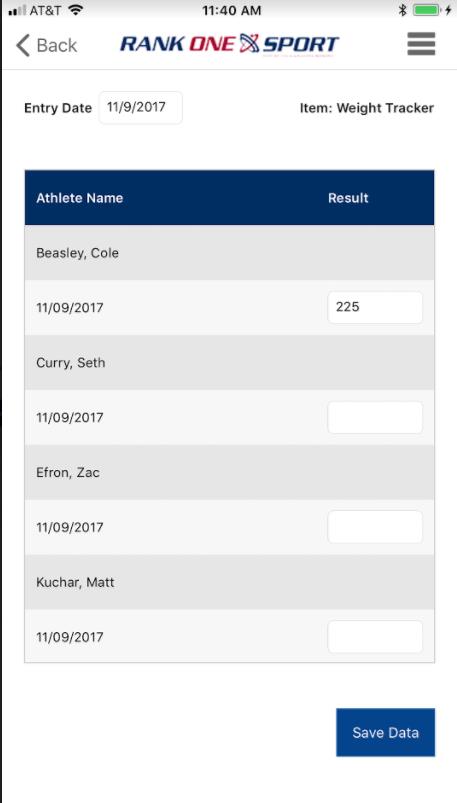
Enter Results and Save
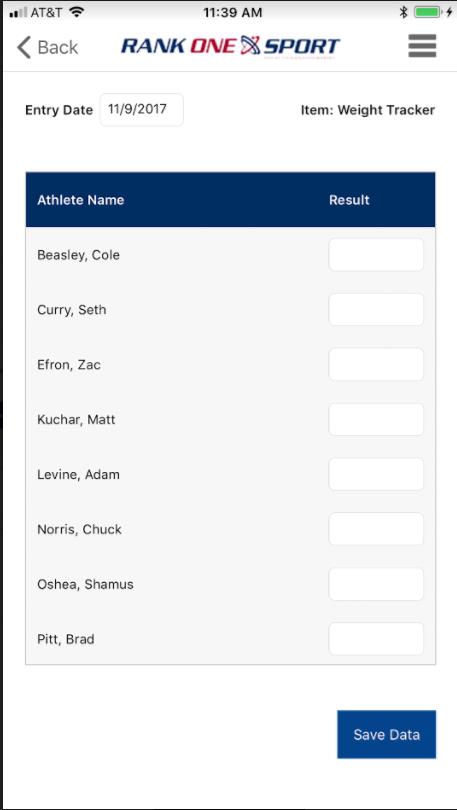
Type in the results for each athlete and tap Save Data.
4
Confirm the Save
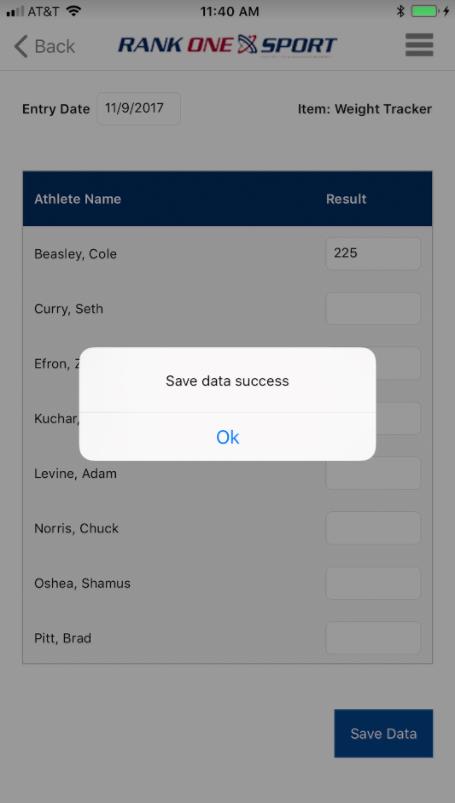
You will receive a Save Data Success message. Tap OK to continue.
Part 2: Viewing and Editing Previous Entries
5
View History and Edit Entries
To view previous entries, tap View History. From this page, you may edit previous entries or add new entries. After making your changes, tap Save Data.
Tip: Make sure your roster and tracking items are configured on the website before attempting to use the mobile app. This ensures all athletes and metrics appear correctly.
 Rank One Pro