 Rank One Pro
Rank One Pro
Rank One Pro
Physical Expiration Notifications are designed to provide a notice two weeks before a student's physical expires. This tutorial explains how the notifications work and how to manage your settings.
An administrator can turn the notifications OFF or ON inside the Admin tab, under the user's data in Notification Settings.
All users also have the ability to control the settings in their View My Profile section located inside the Dashboard tab. To stop receiving the notification emails, simply uncheck the box.
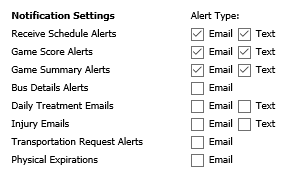
The Notification Settings panel where users can enable or disable Physical Expirations email alerts.
The software sends an email each Monday with a list of students whose physicals are set to expire in the next two weeks.
The Physical Expiration Notification emails include the following information for each student: