Rank One Pro
Rank One Pro
Rank One Pro
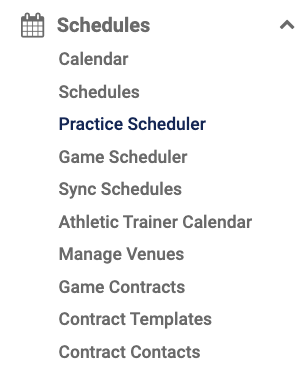
To build a practice schedule, hold your cursor over Schedules and select "Practice Scheduler."
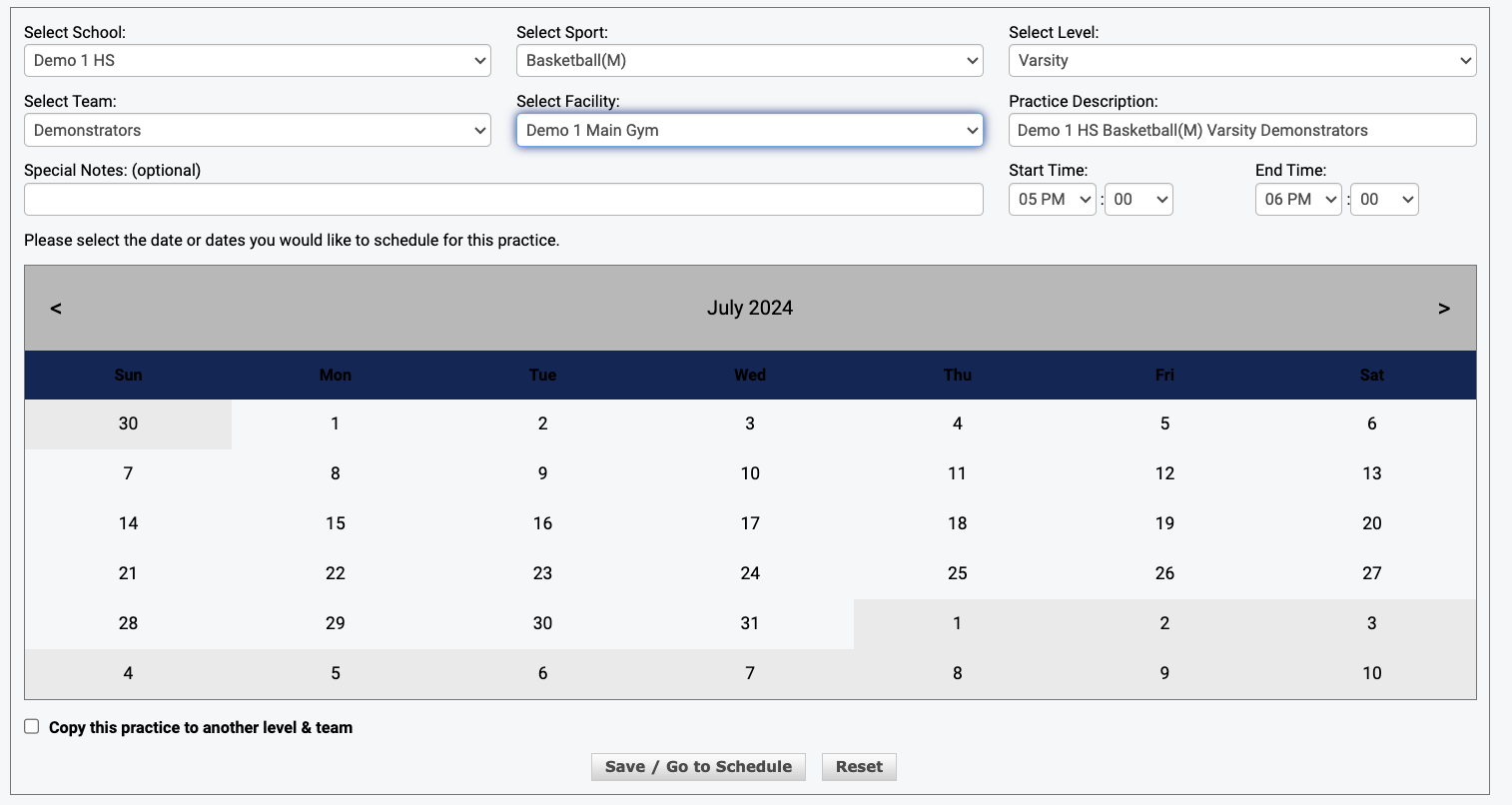
Fill in all required information: School, Sport, Level, Team, Facility, Start & End Time.
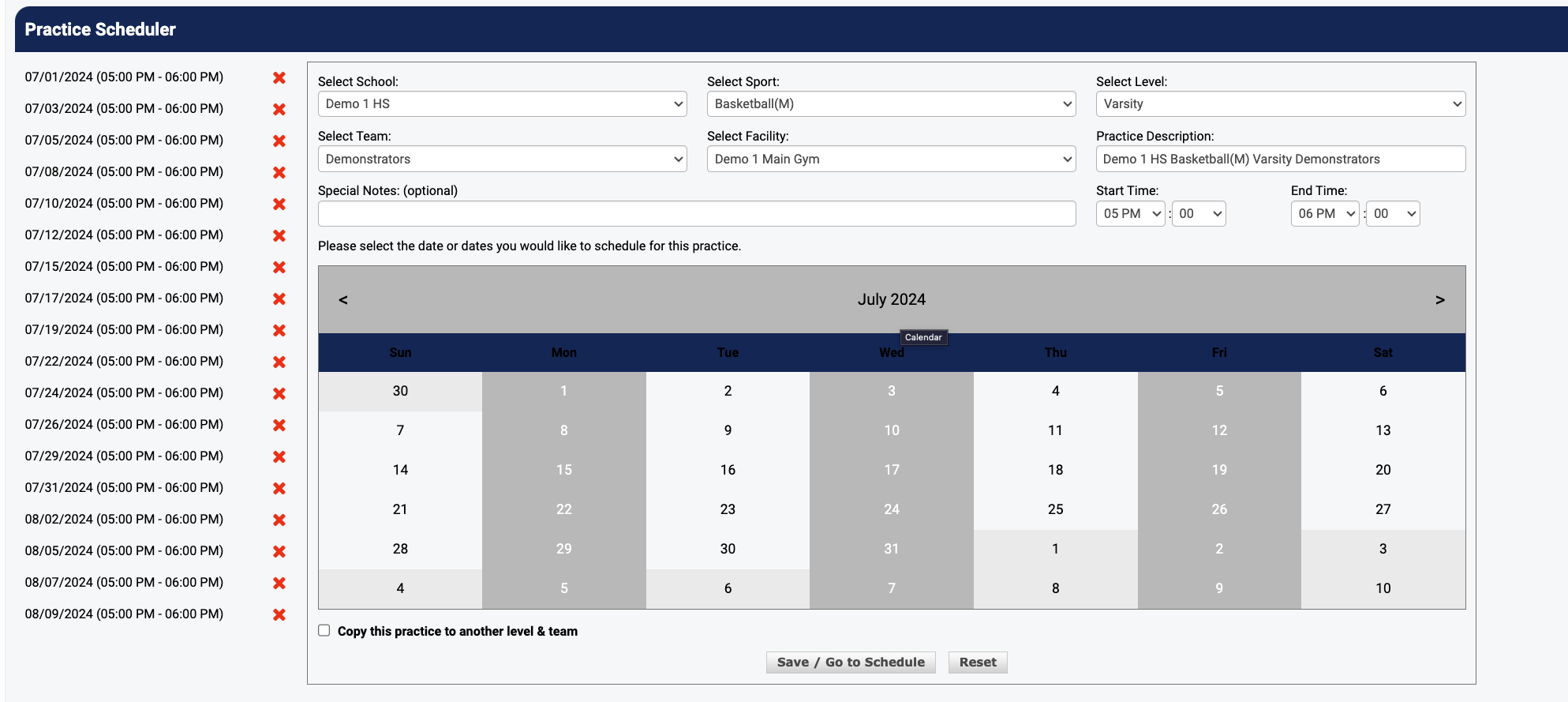
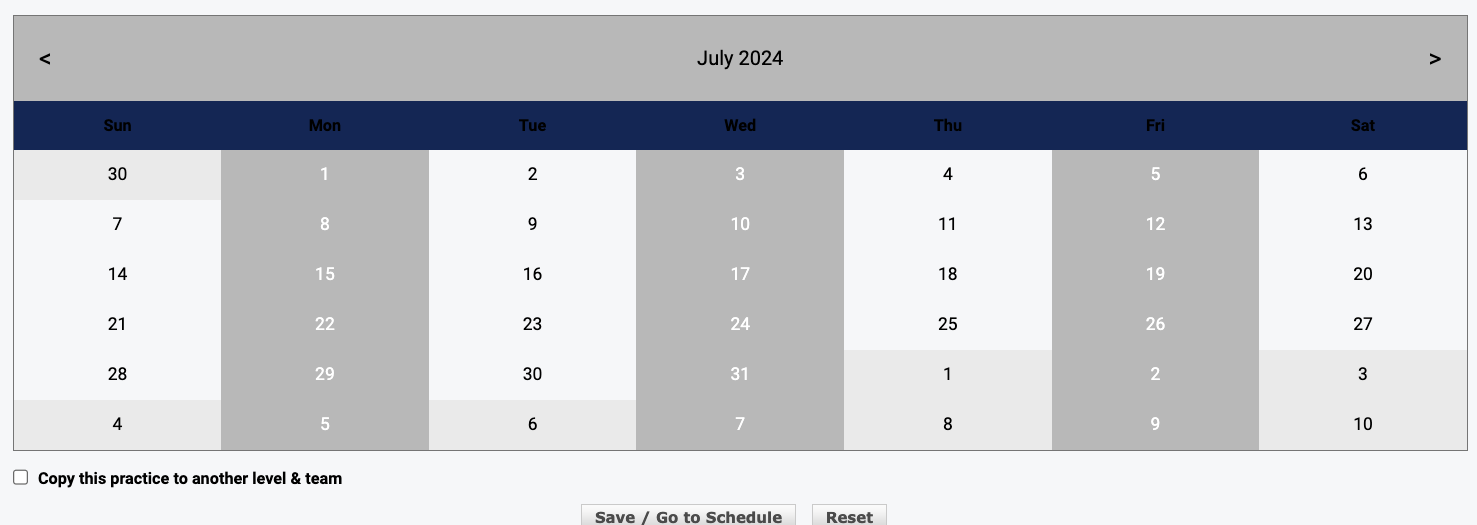
Select the Practice Dates from the calendar. They will populate on the left hand side.
If you would like to use the same practice schedule for multiple levels/teams (such as Junior Varsity, 9th grade, etc.), select "Copy this practice to another level & team" underneath the calendar.
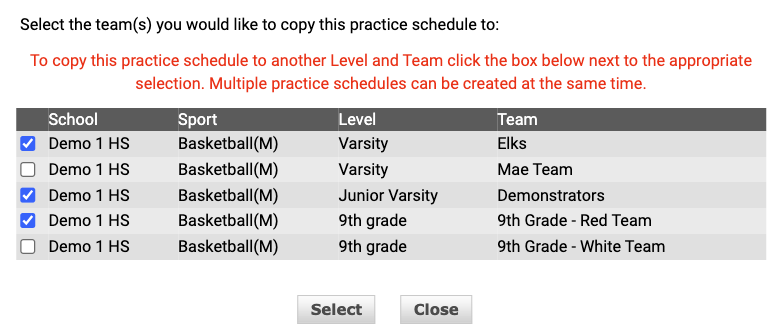
Place a check in the box for the Level & Team you want to copy the schedule to and click "Select." You will receive a message under the calendar confirming the schedule will be copied. Select "Save."
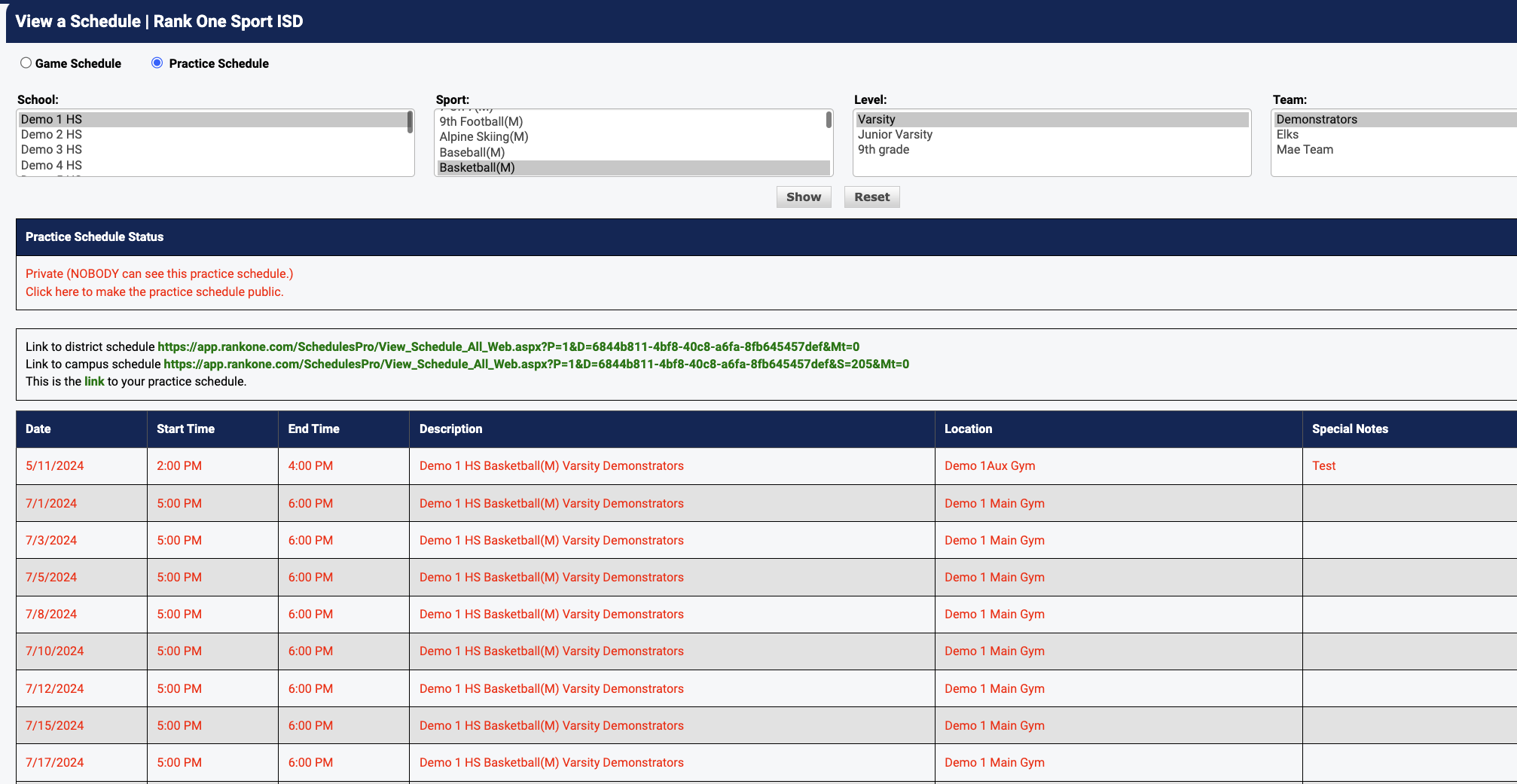
To view your entire Practice Schedule, hold your cursor over the Schedules Tab and select Schedules. Select Practice Schedule, then select the School, Sport, Level, and Team, and click "Show." To make your Practice Schedule Public, change the status to "Public."