Rank One Pro
Rank One Pro
Rank One Pro
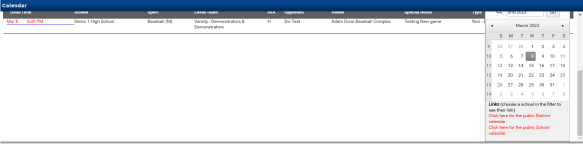
Rank One provides links that allow you to display the district calendar as well as campus-specific calendars. If your activities are in PUBLIC MODE, they will display on the public calendar. The public can use a variety of filters to view the events going on in the district.
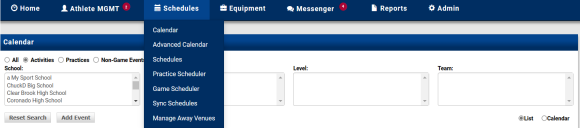
Access the public calendar links by clicking on "Advanced Calendar" under the Schedules tab.
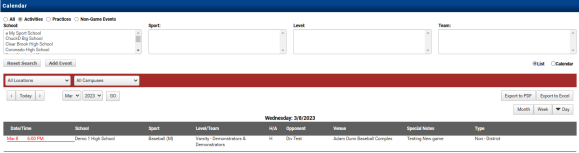
Click the "Day" option and use the scroll bar to scroll down to see the district calendar link, which shows activities for the entire district.
Below the calendar, you will see the link to the District Level Public Calendar.
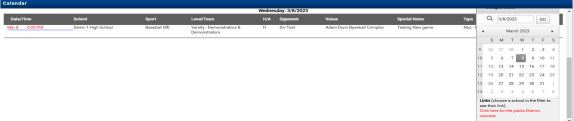
To access campus-specific public calendars, choose a Campus from the School box and repeat the steps above.
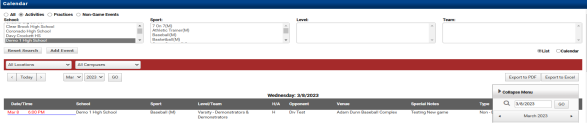
The public campus calendar link will be located under the district level calendar.