 Rank One Pro
Rank One Pro
Rank One Pro
This tutorial explains how to add, edit, and delete Quick Links on your Athletic Web Portal. Quick Links allow you to provide easy access to frequently used websites and resources.
Click on the green Edit icon next to "Quick Links" on your portal.
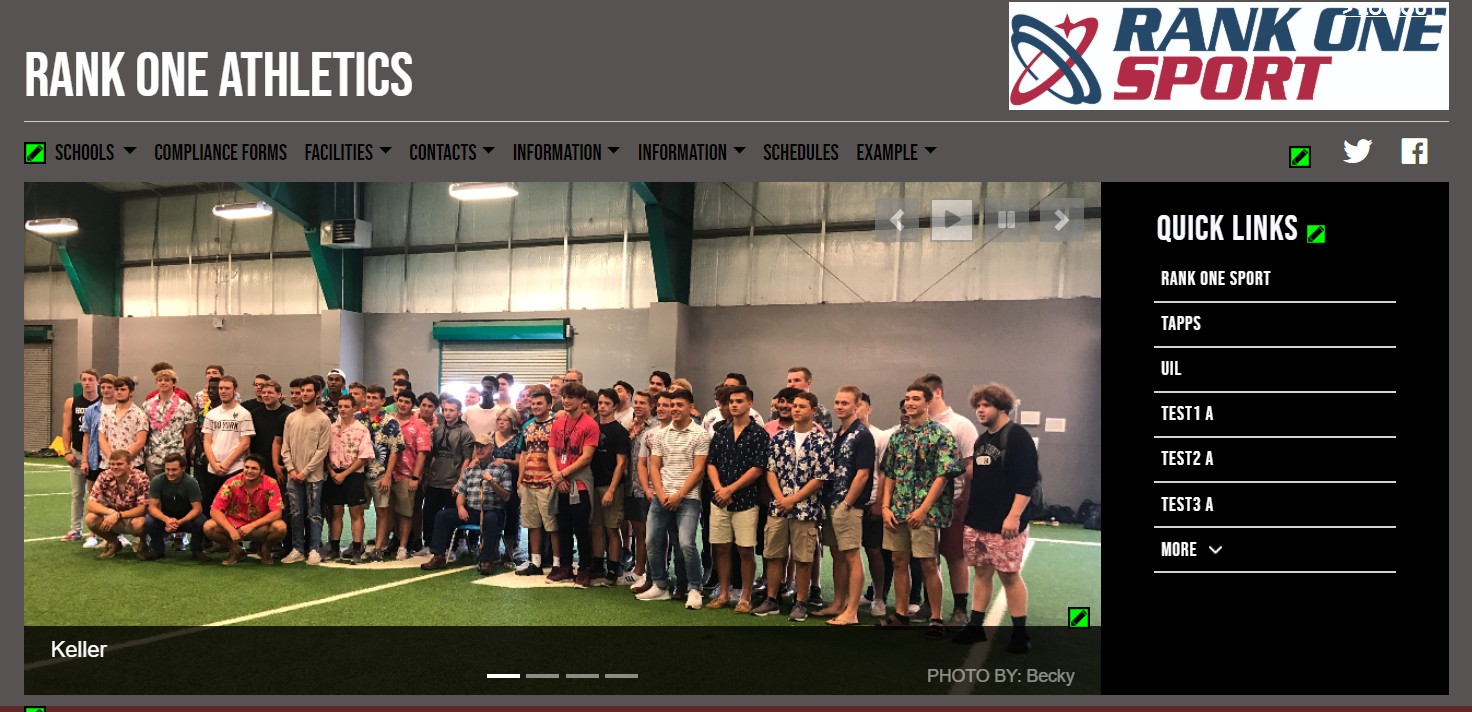
To add a new Quick Link, select the Green Pencil icon next to Quick Links.
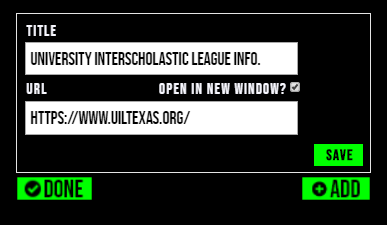
Enter the title of the Quick Link in the Title box.
In the URL box, copy and paste the link from your web browser into the URL box.
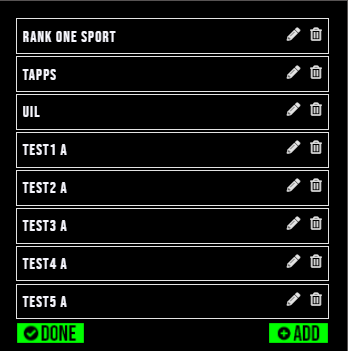
Click Save under the URL box. After you have finished adding all of your Quick Links, click Save again to finalize.
To edit an existing Quick Link, click on the green pencil icon next to Quick Links, then click on the Pencil Icon next to the link you would like to edit. Update the information and click "Save".
To delete an existing Quick Link, click on the green Edit icon next to Quick Links, then click on the Trash Can icon next to the link you would like to delete.