From the Schedules page, you can perform many functions including making schedules public, entering scores, entering summary information, and managing bus details for parents.
1
Navigate to Schedules
Hold your cursor over the Schedules tab and click on "Schedules" from the drop down.
2
Select Your Schedule
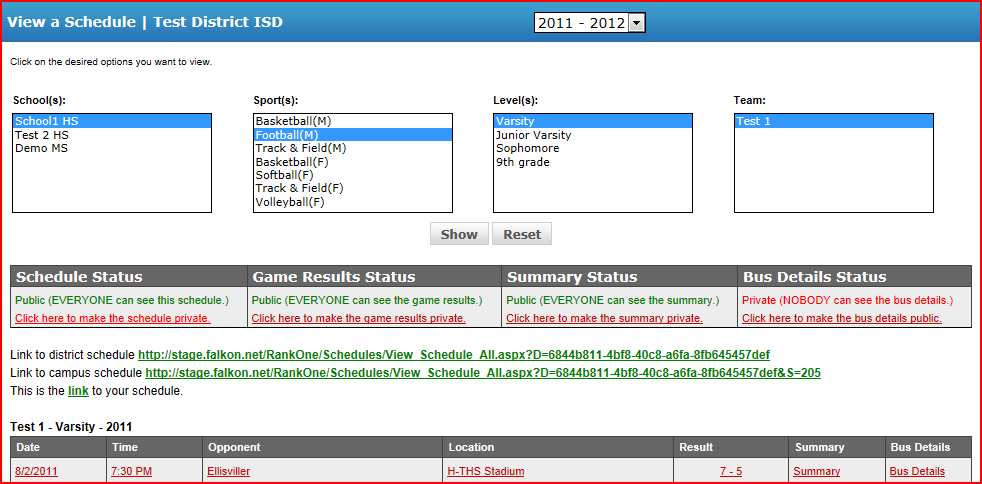
Select the school, sport, level, and team, then click the "Show" button. The schedule will appear below.
3
Control Schedule Visibility
Use the tabs in the Schedule Status box to control visibility:
- To release the schedule and make it public, use the Schedule Status toggle.
- To allow the public to view scores, use the Game Results Status toggle.
- To allow the public to view summary information, use the Summary Status toggle.
- To show bus details on the schedule, use the Bus Details toggle.
Tip: If you make the schedules public, the schedules can be viewed by the public and you turn on the automated email alert feature. You now control whether Game Results (scores), Game Summary, and Bus Details show up on the schedule by either leaving the data in Private mode or making them Public.
Important: Once you make your schedules "Public," it is recommended they stay public for the rest of the year.
 Rank One Pro