Rank One Pro
← Back to Rank One Pro

Secure Messaging

Rank One Pro · Last updated March 17, 2026

To meet state requirements and exceed HIPAA and FERPA standards, Rank One has created a secure messaging feature. Messages can be sent from the Rank One website or the Coach/Admin App. This feature replaces the previous email and text options.

1 Open the Messenger

Log into the website and select Messenger. The link is located in two places on the navigation bar.
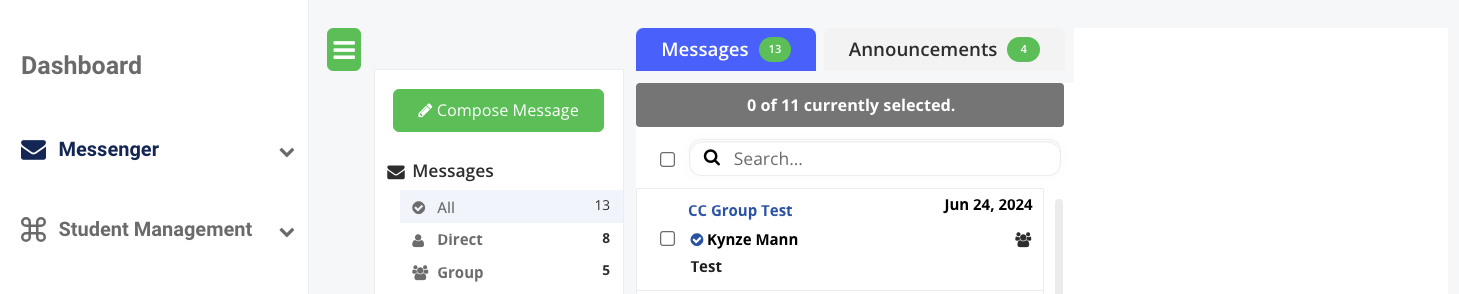
Website navigation showing Messenger link locations
2 Select Compose Message

Click Compose Message to begin creating a new secure message.
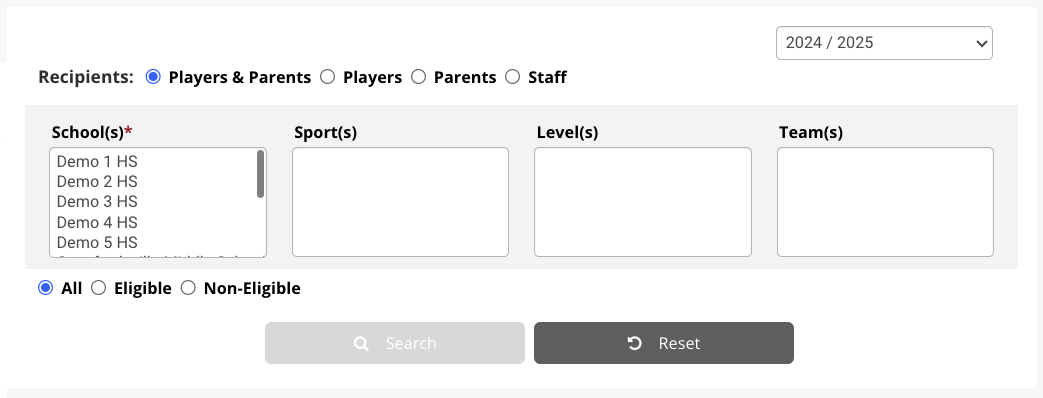
Messenger inbox with Compose Message button
3 Select the Recipient Group

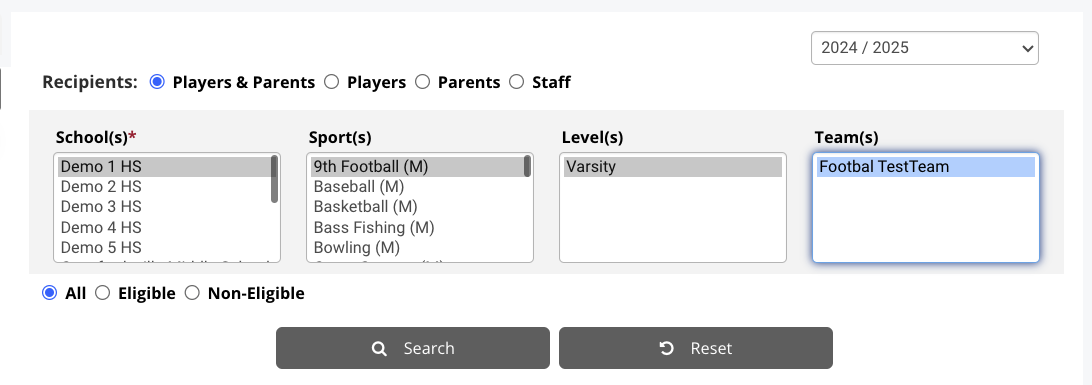
Select the group you would like to send a message to: Employees or Rosters (Players & Parents).
Message recipient selection showing Employees and Rosters options
4 Define Your Audience

Use the filters to narrow down who will receive the message. There are multiple options:

  • All students on multiple rosters — Select just the school, then click Search
  • All students in a sport (e.g., all football rosters) — Select the school and sport, then click Search
  • Students at a specific level (e.g., Varsity only) — Select the school, sport, and level, then click Search
5 Compose and Send

After clicking Search, all matching students will appear below. Complete the following:
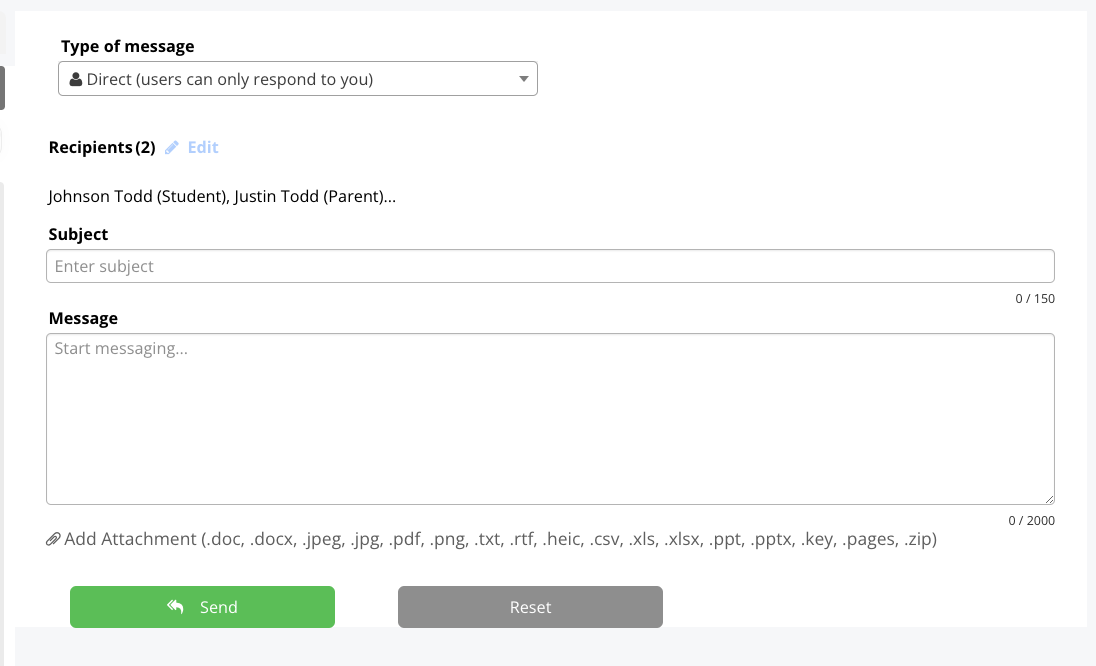
  1. Enter a Subject line
  2. Type your Message details
  3. Click the Send button
Compose message form with subject line, message body, and Send button
Tip: Once the message has been sent, students and parents will receive a push notification if they have downloaded the Parent/Public Rank One App. Parents with an account can also log in to view the message.
Important: Students must download the free Rank One App to receive messages. Search the app store for "Rank One" to find it.