Rank One Pro
← Back to Rank One Pro

Sending Messages to Campers

Rank One Pro · Last updated April 20, 2026

This tutorial explains how to send messages to all campers or select campers registered for a specific camp.

1 Navigate to Camps & Commerce

Log in to Rank One and select Camps & Commerce under the Camps tab.

2 Find the Camp and Click Registrants

Find the desired camp in Manage Camps and click the Registrants link to bring up a list of all registrants for that camp.
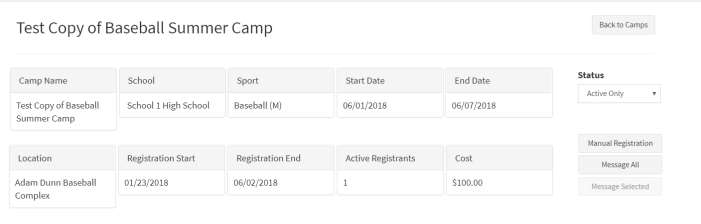
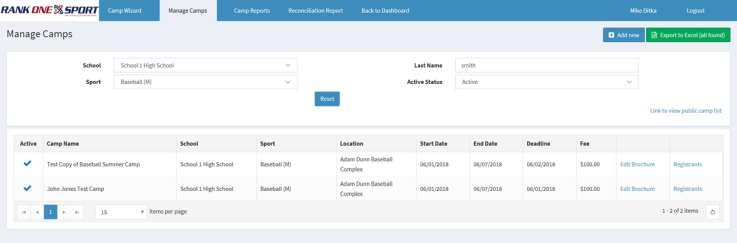
Manage Camps page showing camp list Camp list with Registrants link highlighted
3 Choose Message All or Message Selected

The registrants page shows a list of all campers signed up for the camp. From this screen you can send a message to ALL or SOME campers:
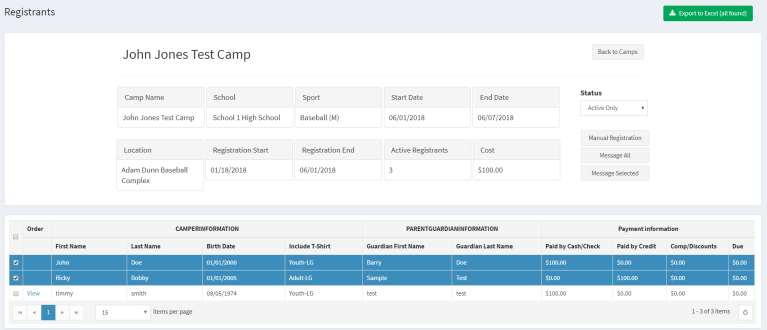
  • To message all campers, click the Message All button.
  • To message select campers, place a check in the box next to the students you want to message, then click Message Selected.
Registrants page showing the Message All and Message Selected buttons
4 Compose and Send the Message

Enter your message subject and message details. Under Notification Type, choose how you would like to send the message:

  • Email
  • Push Notification
  • Email and Push Notification (Both)

When you are ready, click Send Message.
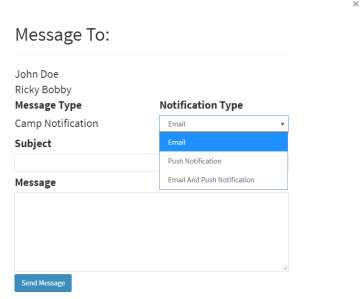
Message dialog showing Subject, Message, Notification Type dropdown, and Send Message button
Tip: For additional help, please contact support@rankone.com.