This guide provides an overview of the steps required to set up your Rank One account. The initial setup must be completed by users with Athletic Director, Assistant Athletic Director, or Administrator access.
Before Logging In
Important: Adding or editing student forms requirements may only be performed by Rank One staff. Please contact support for help with student form changes.
Prior to logging in to Rank One for the first time, complete the following:
- Email us a PDF or Word document copy of your student paperwork. Rank One will format the forms and send them to the programmers to create your online forms site.
- Send us your student data. You should have already received a document titled "FTP Import Documentation." Someone in your IT department or manager of your student database should be able to use this document to send student data for import.
Account Setup Checklist
Once logged in, follow these steps in order to complete your account setup:
1
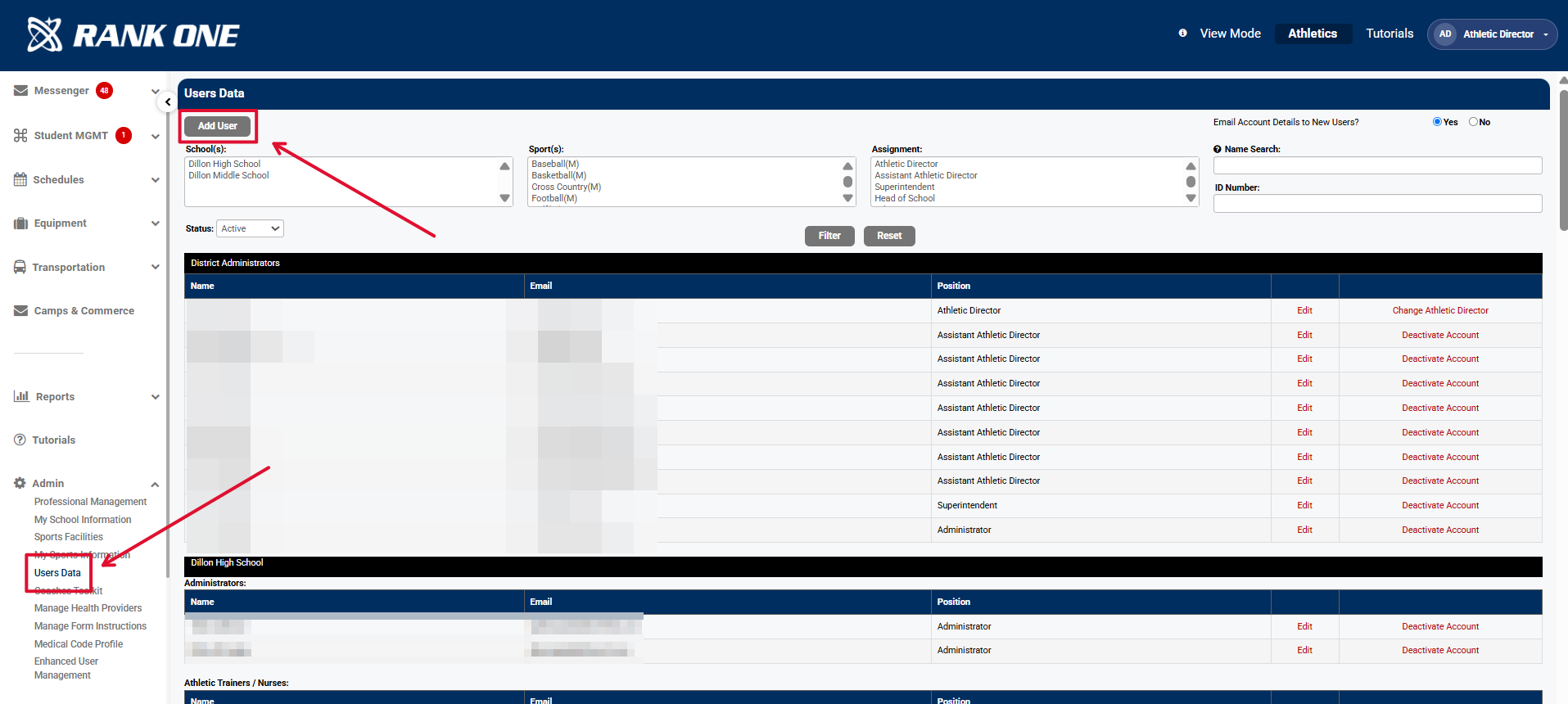
Add Administrative Users
Add Administrative User accounts for staff that will be helping with Rank One setup.
Tip: See the "Adding Administrative Users" tutorial for detailed instructions.
2
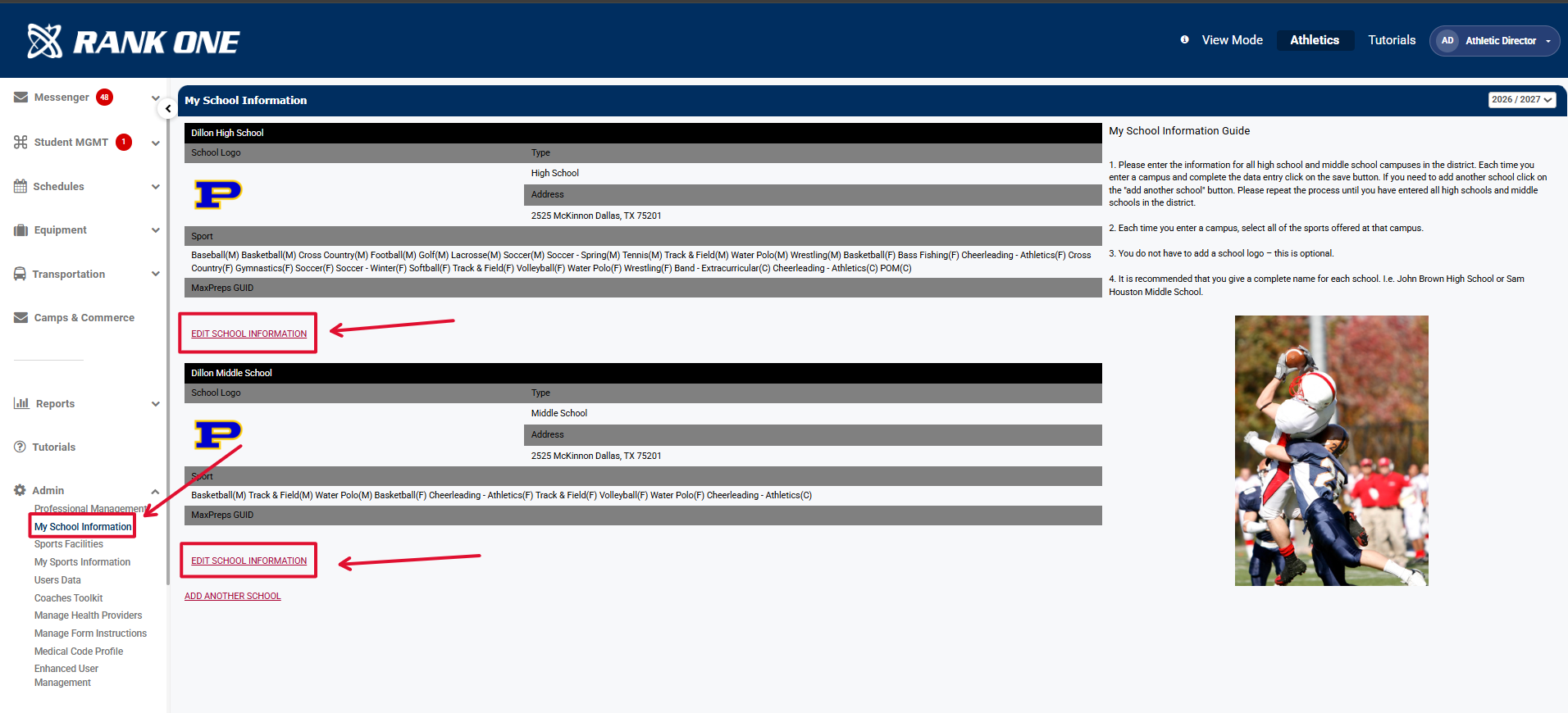
Select Sports and Activities
Select all Sports/Activities that will be using Rank One.
3
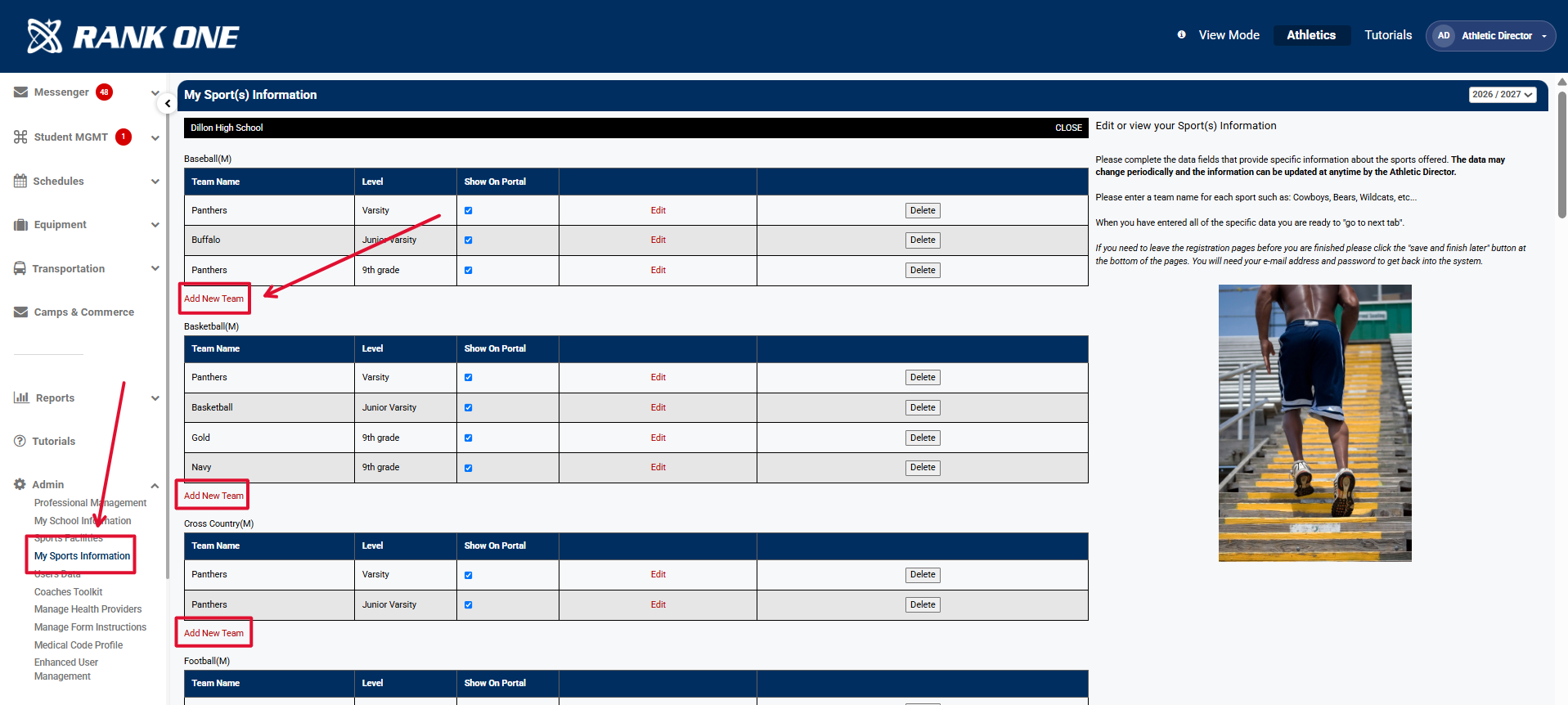
Add Teams
Add "Teams" for each Sport/Activity selected (e.g., Varsity, Junior Varsity, Freshman).
4
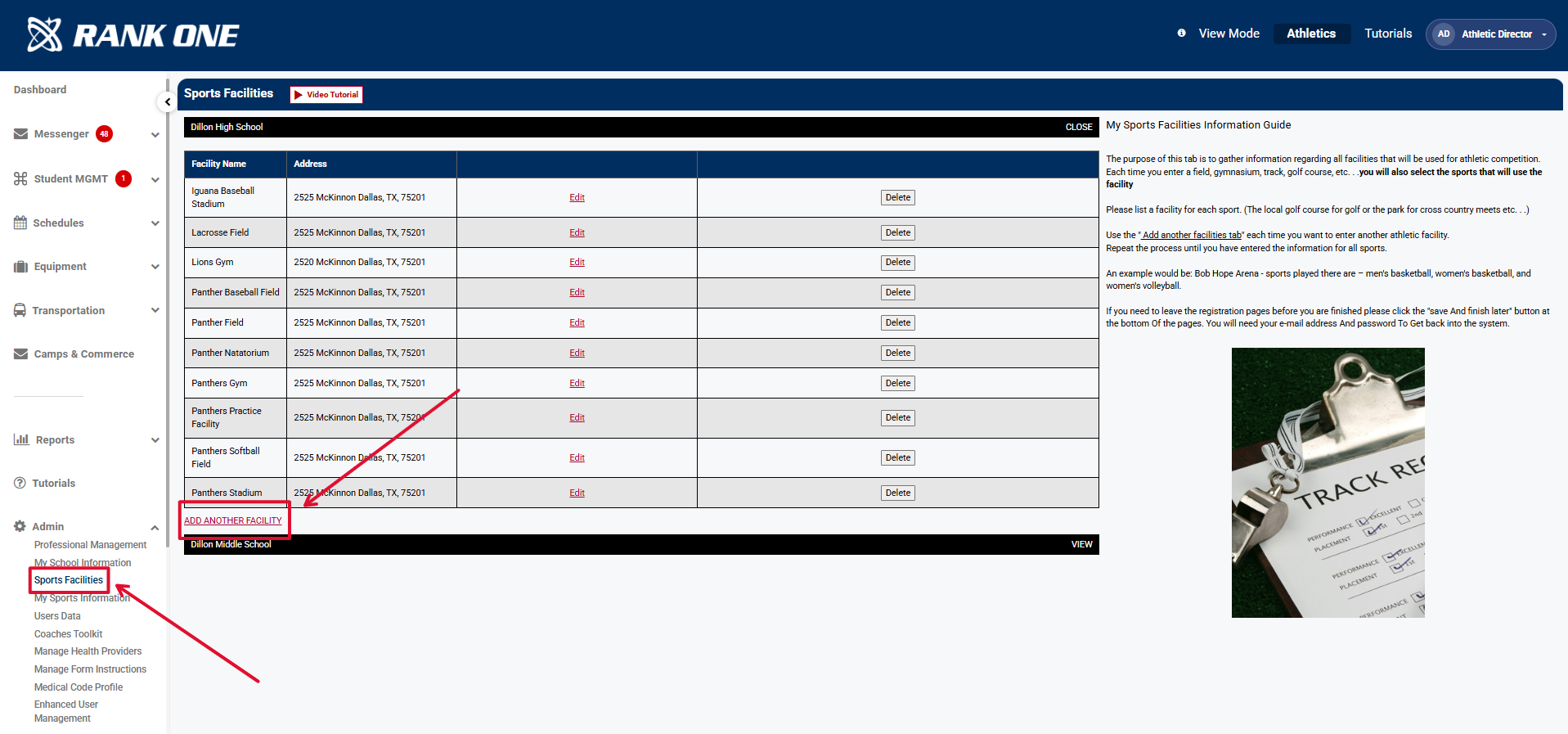
Enter Home Facilities
Enter the home venues where your teams will play.
Tip: See the "Entering Home Facilities" tutorial for detailed instructions.
5
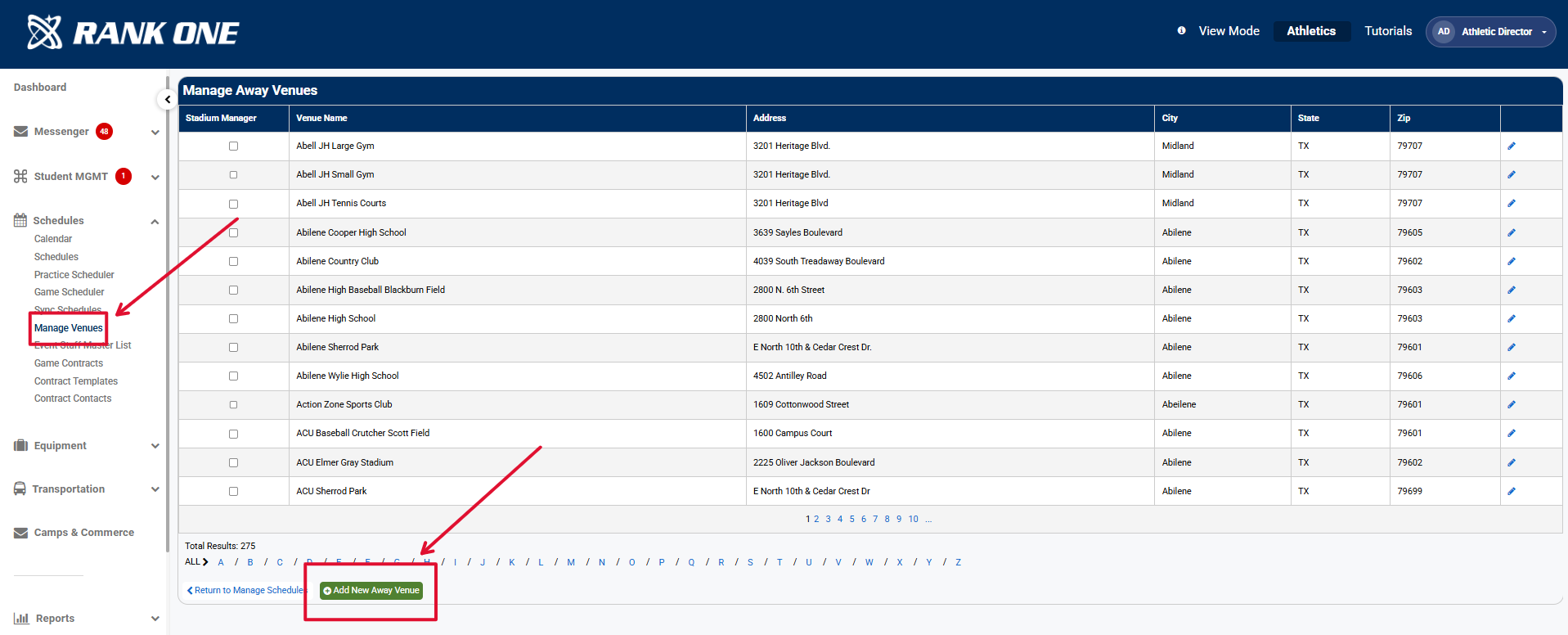
Enter Away Facilities
Enter the away venues where your teams will travel to play.
6
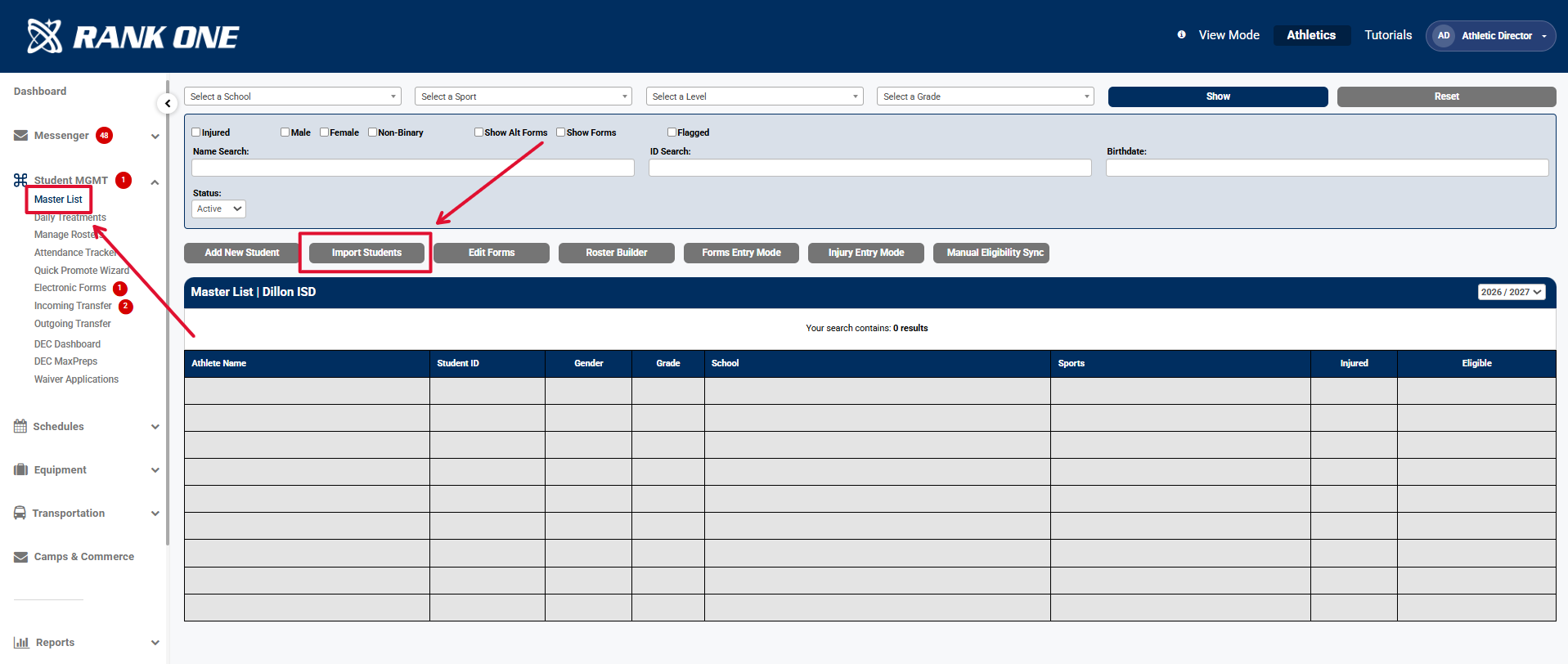
Import Students
Import student data to Rank One using a properly formatted .CSV file.
Tip: See the "Importing Students to Rank One" tutorial for detailed instructions.
7
Add Remaining User Accounts
Add user accounts for all remaining users, including Head Coaches and Assistant Coaches.
Tip: See the "Adding Head Coach and Assistant Coach Users" tutorial for detailed instructions.
8
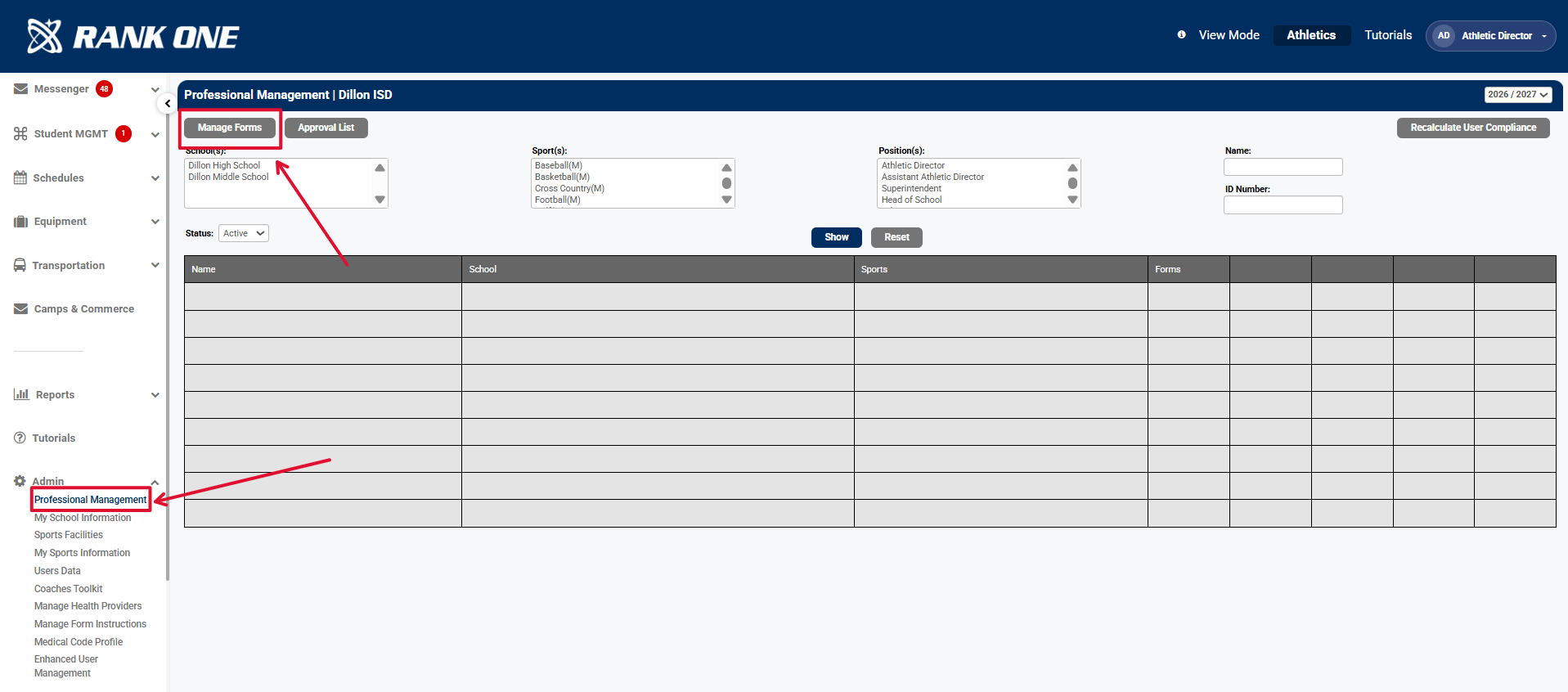
Setup Professional Management Requirements
Configure compliance requirements for professional management tracking.
 Rank One Pro