 Rank One Pro
Rank One Pro
Rank One Pro
Rank One offers Text and Email alerts to improve communication between the athletic department and parents/community members. This tutorial explains how to sign up for schedule alerts and what information you will receive.
The system provides the following alert types:
Go to your school's schedule page. At the top of the schedule, you will see a link to "Sign up for schedule alerts." Click on this link to begin the sign-up process.
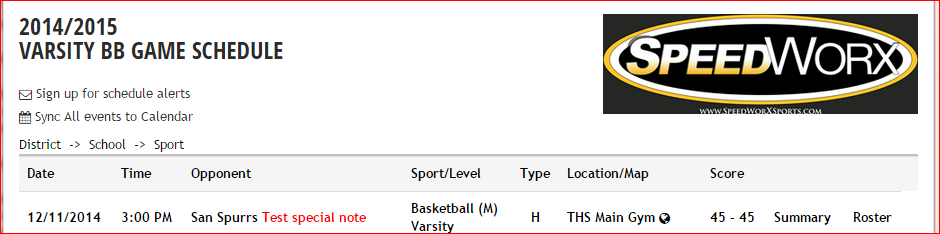
The alerts sign-up link is located at the top of the schedule page.
After clicking the sign-up link, a form will appear where you can enter your phone number for text alerts and your email address for email alerts. Fill in your information and click the Subscribe button.
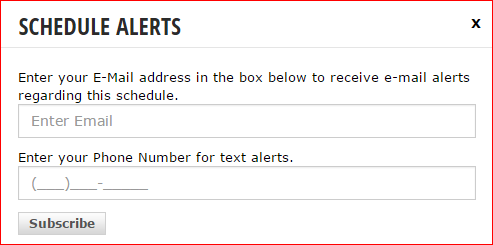
Enter your email and phone number, then click Subscribe.
When the school makes a change to the schedule (while in Public Mode), a text alert will be sent to all subscribers. The text message includes the date, school name, sport, gender, level, and team name. It also contains a link to view the full details of the alert.
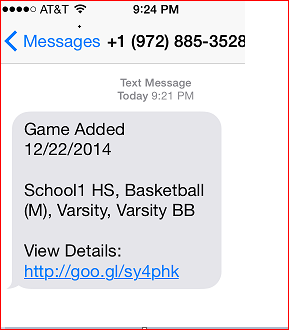
Example of a "Game Added" text alert received on a mobile device.
To see the full details of the alert, tap the link included in the text message. A page will open displaying the complete schedule details including the date, time, opponent, location, and any special notes.
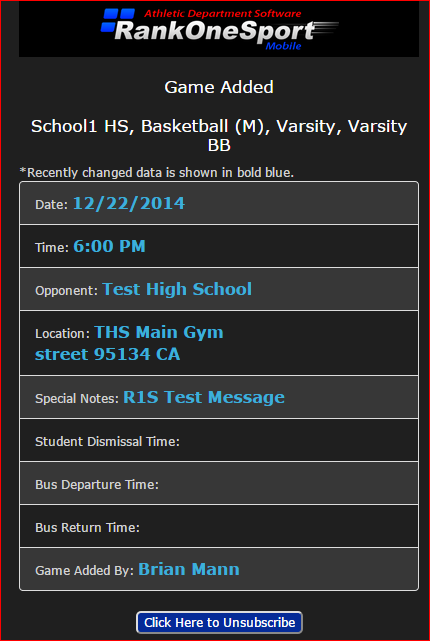
Full game details are displayed when you tap the link in the text alert.
If you no longer wish to receive alerts, you can unsubscribe at any time by clicking the "Click Here to Unsubscribe" link at the bottom of any alert details page.