Rank One Pro
← Back to Rank One Pro

Transportation Email Alert Notifications

Rank One Pro · Last updated May 8, 2026

The Transportation email notification alert is designed to notify a user when a new transportation request is entered into the system.

1 Ensure User Has Transportation Access

Before a user can receive transportation email alert notifications, they must first have access to Fill Out Transportation Requests within the system.

Tip: For help on giving users access to transportation features, see the Transportation Feature Tutorial.
2 Enable Notification Alerts

An Administrator user can provide permissions for a user to receive transportation alert notifications. Follow these steps:
  1. Navigate to Admin > Users Data.
  2. Find the user and select Edit.
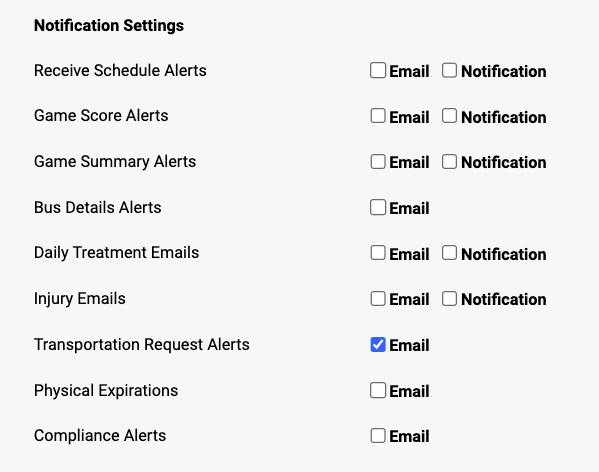
  3. Under Notification Settings, place a check in the box for Transportation Request Alerts.
  4. Click Save.
User notification settings showing Transportation Request Alerts checkbox
3 Receiving Alert Emails

When a new transportation request is added to the system, an email will automatically be sent to anyone who has been set up to receive transportation alert notifications.

Tip: The alert email will contain the following information:
  • Campus: School Name
  • Sport: Sport & Gender
  • Bus Departure Date: MM/DD/YYYY
  • Trip ID: ######
  • Request was added by: User Name