Rank One Pro
← Back to Rank One Pro

Transportation Feature Tutorial

Rank One Pro · Last updated May 8, 2026

The transportation section consists of four key components: user access, the Transportation Request page, the Transportation Log, and the Transportation Report Builder.
Transportation tab in navigation menu

Part 1: Giving Users Access

You must be an Administrator User to give users access to the Transportation feature.

1 Open Users Data

Hold your cursor over the Admin Tab and select Users Data.

2 Edit the User Account

Find the user you want to grant access to and select Edit next to their account.

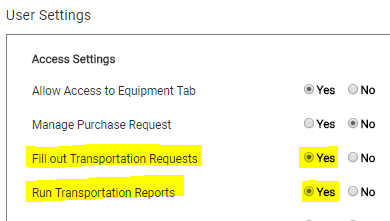
3 Enable Transportation Access

Under Access Settings, select Yes next to "Fill out Transportation Requests & Run Transportation Reports".

4 Save Changes

Click Save to apply the access settings.
User account edit page showing Transportation access settings

Part 2: Filling Out a Request

5 Open Transportation Request

Hold your cursor over the Transportation Tab and select Transportation Request.

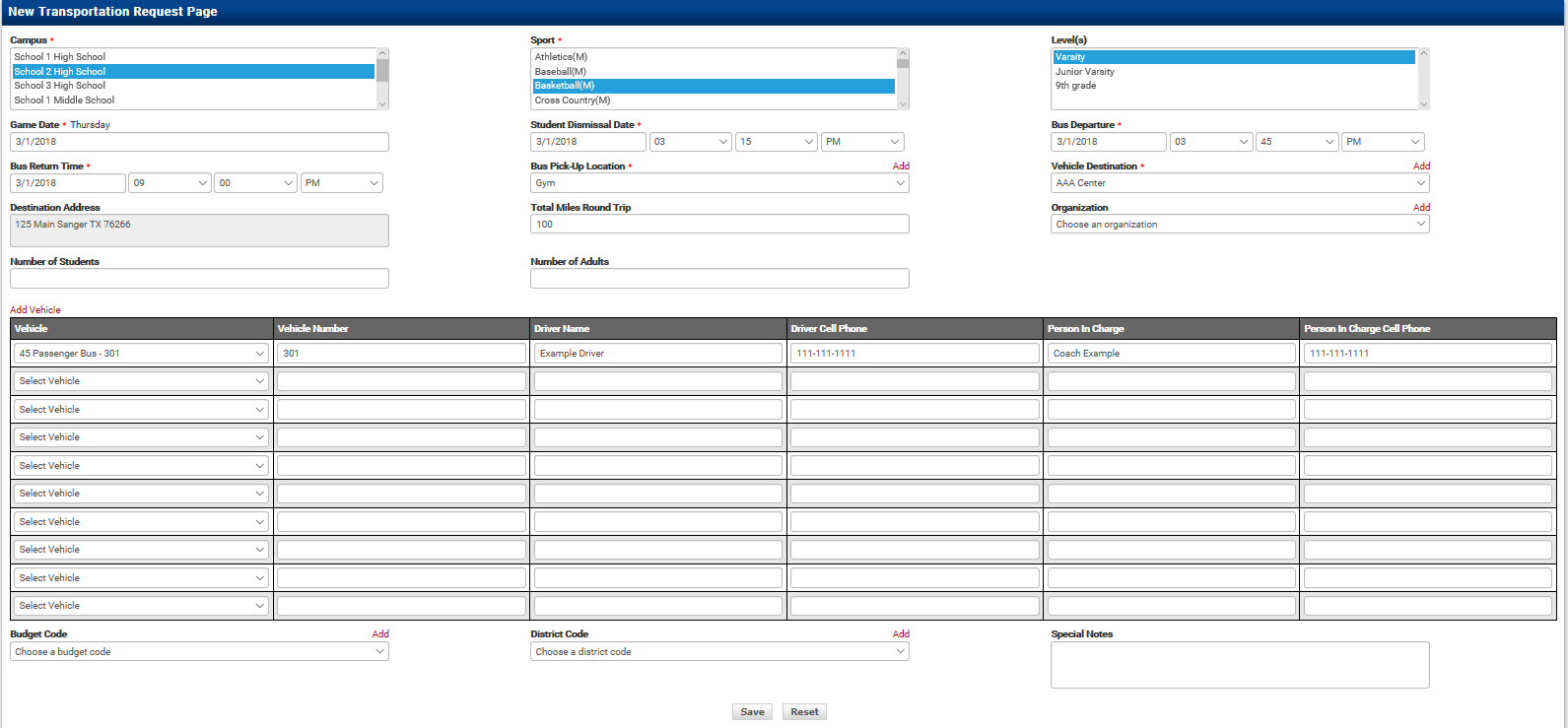
6 Complete and Submit the Request

Complete all required data (marked with *) and click Save.
Transportation request form with required fields
Important: Entering the Game Schedule does NOT automatically create a Transportation Request! You must submit each transportation request separately.

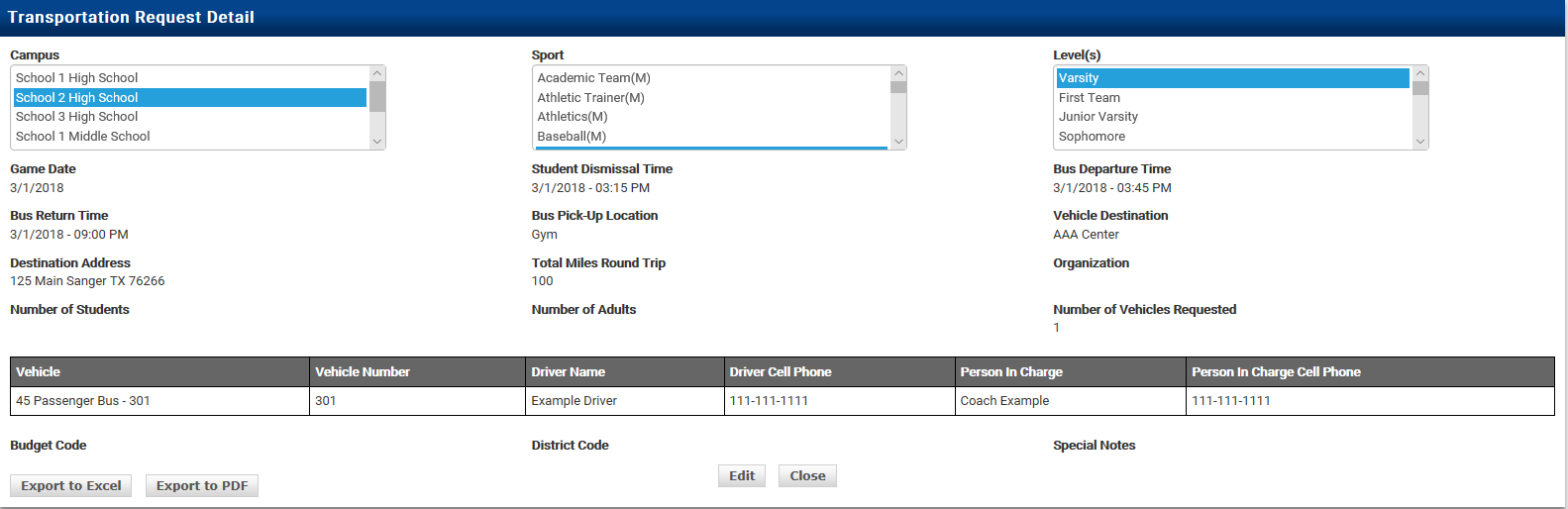
After saving, you will see the Request Details page. From here, you can Edit the request or Export it to Excel or PDF.
Transportation request details page with Edit and Export options

Part 3: Viewing the Transportation Log

7 Open the Transportation Log

Hold your cursor over the Transportation Tab and select Transportation Log.

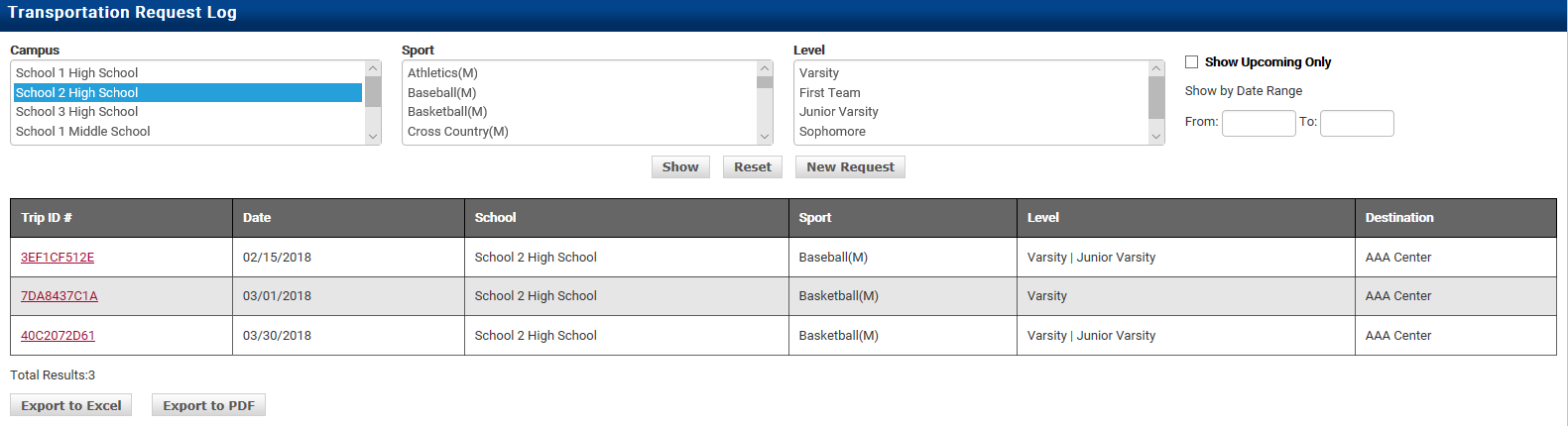
  • To view all requests: select your campus and click Show.
  • To narrow results: select a campus and sport, then click Show.
  • You can further narrow by Date Range or use "Show Upcoming Only".

The system assigns a Trip ID for each request. To open, edit, or cancel a request, click on its Trip ID.
Transportation Log showing list of requests with Trip IDs
Tip: Access levels determine what you see in the Transportation Log:
  • AD & Assistant AD see ALL requests across the district.
  • Administrators see requests for their school only.
  • Coaches see requests for their sport(s) only.

Part 4: Running a Transportation Report

8 Open the Transportation Report

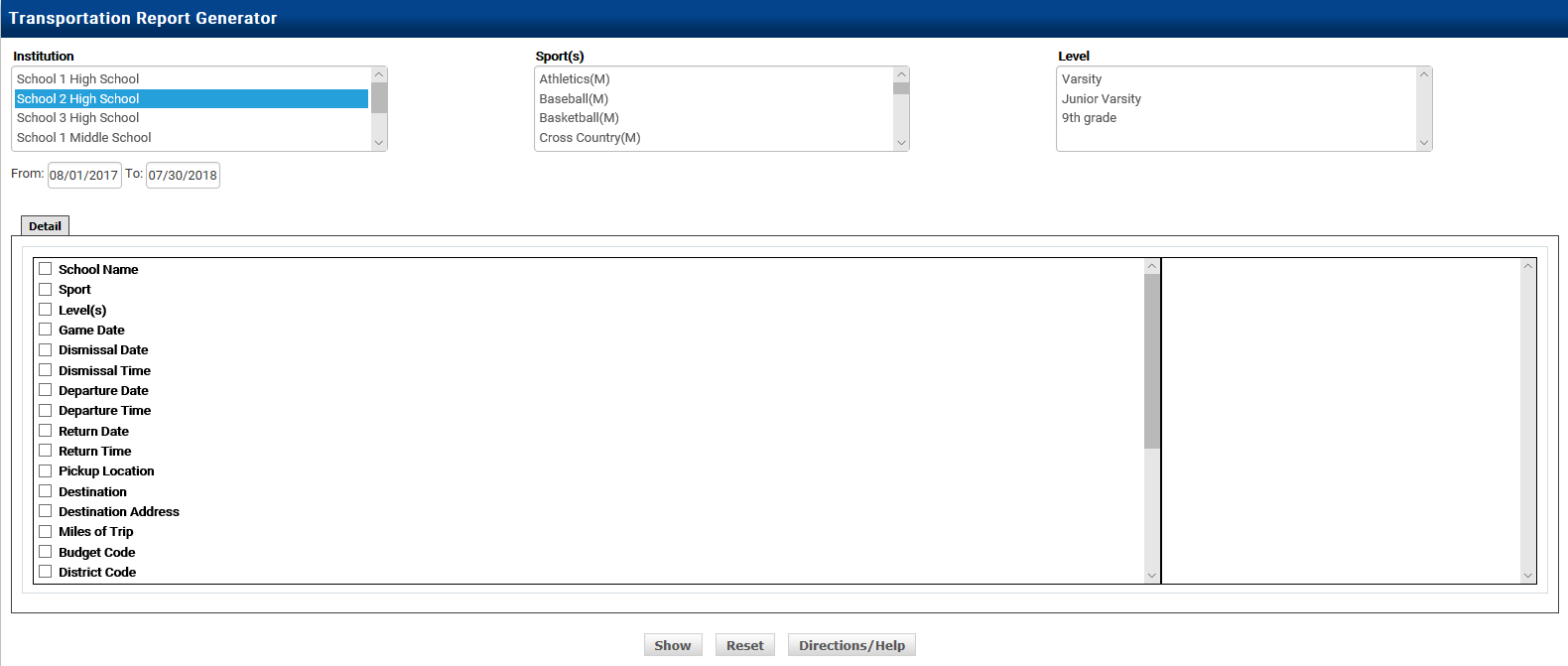
Hold your cursor over the Reports Tab and select "Transportation Report".

Tip: Report building tips:
  • Select your Institution and desired details, then click Show.
  • Narrow results by selecting a specific sport.
  • Use the Date Range to filter by week, month, or season.
  • Export your report to Excel or PDF for sharing and record-keeping.