The transportation section has 4 parts that make up the feature: user access, the Transportation Request page, the Transportation Log, and the Transportation Report Builder (found under the Reports Tab).
Part 1: Giving Users Access
Important: You must be an Administrator User to give users access to the Transportation Feature.
1
Open Users Data
Hold your cursor over the Admin Tab and select Users Data.
2
Edit the User Account
Find the user you want to give access to, then select Edit next to their account.
3
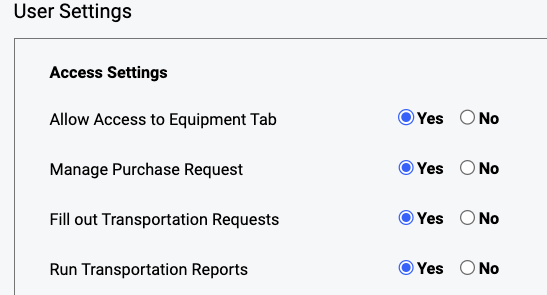
Enable Transportation Access
Under Access Settings, select Yes next to "Fill out Transportation Requests & Run Transportation Reports".
Part 2: How to Fill Out a Request
5
Open the Transportation Request Page
Hold your cursor over the Transportation Tab and select Transportation Request.
6
Complete and Save the Request
Complete all required data (sections marked with *) and any additional information, then click Save.
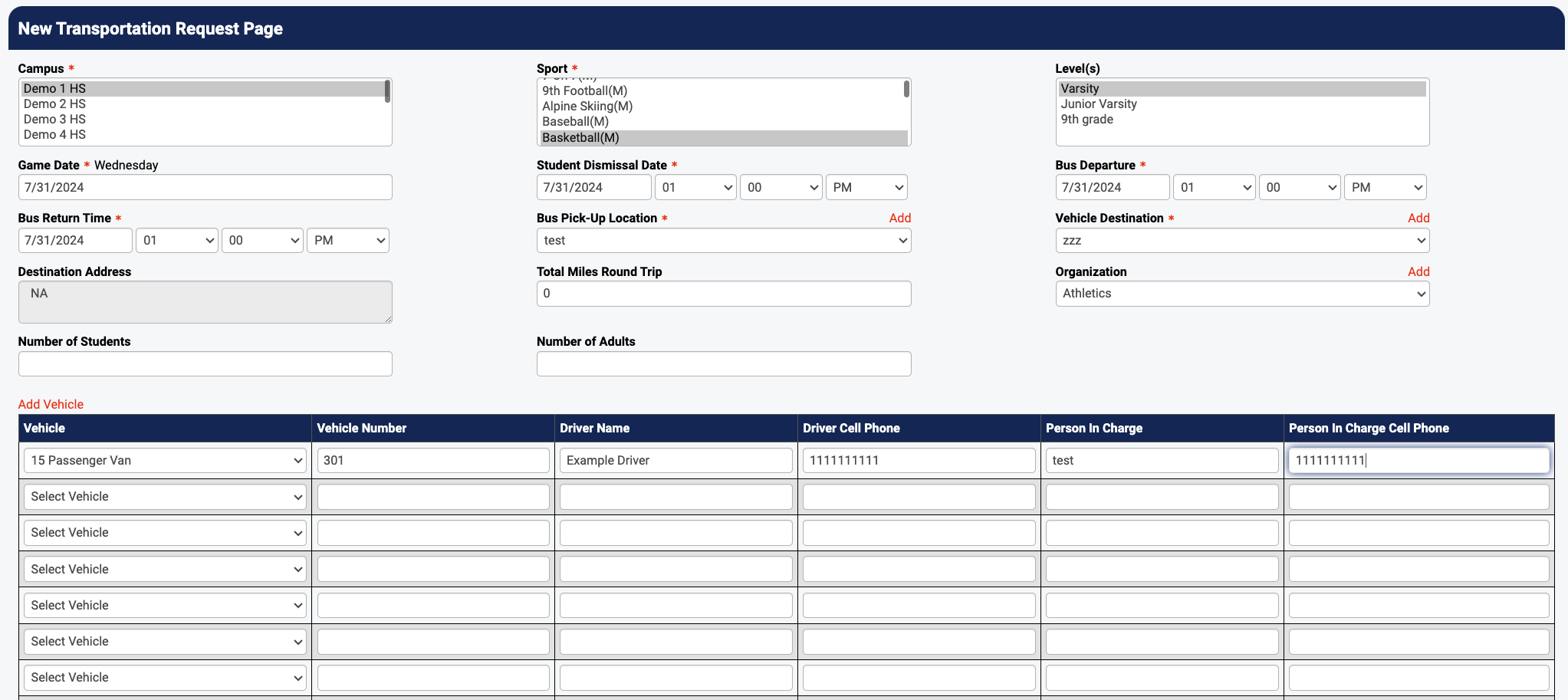
Important: Entering the Game Schedule does NOT automatically create a Transportation Request!
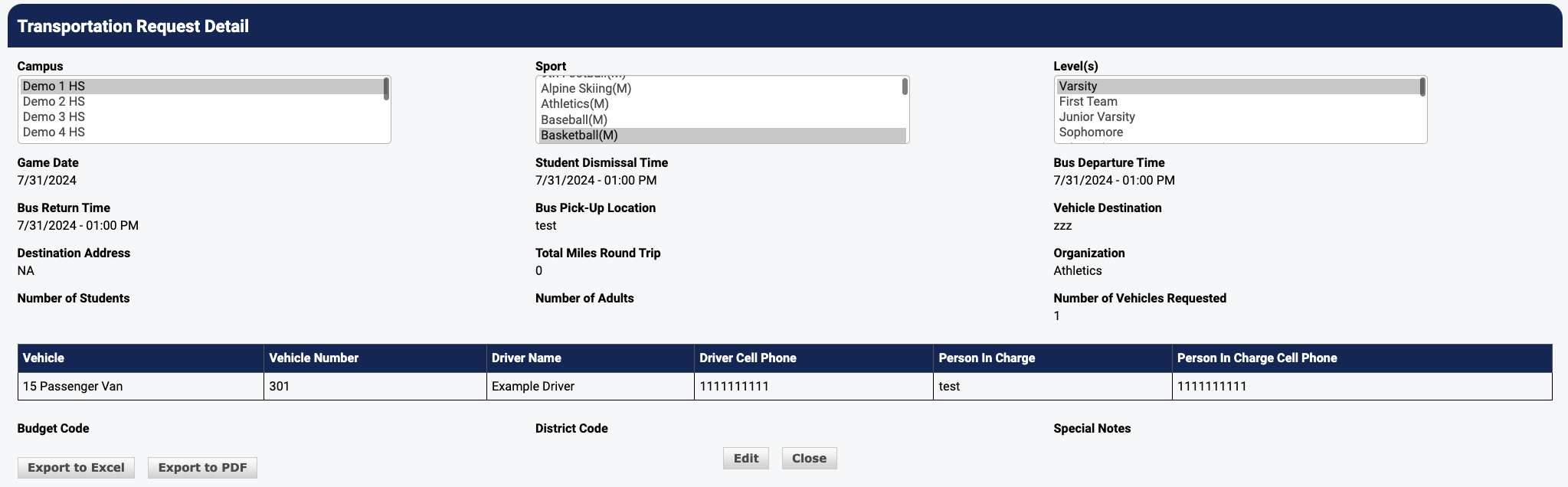
After saving, you will see the Request Details. If changes are needed, click Edit. To print, select Export to Excel or PDF.
Part 3: Viewing Requests in the Transportation Log
7
Open the Transportation Log
Hold your cursor over the Transportation Tab and select Transportation Log.
- To view all requests: select your campus and click Show.
- To narrow results: select a campus and sport, then click Show.
- You can also narrow by Date Range or select "Show Upcoming Only".
- The system assigns a Trip ID for each request (use this for staff communication).
- To open, edit, or cancel a request: click on the Trip ID.
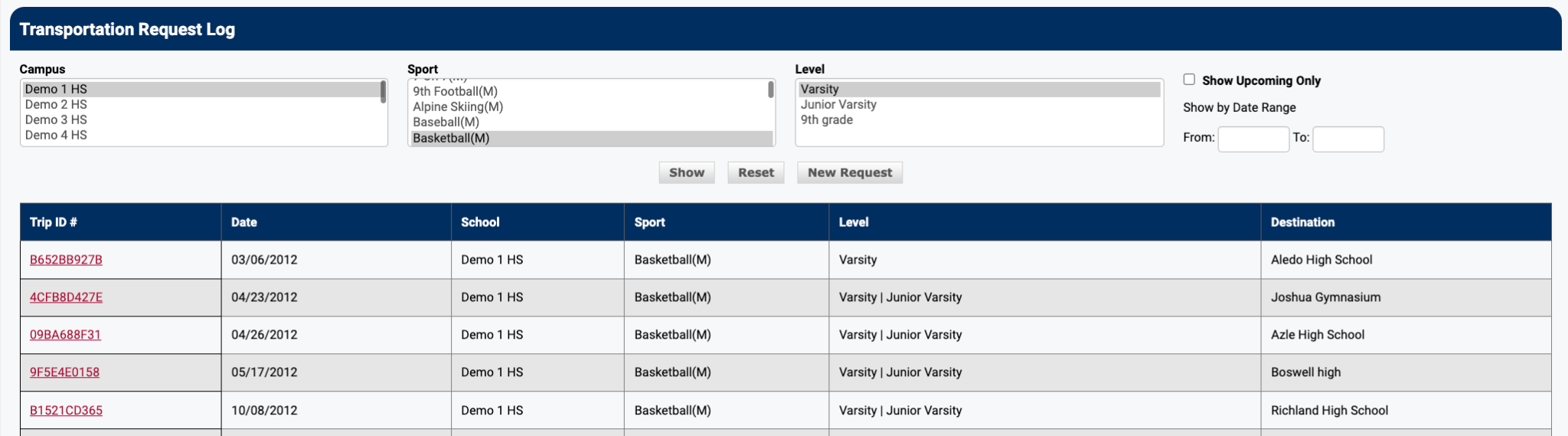
Tip: Access levels determine what each user sees in the Transportation Log. AD & Assistant AD users can see ALL requests across the district. Administrators see requests for their school only. Coaches see requests for their sport(s) only.
Part 4: How to Run a Transportation Report
8
Open the Transportation Report
Hold your cursor over the Reports Tab and select "Transportation Report".
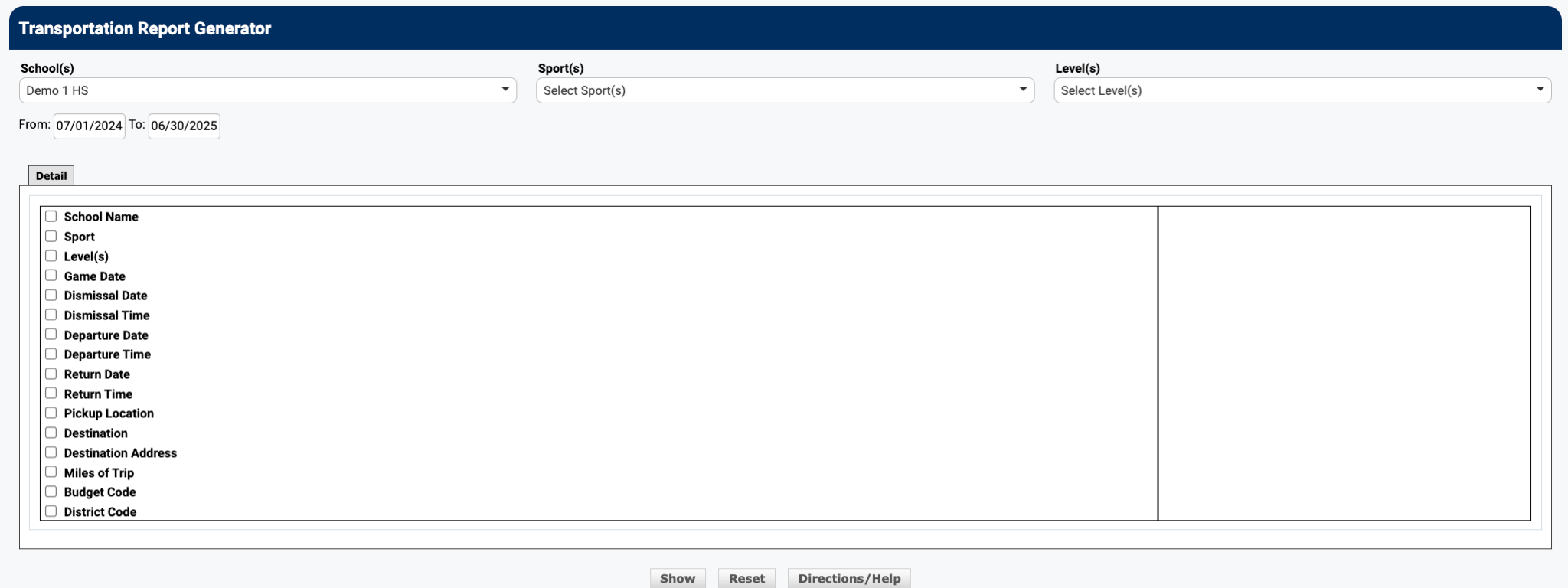
Tip: Report tips for getting the data you need:
- Select your Institution and details, then click Show to view all requests.
- Narrow to a specific sport by selecting Institution, Sport, and Details.
- Use Date Range to filter by week, month, season, etc.
- Export to Excel or PDF using the options at the bottom of the page.
 Rank One Pro