Rank One Pro
Rank One Pro
Rank One Pro
This tutorial explains how to view an athlete's profile information, contact details, medical records, and forms using the Rank One Coach/Admin mobile app.
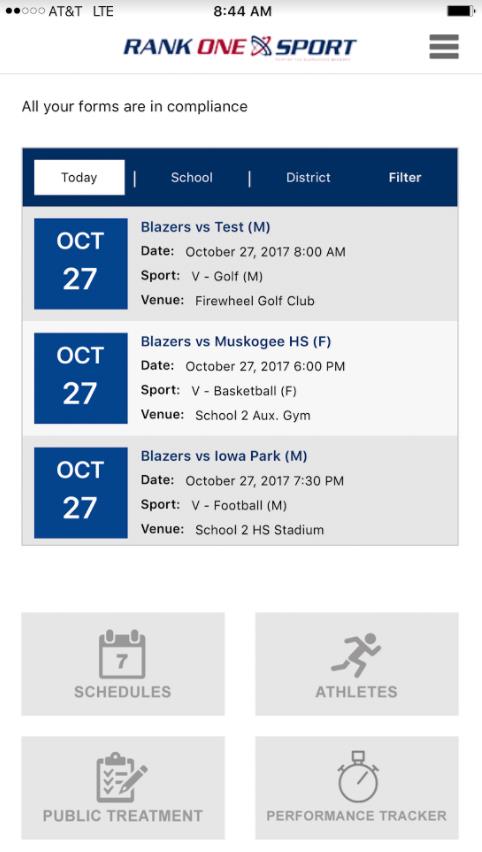
From the app home screen, tap Athletes.
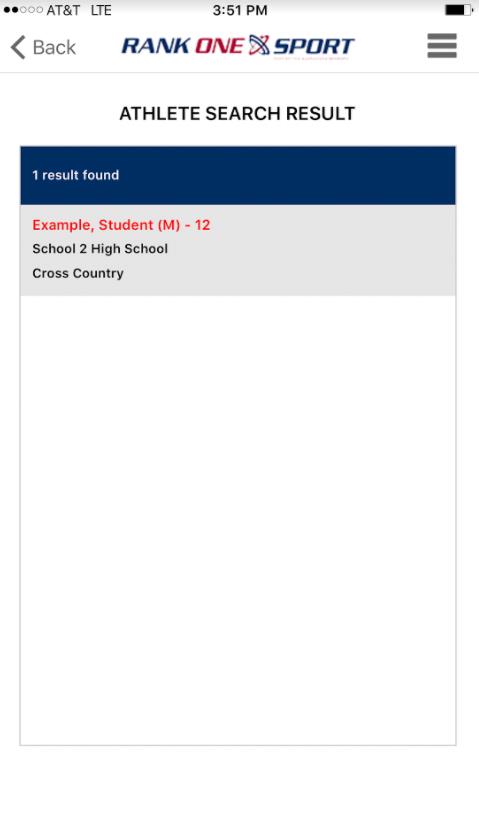
To search using the Master List, select the School and tap Search. The Master List will populate. You may scroll through and select the appropriate athlete.
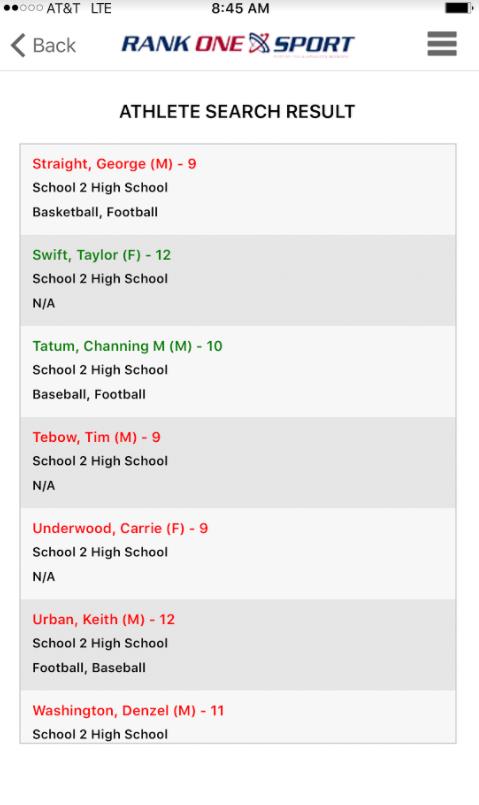
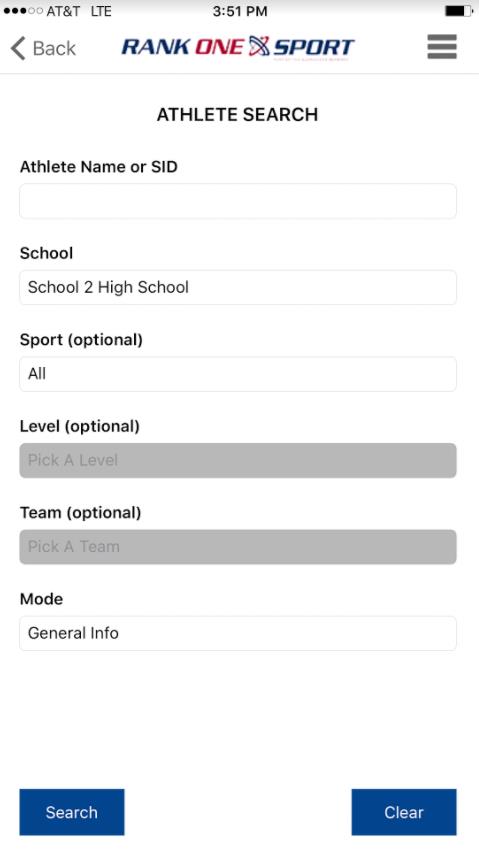
Athletes will appear in Red/Green exactly as they are on the website.
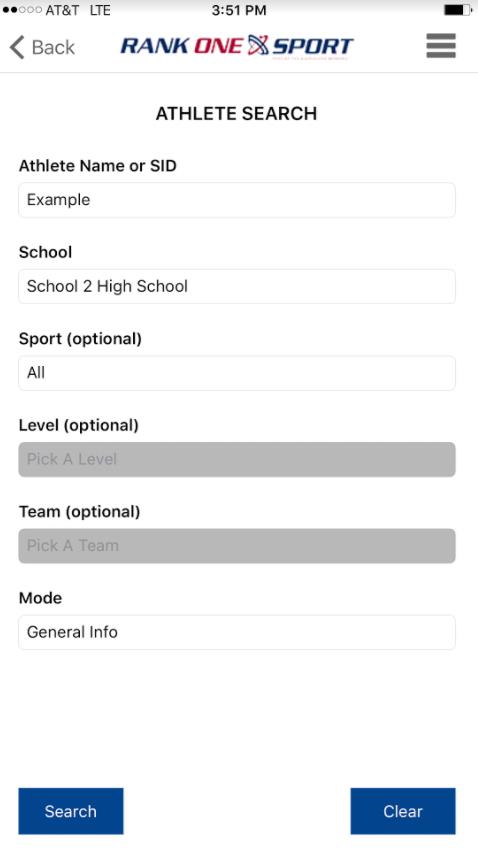
If you want to search for a specific athlete, type the appropriate information in the Name/ID box, select the School, and tap Search.
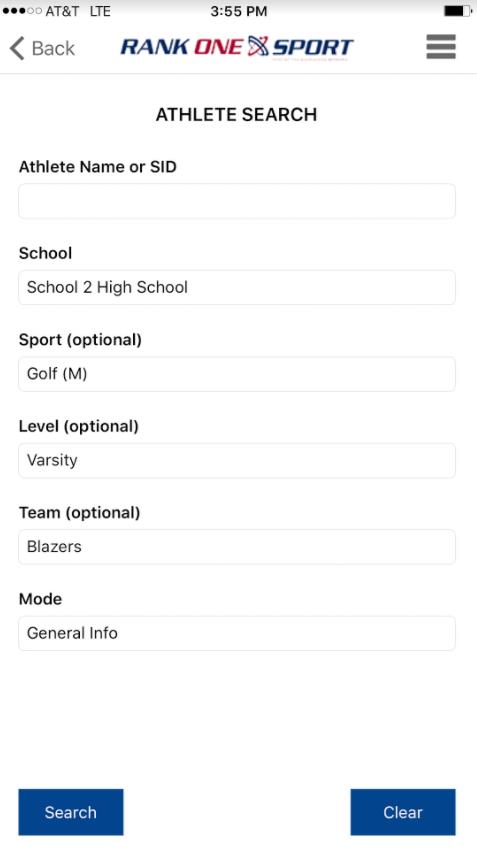
If you would like to search by Sports Roster, select the School, Sport, Level, and Team, then tap Search.
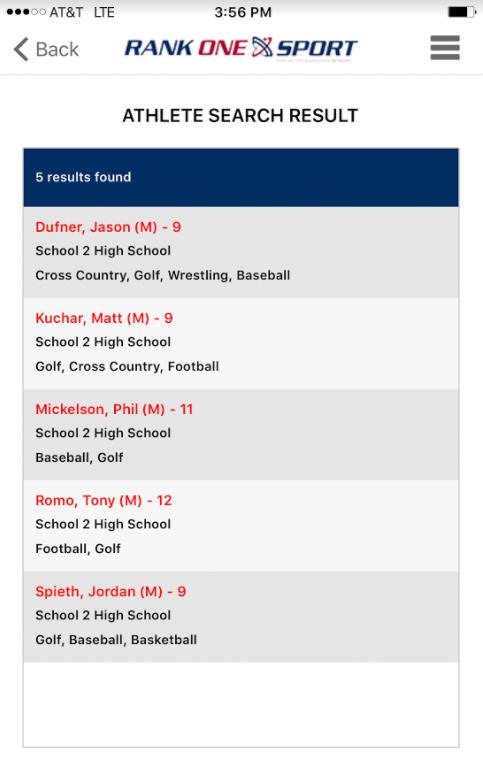
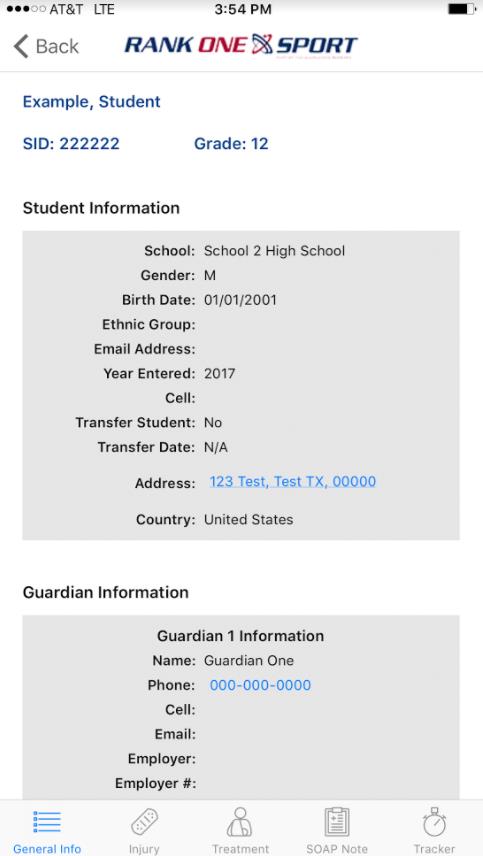
To see the athlete's profile information, tap on their Name.
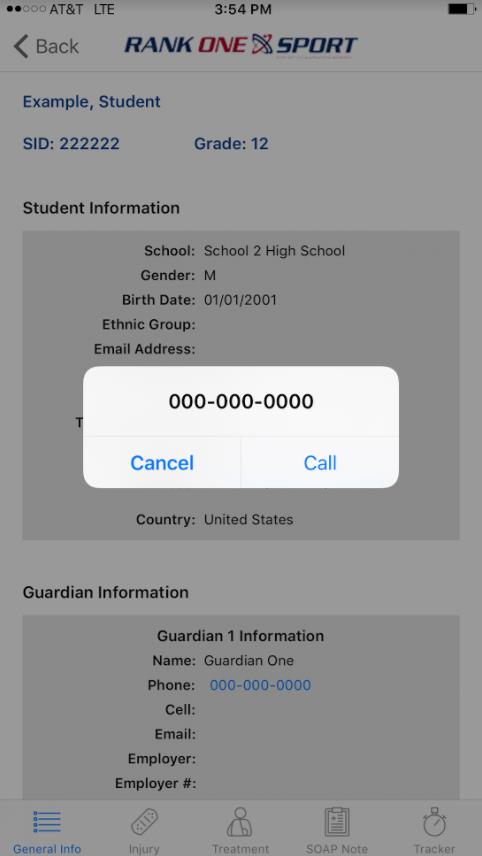
If you need to call an athlete's Guardian or Emergency Contact, you may tap on the phone number listed and your phone will call the number directly.
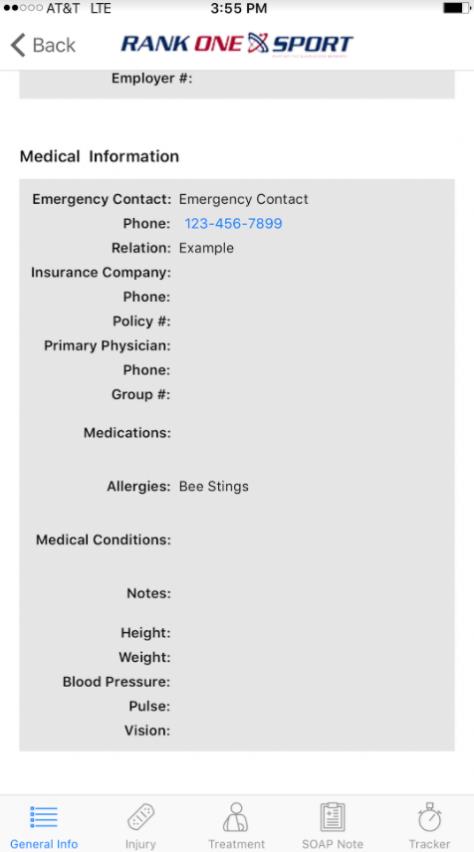
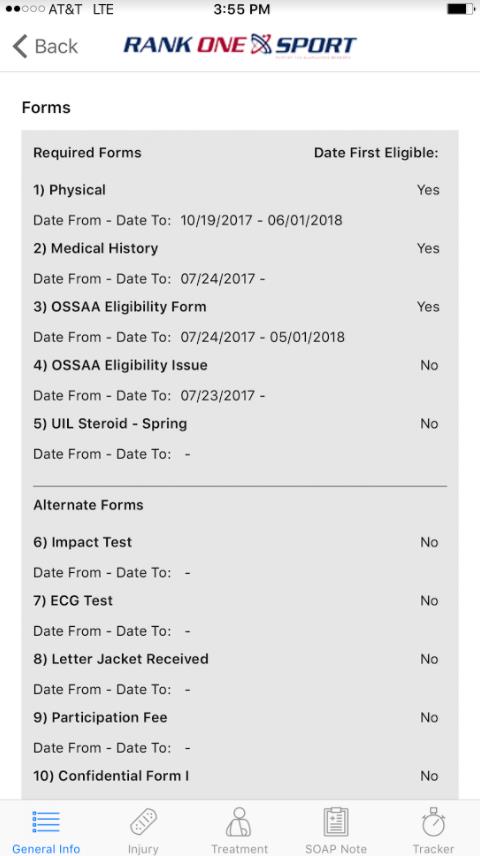
Scroll down to view more information such as Medical Information and Forms.
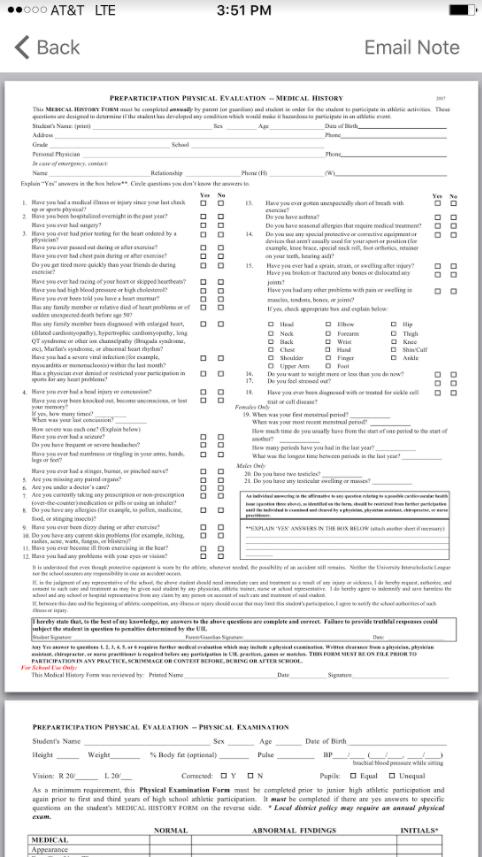
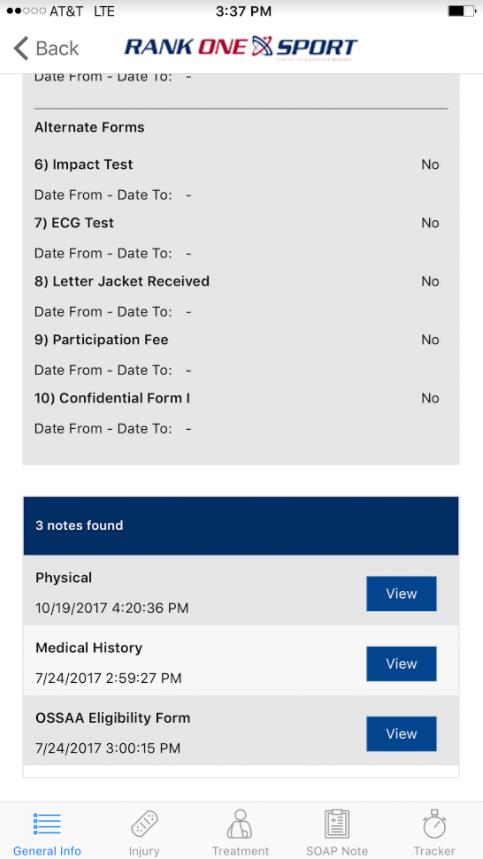
To view a copy of an Online Form or Note, scroll to the very bottom of the profile and tap View next to the document you are trying to access.
When the document appears, you can review it on screen. If needed, you can also Email the Note using the email option.